 Zudo Works
How to ask Zudo AI and approve a proposal
Ask questions about your workspace in plain words; when Zudo AI proposes a change (a chart, a dashboard, a record update) nothing happens until you approve it.
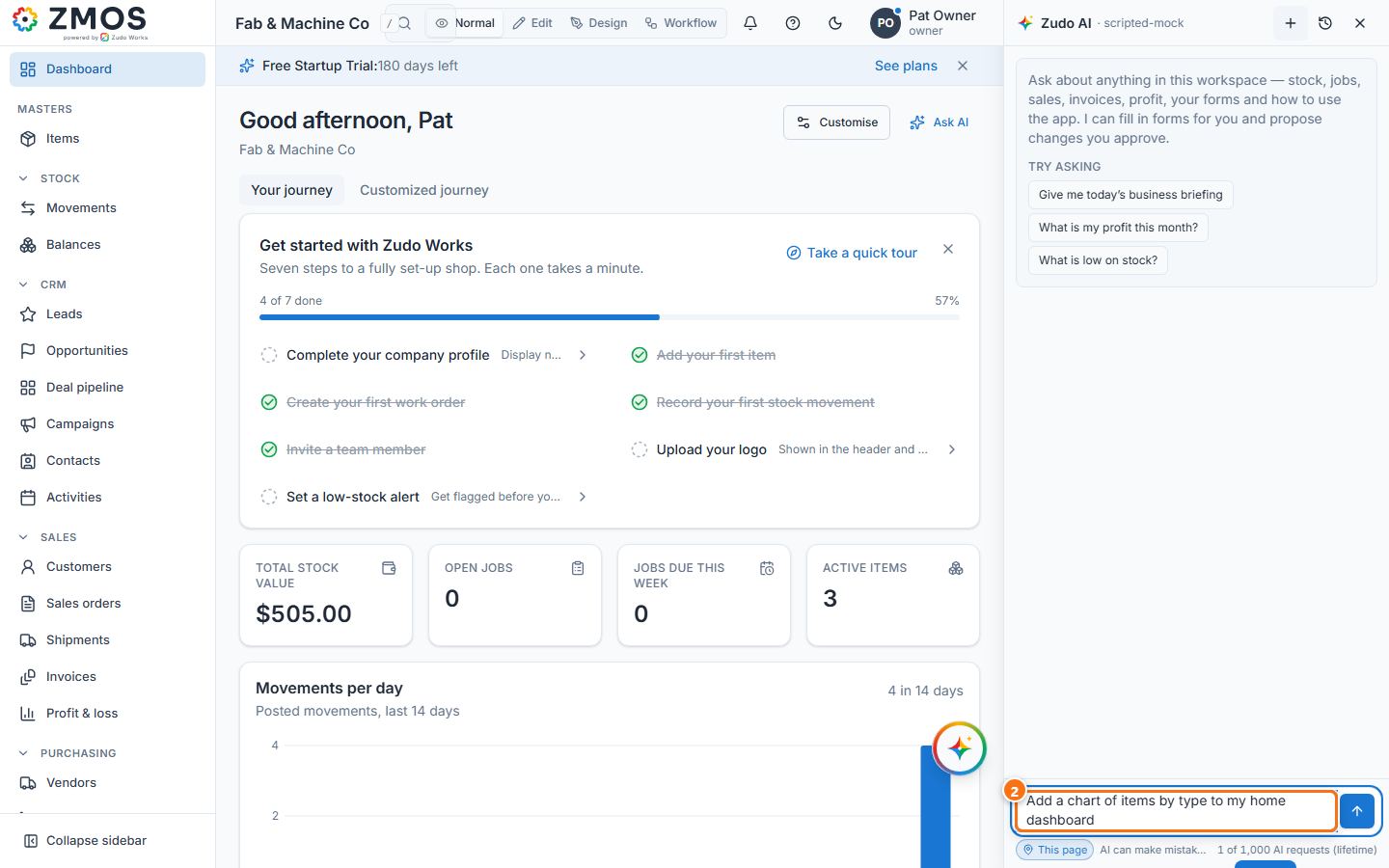
- Press Ask Zudo AI in the bottom-right corner. The Zudo AI panel opens (press New chat for a fresh conversation).
- Type your question in the Ask about this workspace… box at the bottom, for example Add a chart of items by type to my home dashboard, or press one of the Try asking suggestions.
- Press Send (or Enter). The answer streams in; a chip names the data it used.
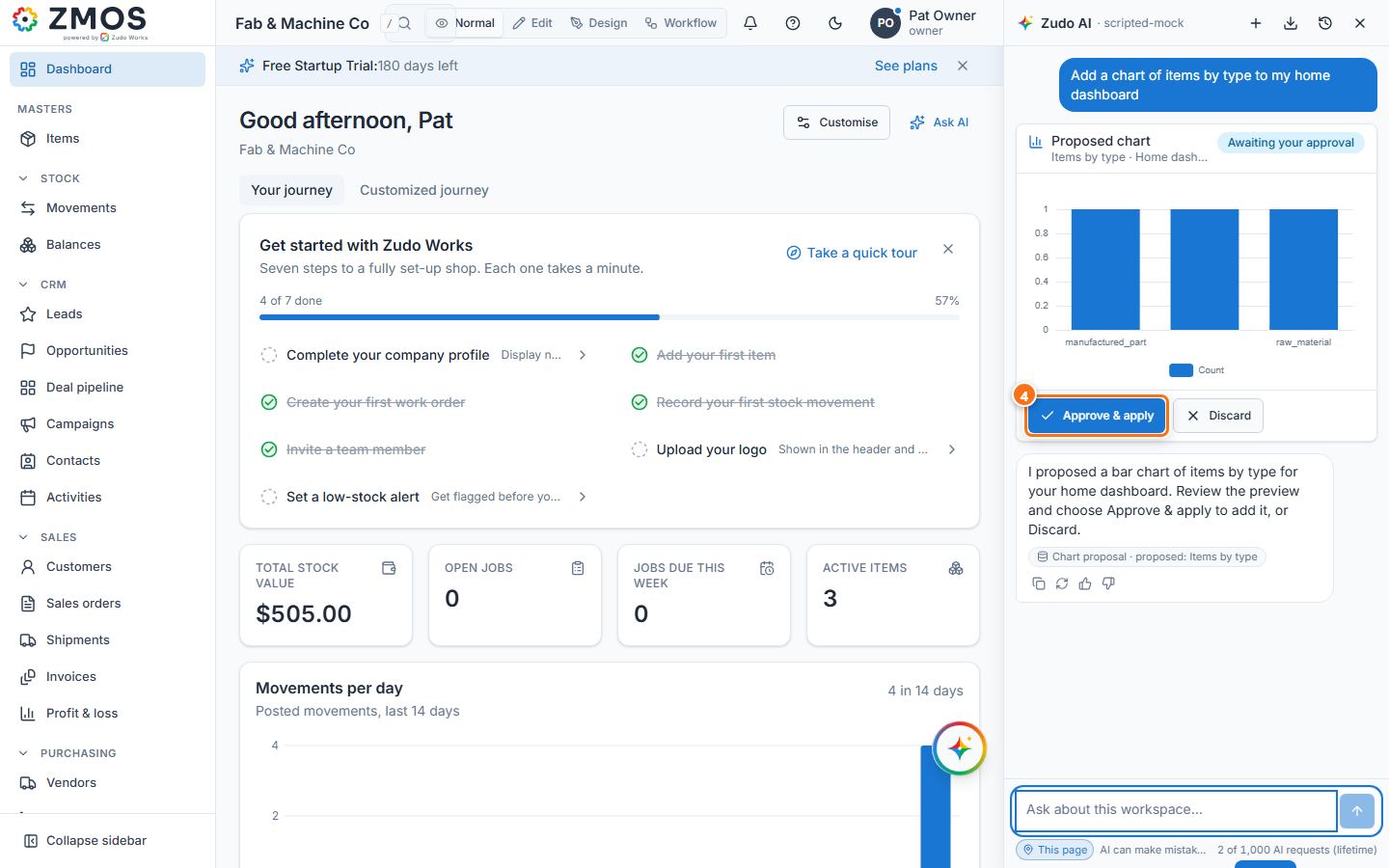
- When the answer is a proposal, a card shows it — here Proposed chart · Home dashboard with a live preview on your real data and Awaiting your approval. Press Approve & apply (or Discard).
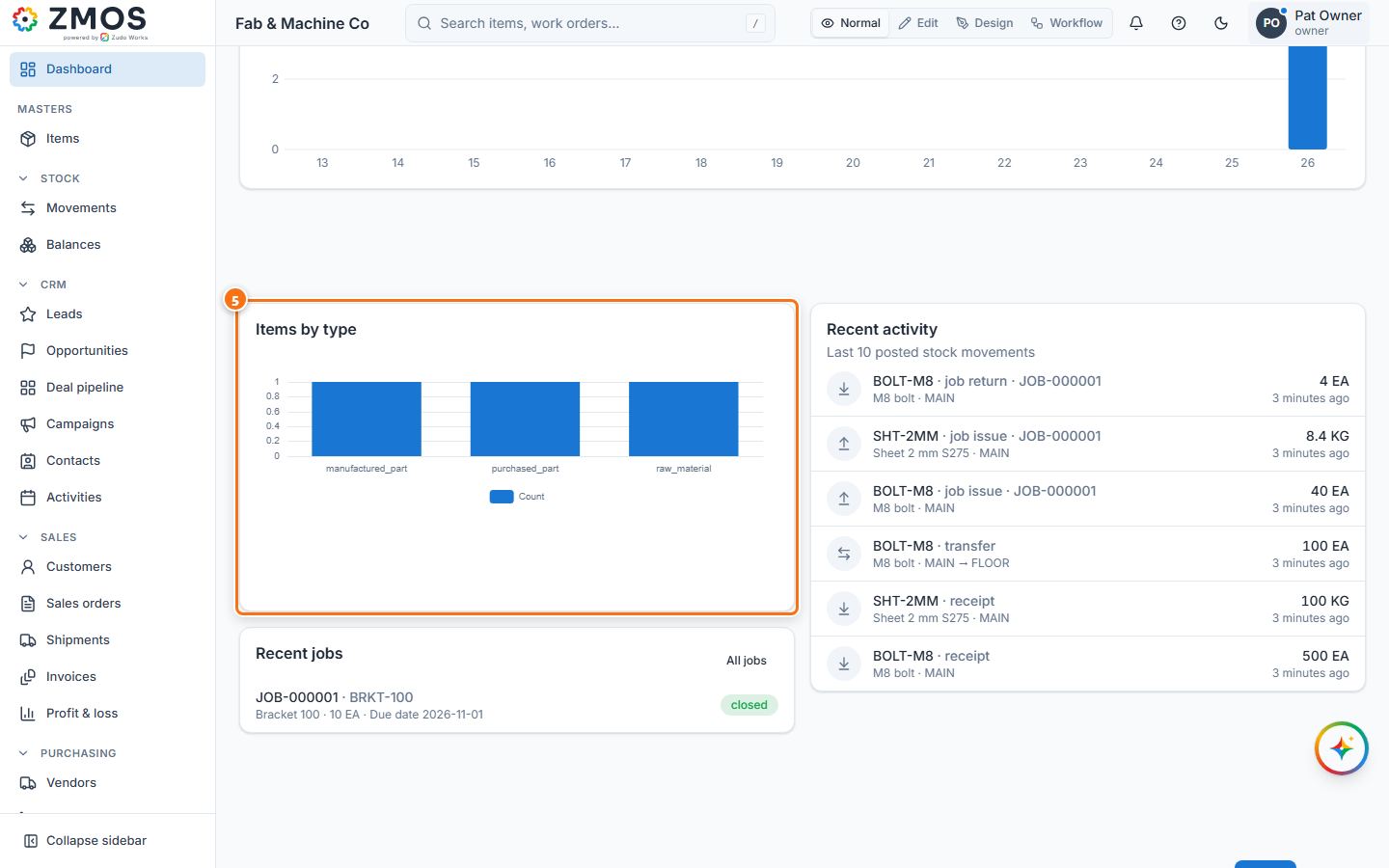
- “Change applied” confirms it and the card shows Applied. Close the panel: the chart is on your home Dashboard.
Tip: Zudo AI only reads what your role may see, and changes to records or forms wait for an owner’s approval. AI can make mistakes — check important numbers.
Last updated