 Zudo Works
How to add a custom field to a built-in form
Add information a built-in form does not ask for — for example the heat treatment of an item. Works for Items, Customers, Vendors, Sales orders, Purchase orders, Jobs and Work centers; the field then shows on the form, as a column of the list, and in filters, imports, reports and the API.
- In the top bar, switch the view mode to Edit (shown to people who may change the workspace settings).
- In the sidebar, press the small pencil at the right of Items.
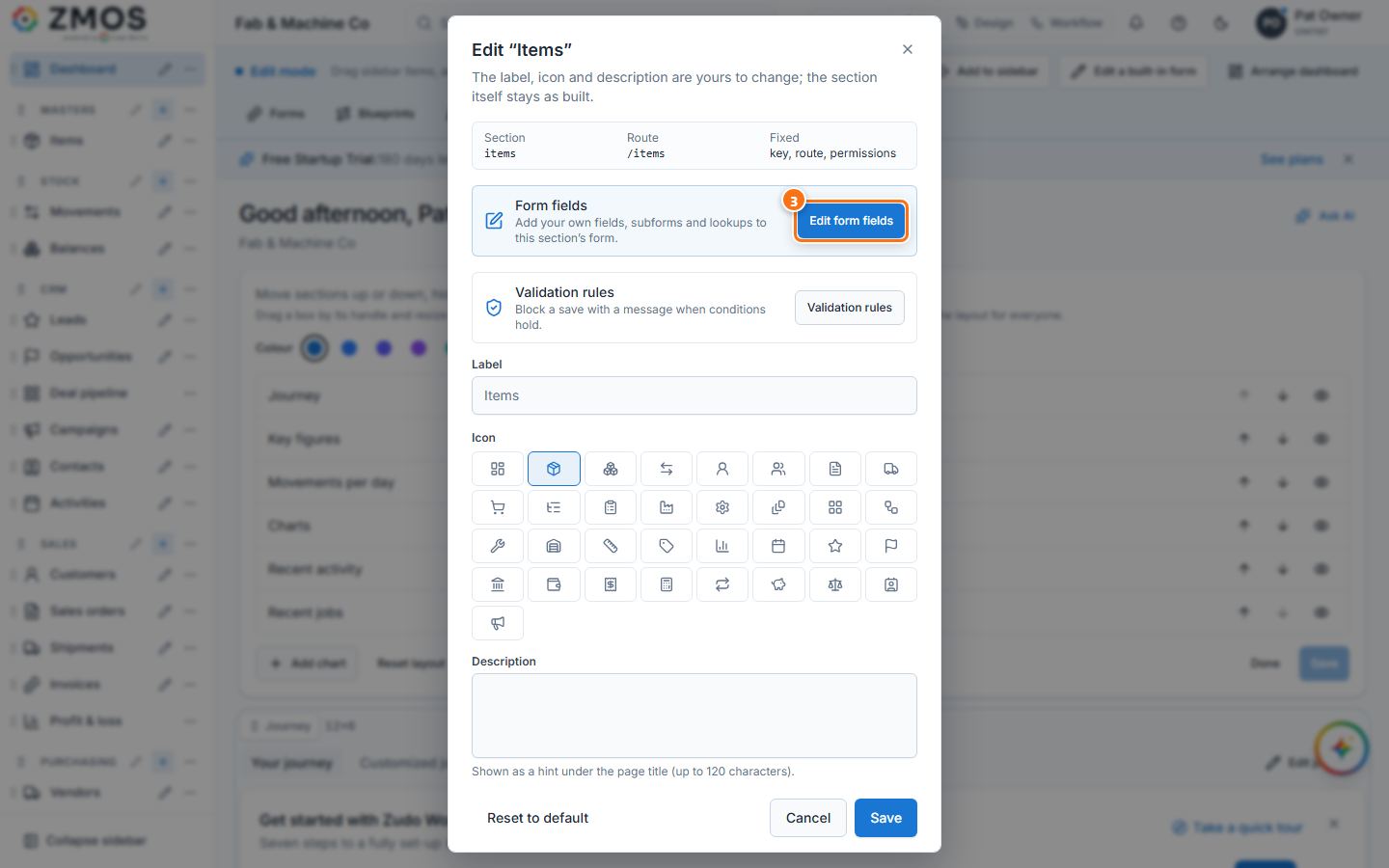
- In the Edit “Items” dialog, under Form fields, press Edit form fields. The page Items: custom fields opens.
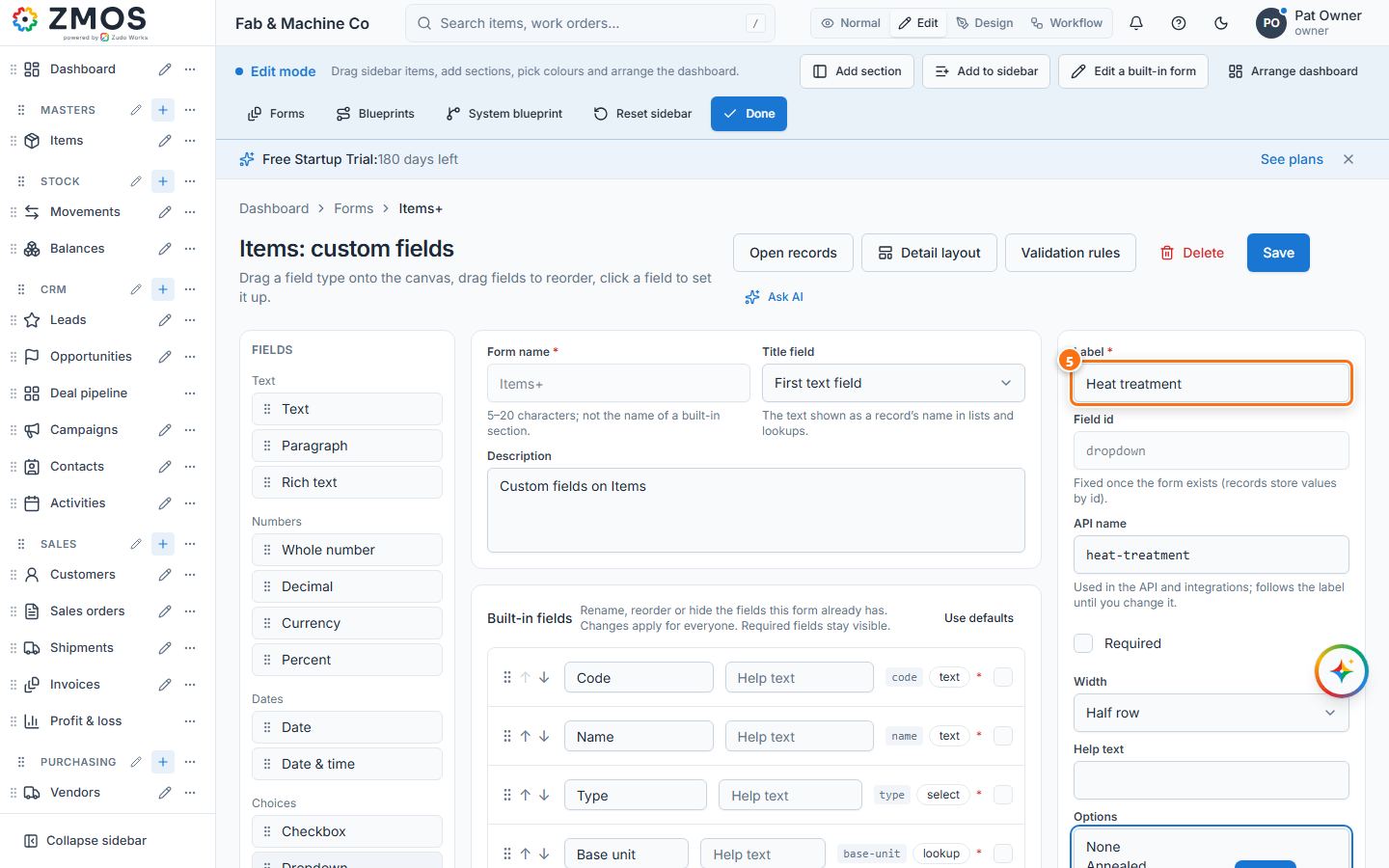
- In the Fields list on the left, click the kind of field you need — for example Dropdown — or drag it onto the canvas.
- In the panel on the right, type the Label (e.g. "Heat treatment") and, for a dropdown, the Options, one per line. Tick Required if it must always be filled in; Field access by role can make it read only or hidden for a role.
- Press Save at the top right. "Form saved" confirms it.
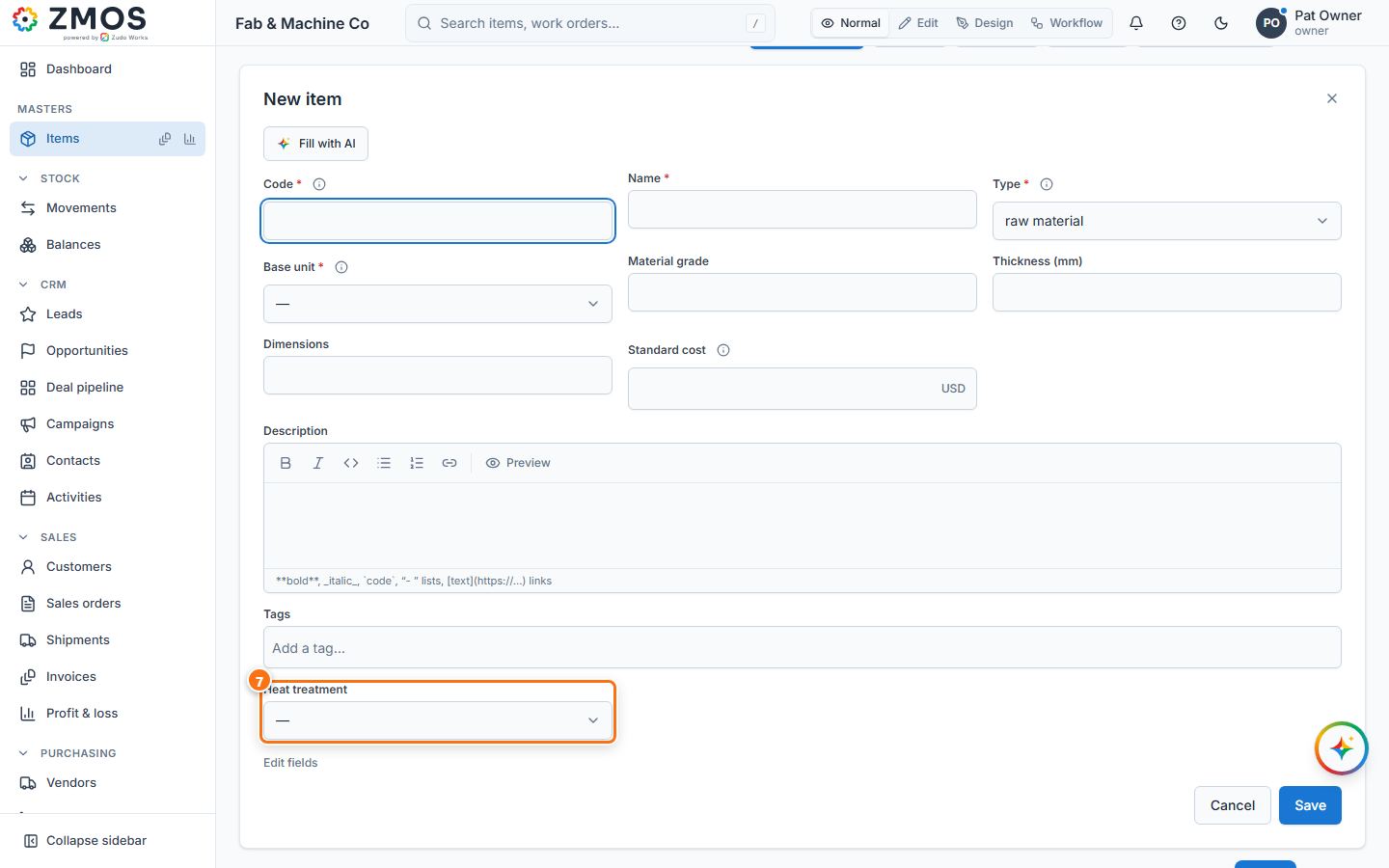
- Switch back to Normal and click Items in the sidebar: the item form now has the new field, and the Items list has a column for it.
Tip: in Edit mode the bar at the top has Edit a built-in form → pick any section. The Built-in fields list on the same page renames, reorders or hides the standard fields.
Last updated