 Zudo Works
How to build a custom form and enter records
Keep track of anything the built-in sections do not cover — machine checks, site visits, test results — in your own form, with its own records, reports and workflows.
- In the sidebar, open Settings; under Forms & automation press Forms.
- On the Custom forms page, press New form.
- Type the Form name — 5 to 20 characters and not the name of a built-in section (e.g. "Machine checks").
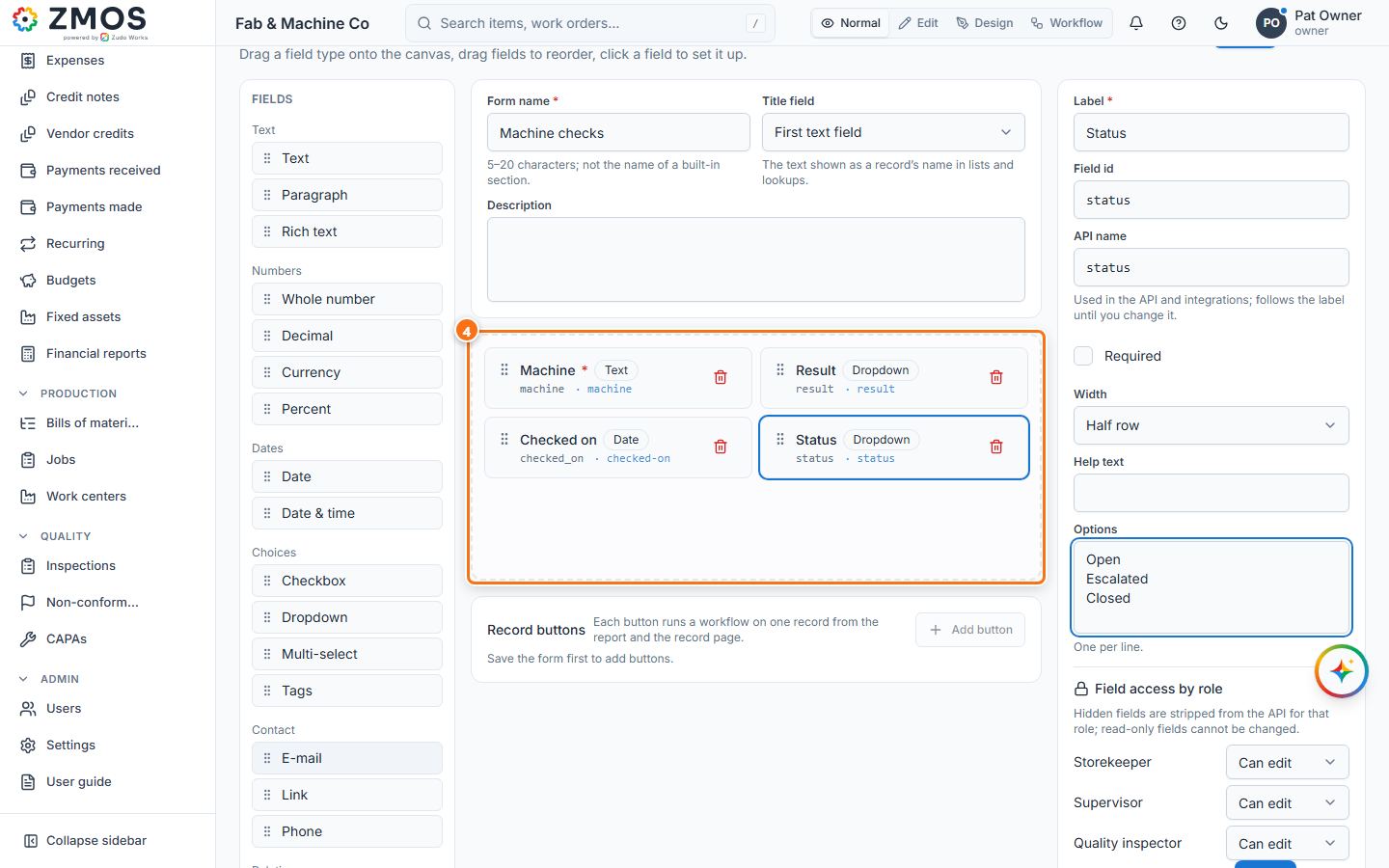
- In the Fields list, click each kind of field you need and name it in the Label box on the right: Text "Machine" (tick Required), Dropdown "Result" with the Options Pass and Fail (one per line), Date "Checked on", Dropdown "Status" with Open, Escalated and Closed. Drag fields on the canvas to change their order.
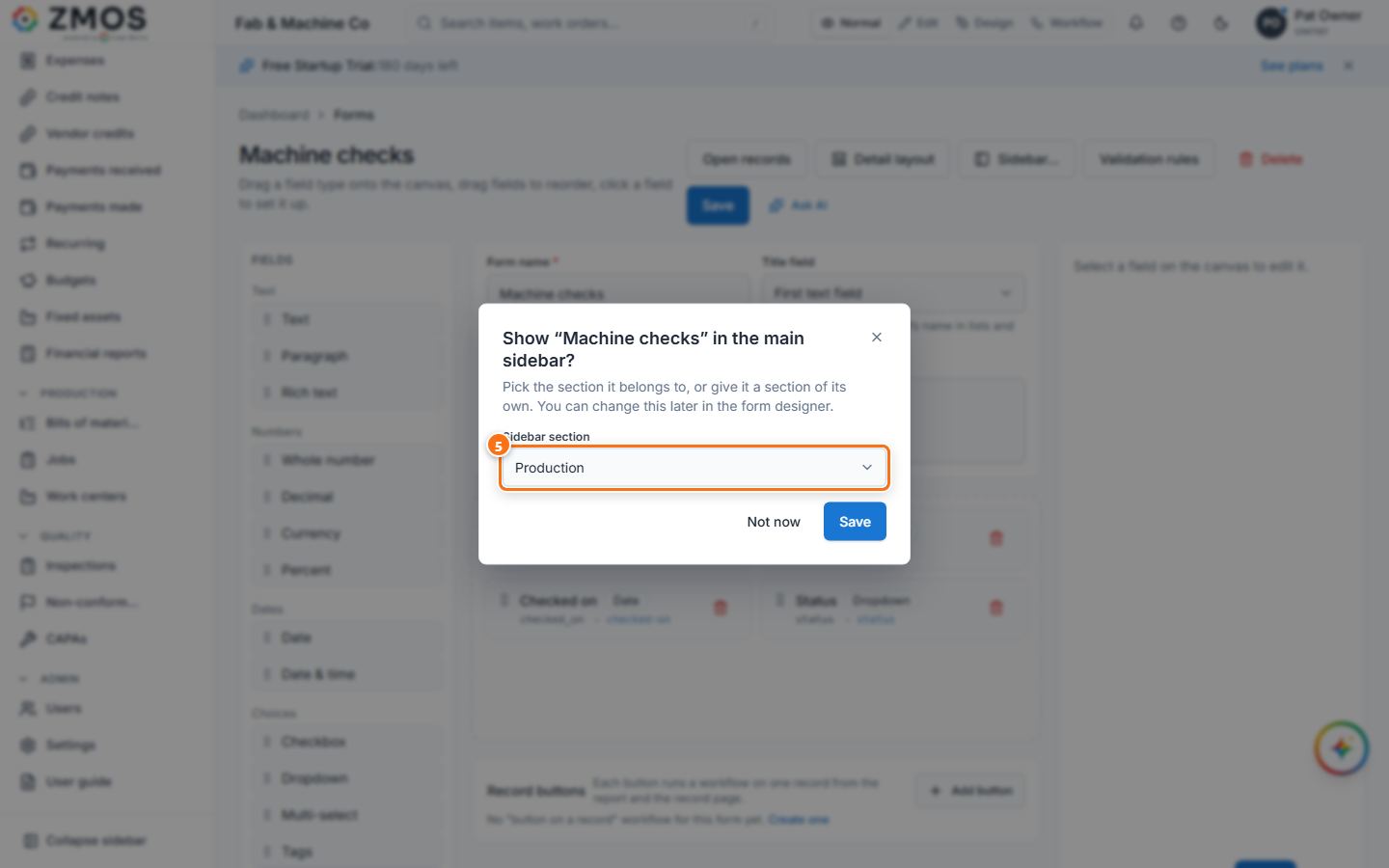
- Press Save. "Form created" confirms it and Show “Machine checks” in the main sidebar? opens: pick the Sidebar section (e.g. Production) and press Save — or Not now to reach it from Settings → Forms only.
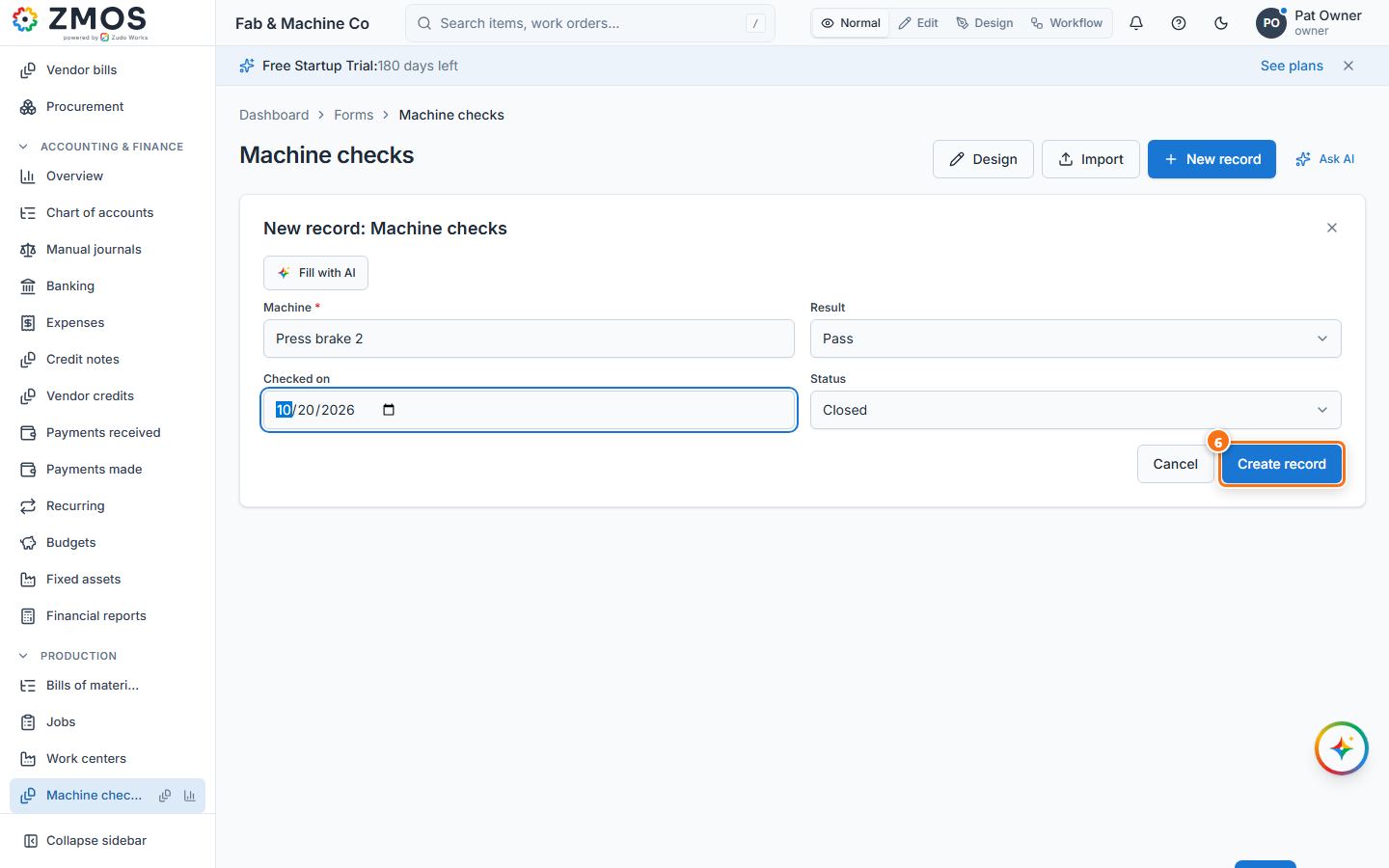
- Click the new entry Machine checks in the sidebar: its form opens on its own. Fill it in and press Create record. The form closes and the records list shows the new record.
- From then on the entry opens a blank form. To see the records, hover the entry and press Report (the small chart icon at its right), or close the form with the X. Click a record to open its page.
Tip: Design on the records page (or Forms → Design) reopens the form designer to add or change fields later.
Last updated