 Zudo Works
How to create a table report and choose its columns
Save a list of exactly the rows and columns people need — for example every machine check, newest first — that anyone allowed can open, filter and export.
- In the sidebar, open Settings; under Forms & automation press Reports.
- Press New report.
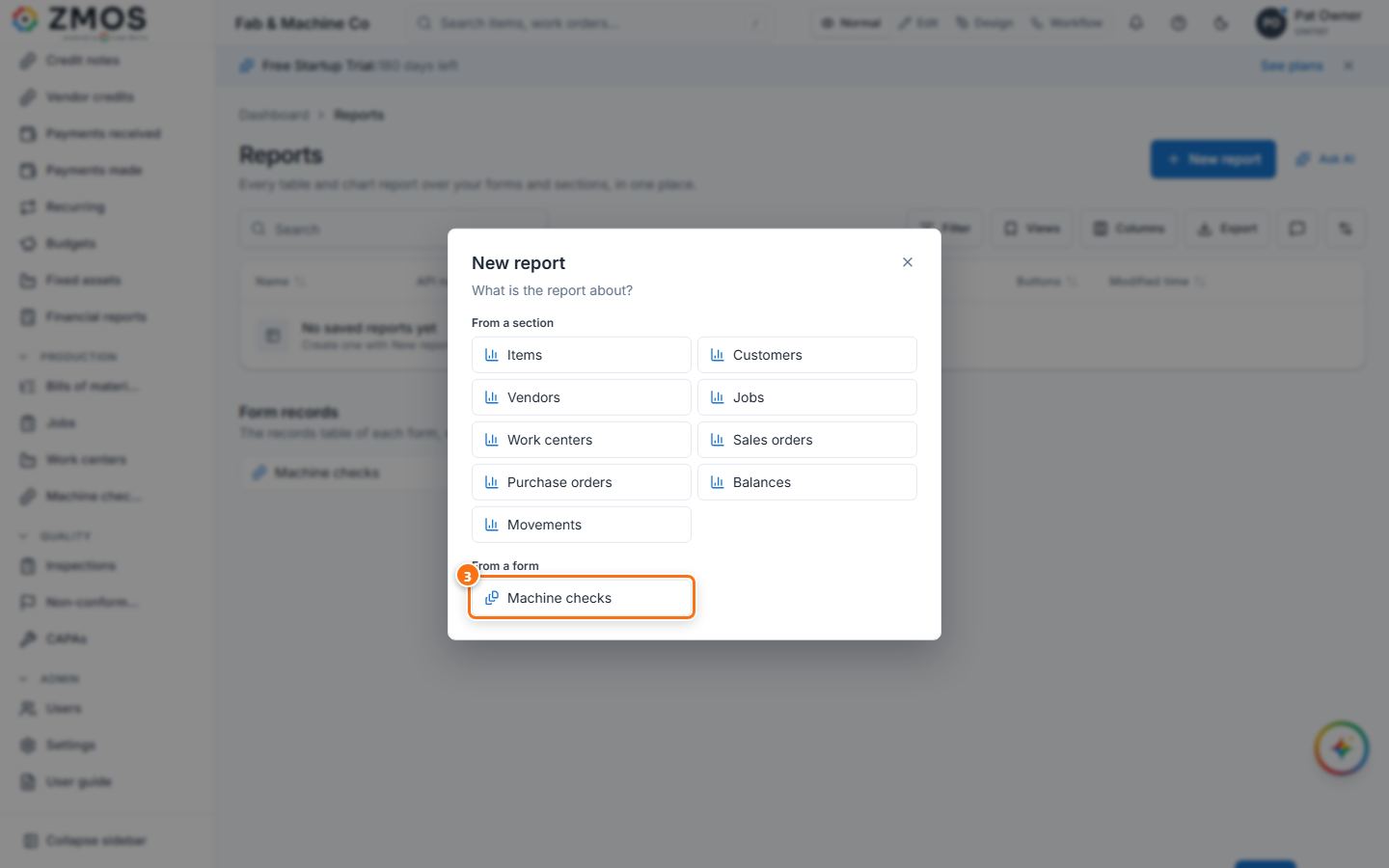
- Under What is the report about? pick the source: a built-in section under From a section, or your own form under From a form (e.g. Machine checks).
- Choose Table.
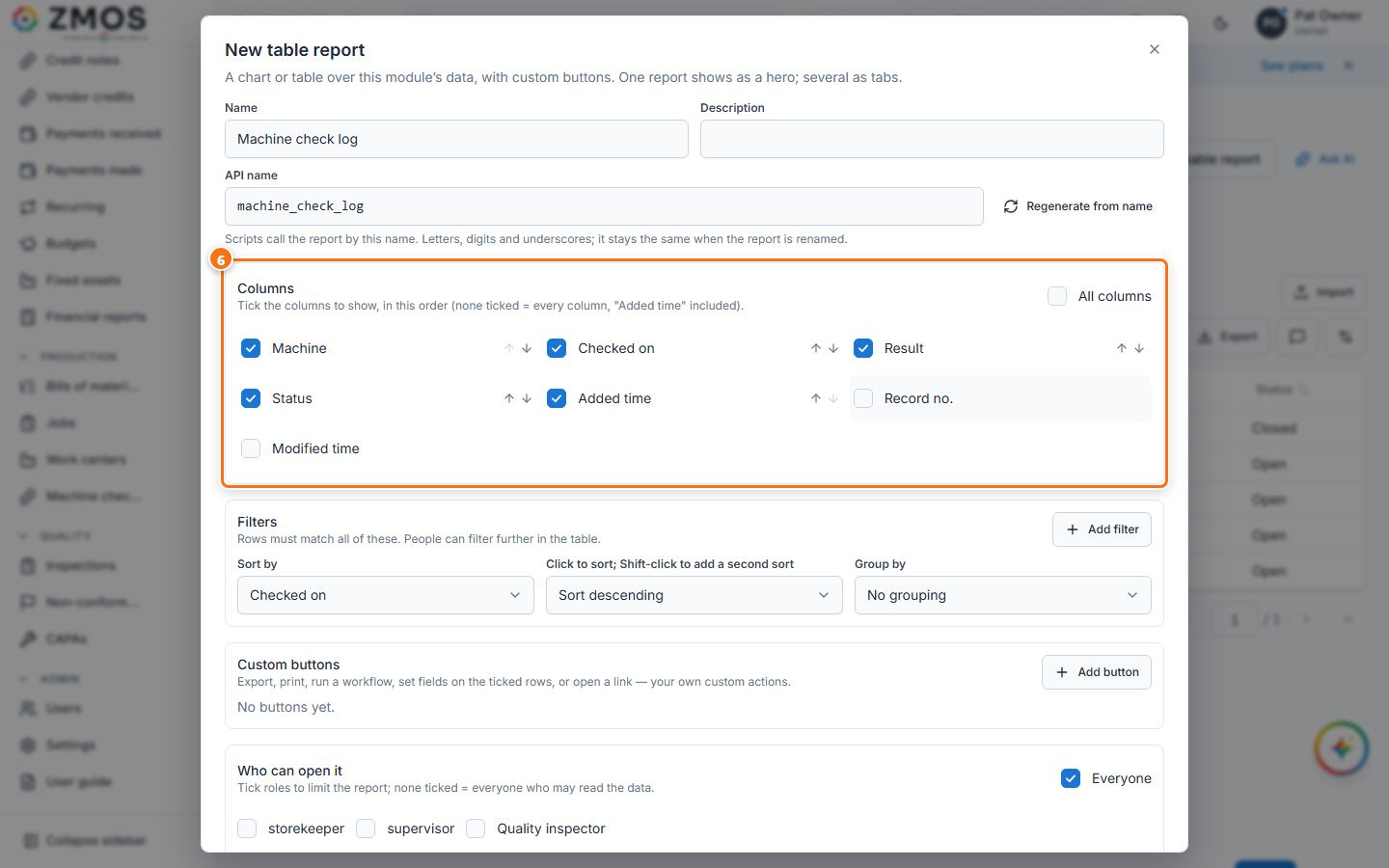
- In New table report, type the Name (e.g. "Machine check log").
- Under Columns, tick the columns in the order you want them; a ticked column gets arrows to move it up or down. With nothing ticked (All columns) every column shows, "Added time" included.
- Optional: under Filters press Add filter to keep only matching rows; choose Sort by and the direction (Sort ascending / Sort descending) and Group by; add Custom buttons; tick roles under Who can open it.
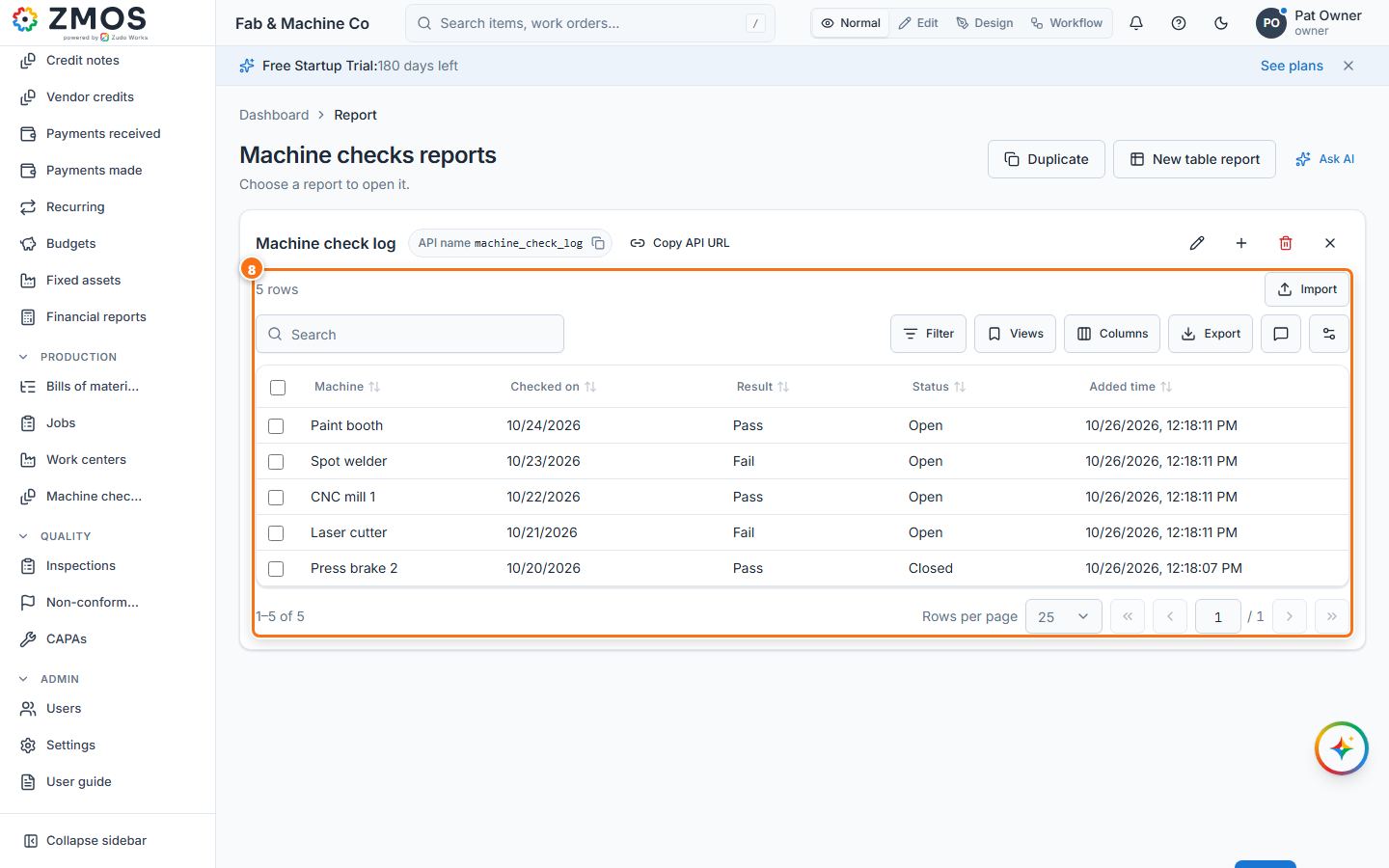
- Press Save report. "Report saved" confirms it and the report opens.
Tip: the report is listed on Settings → Reports. To put it in the sidebar, switch to Edit, press a section's + and choose it under Existing report.
Last updated