 Zudo Works
How to filter, sort and group a report or table
Narrow any list or table report down to the rows you need, put them in order and group them. The same toolbar is on every list (Items, Customers, Jobs …) and on table reports.
- Open the list or report — for example Settings → Reports → Machine check log.
- To sort, click a column heading; click it again to reverse the order. Shift-click a second heading to sort by it next.
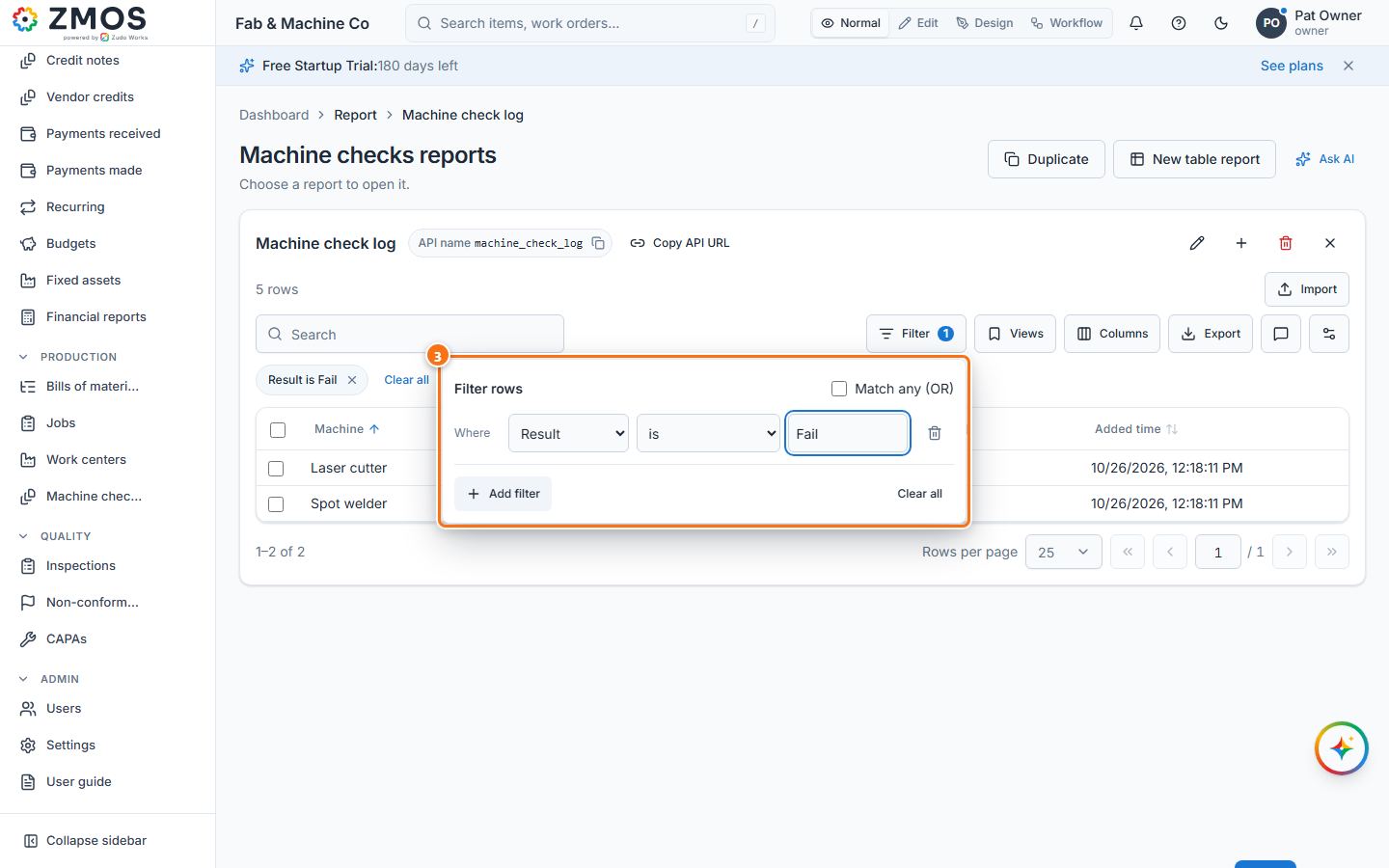
- To filter, press Filter → Add filter, then pick the Column, the Condition (e.g. "is") and the Value. Add more filters the same way; Match any (OR) keeps rows that match any of them instead of all.
- For a quick filter, right-click a cell and choose Filter by this value or Exclude this value.
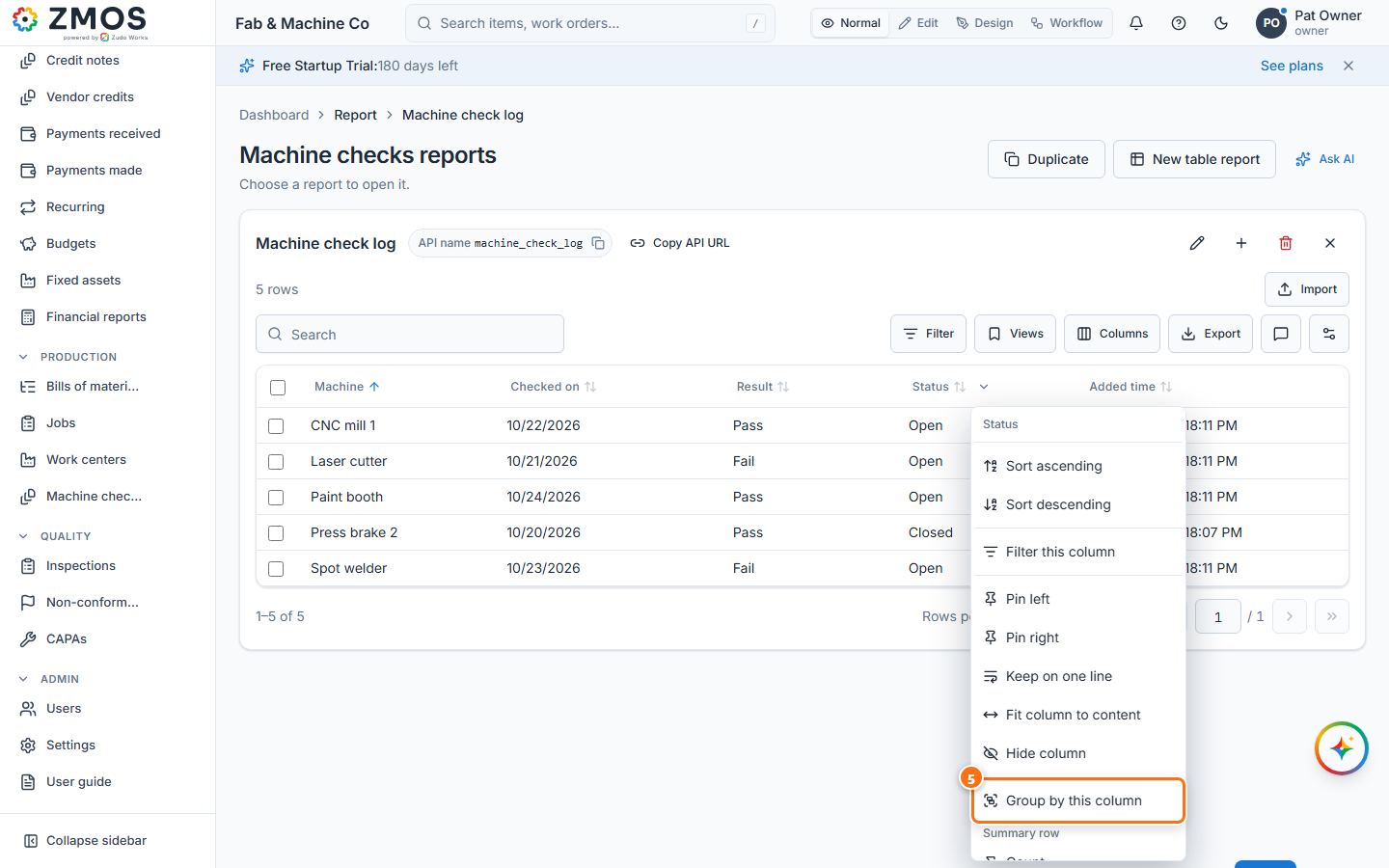
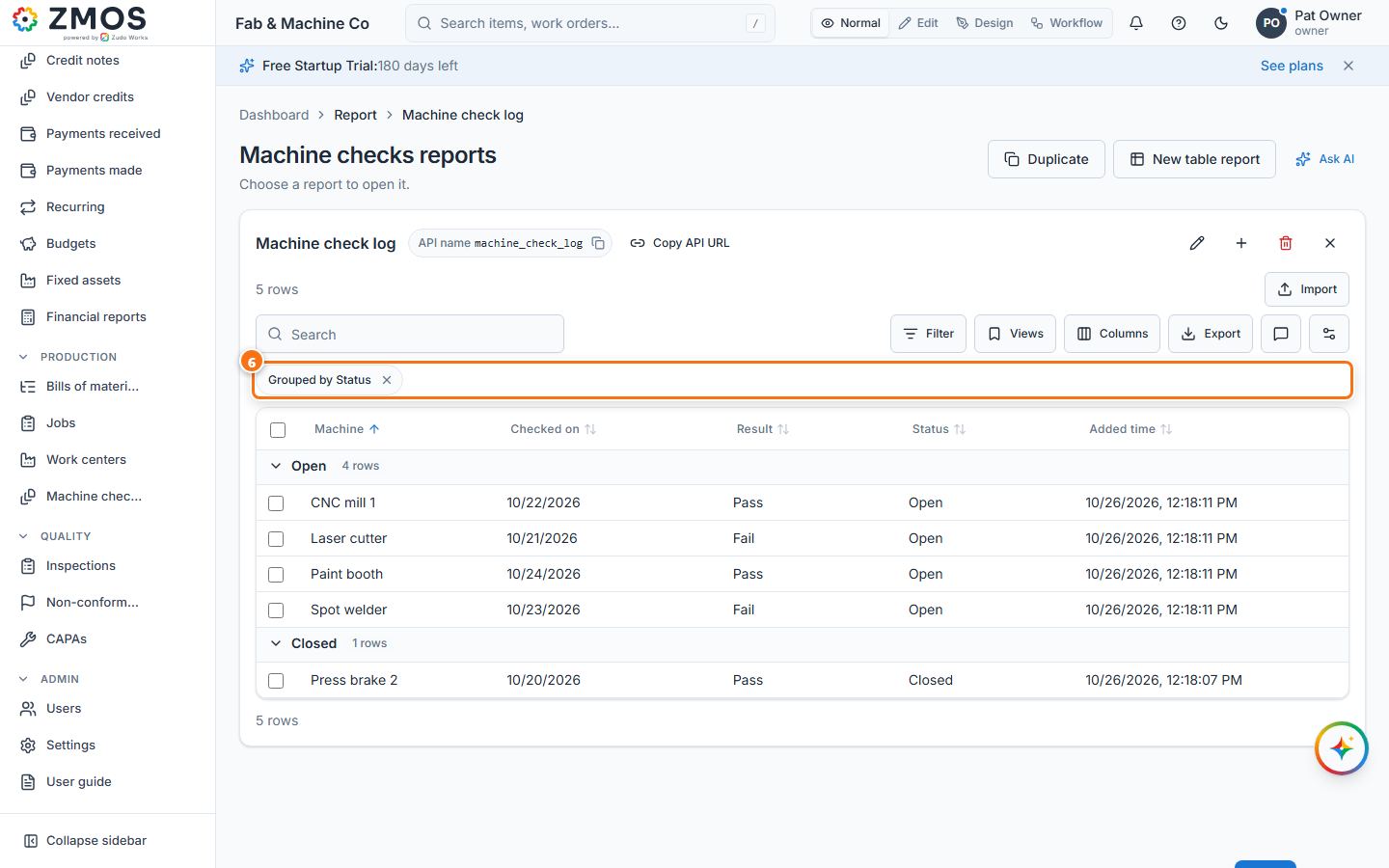
- To group, point at a column heading, open its menu (the small arrow beside the name) and choose Group by this column. The same menu sorts, filters, pins, hides the column and adds a Summary row.
- What is applied shows as chips above the table: the × on a chip removes it and Clear all removes every filter.
Tip: the Items list and the records of a custom form load page by page, so they sort and filter but do not group — make a table report of them to group. More (the gear button) → Copy link to this view shares exactly what you see.
Last updated