 Zudo Works
How to raise an NCR and a CAPA
Report a non-conformance from a failed inspection, then agree a corrective or preventive action against it.
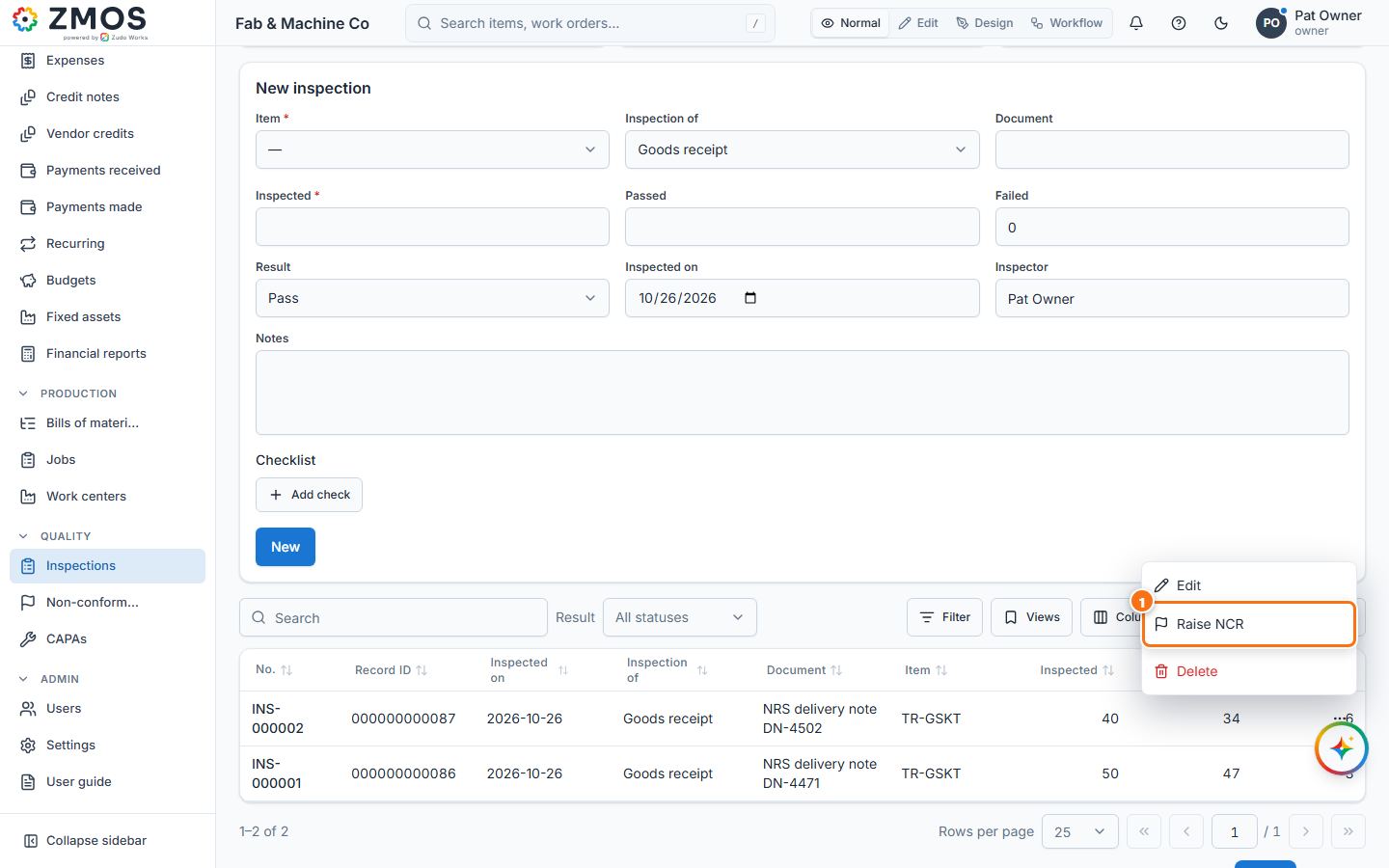
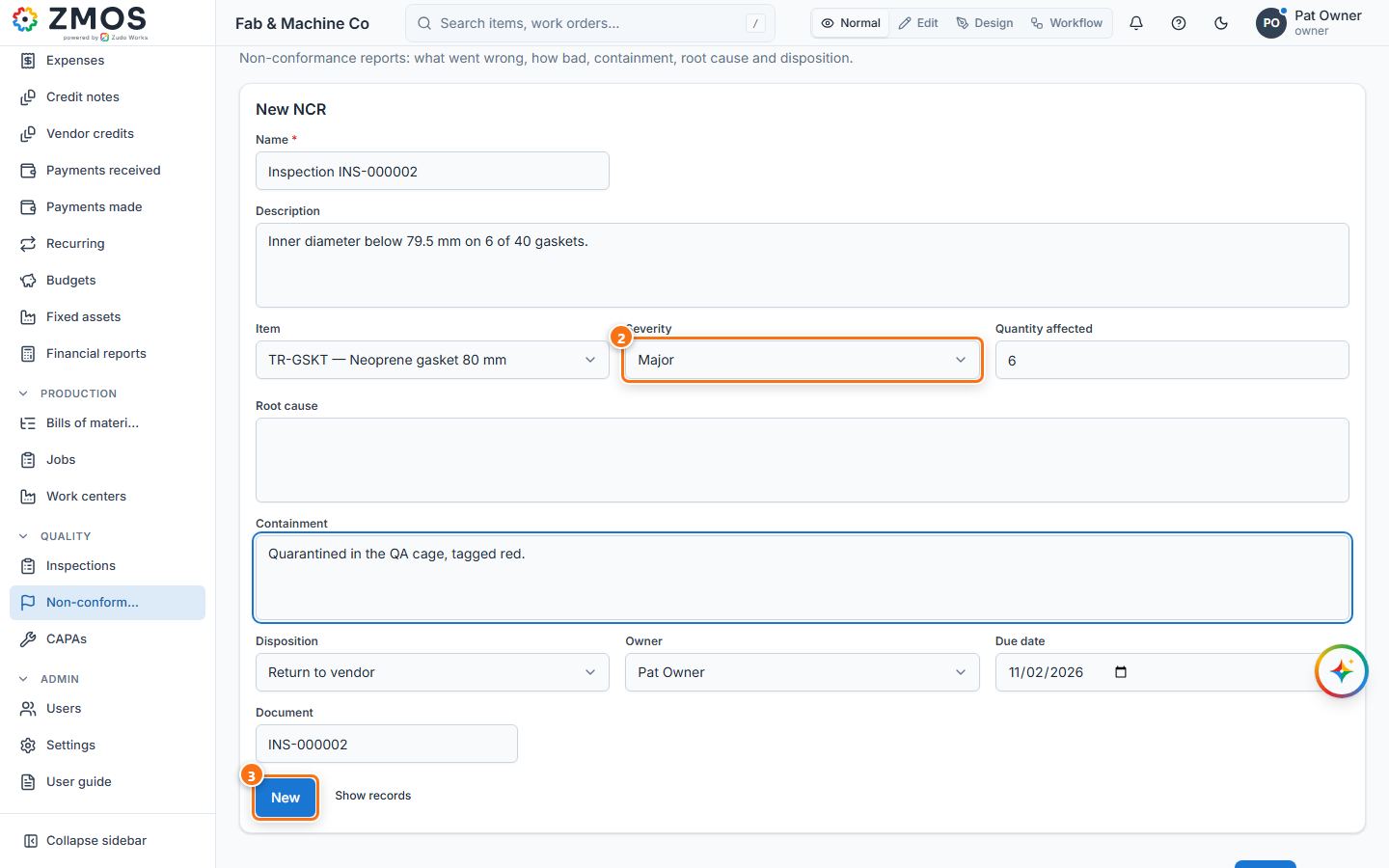
- Open the inspections list (hover Inspections in the sidebar and press Report), press the ⋯ (Row actions) button of an inspection with rejects and choose Raise NCR. The New NCR form opens filled in: Name "Inspection INS-…", the Item, the Document (the inspection number) and the Quantity affected (the failed quantity). (For an NCR without an inspection, click Quality → Non-conformances.)
- Set the Severity, the Disposition (Rework, Repair, Scrap, Use as is, Return to vendor), the Owner and the Due date, and describe it in Description, Containment and Root cause.
- Press Save. "NCR saved" appears and the NCR is listed with the status Open.
- Move it on from the row's ⋯ menu: Mark as Under review, Mark as Corrective action, Mark as Closed.
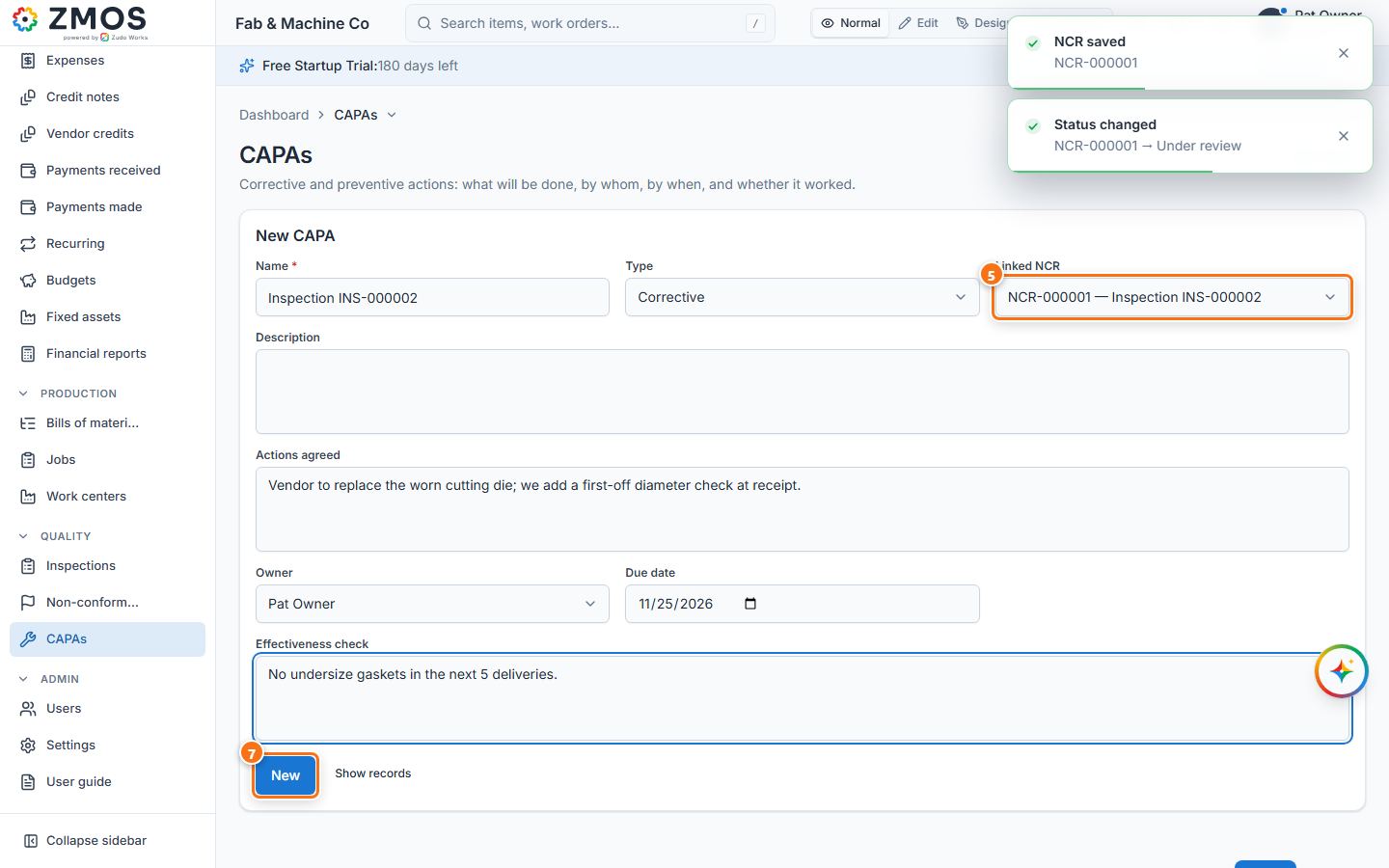
- To agree an action, choose Open CAPA in the NCR's ⋯ menu. The New CAPA form opens with the Name and the Linked NCR filled in.
- Choose the Type (Corrective or Preventive), the Owner and the Due date, and fill in Description, Actions agreed and Effectiveness check.
- Press Save. "CAPA saved" appears; the CAPA is listed with the status Open and moves on the same way (Mark as In progress, Verified, Closed).
Last updated