 Zudo Works
How to add a customer
Add a company you quote and sell to, so you can pick it on quotes, sales orders, deliveries and invoices.
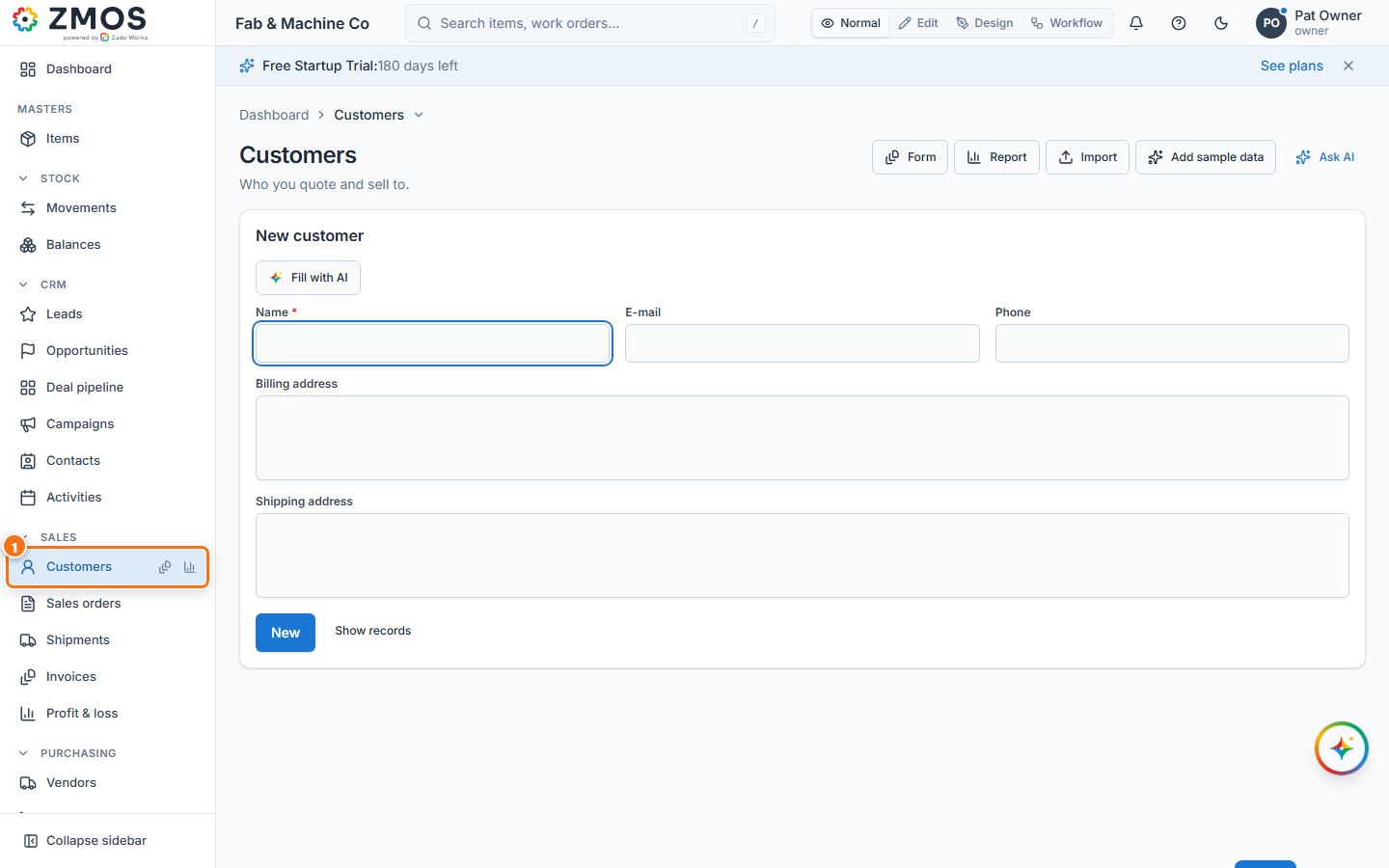
- In the sidebar, under Sales, click Customers. The New customer form opens on its own (the list of customers is one click away: hover Customers in the sidebar and press its Report button, or press Show records under the form).
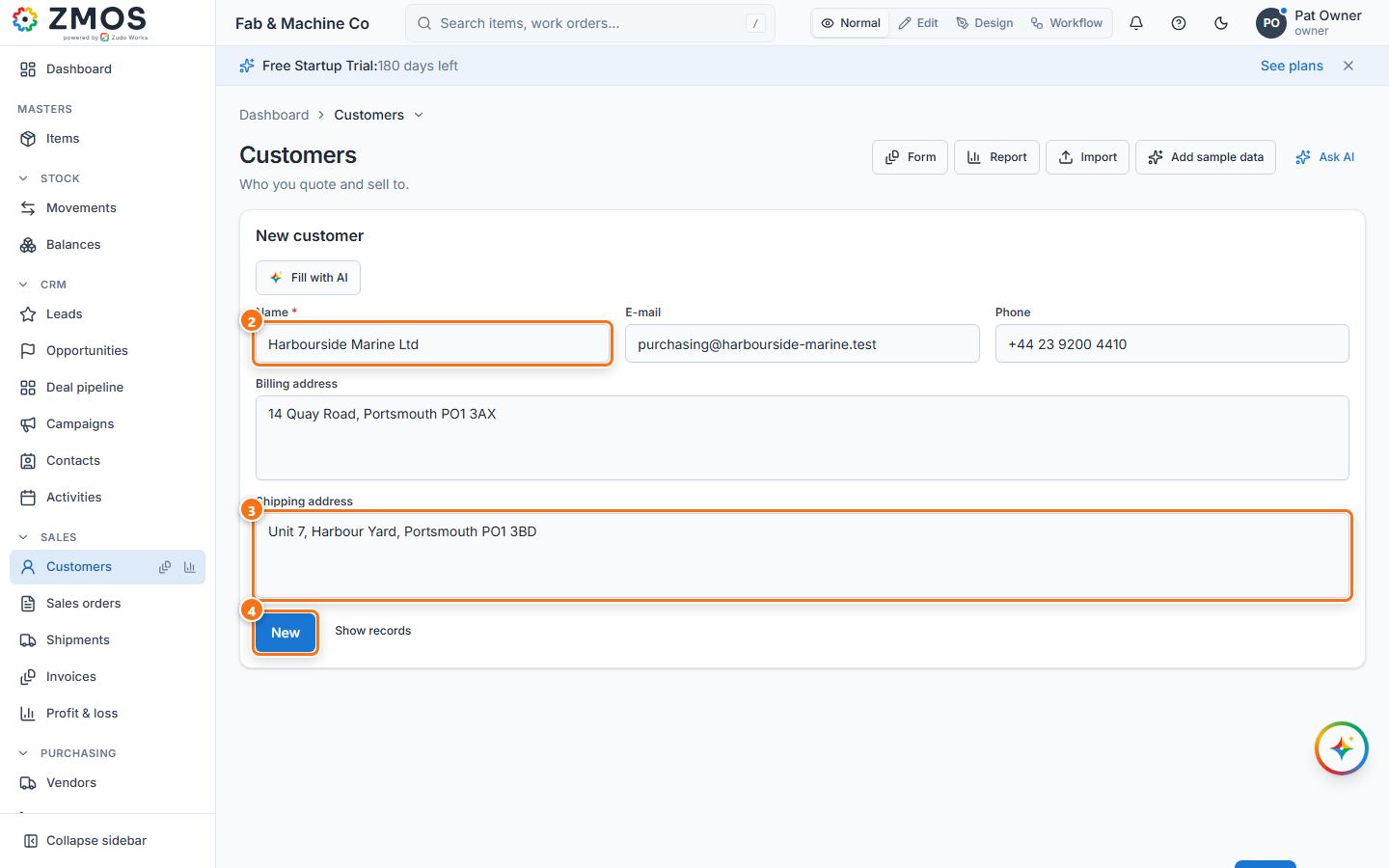
- Type the customer's Name (required; it must be unique).
- Fill in what you know: E-mail, Phone, Billing address and Shipping address. Fields your owner added to Customers appear in the same form.
- Press Save (the button under the form).
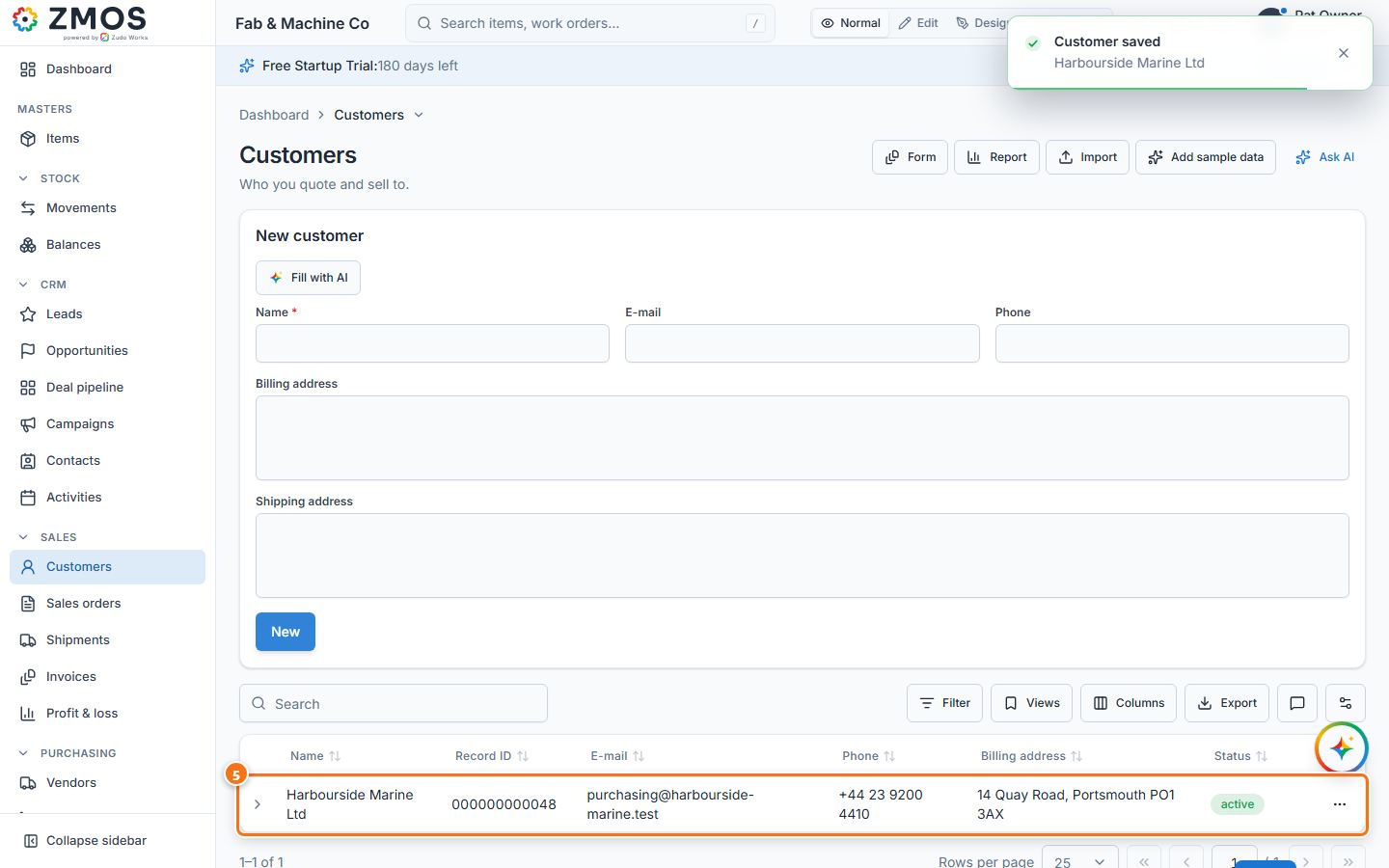
- "Customer saved" appears, the form is cleared for the next customer and the customers list opens under it, with the new customer in it.
- To change a customer later, open the list, press the row's ⋯ (Row actions) button, choose Edit, change the values and press Save. Deactivate in the same menu hides a customer from new documents without deleting its history.
Tip: a name that already exists (in any letter case) is refused with "already exists" — search the list first.
Last updated