 Zudo Works
How to create a quote and turn it into a sales order
Price a job for a customer as a quote, then confirm it into a numbered sales order that reserves the stock.
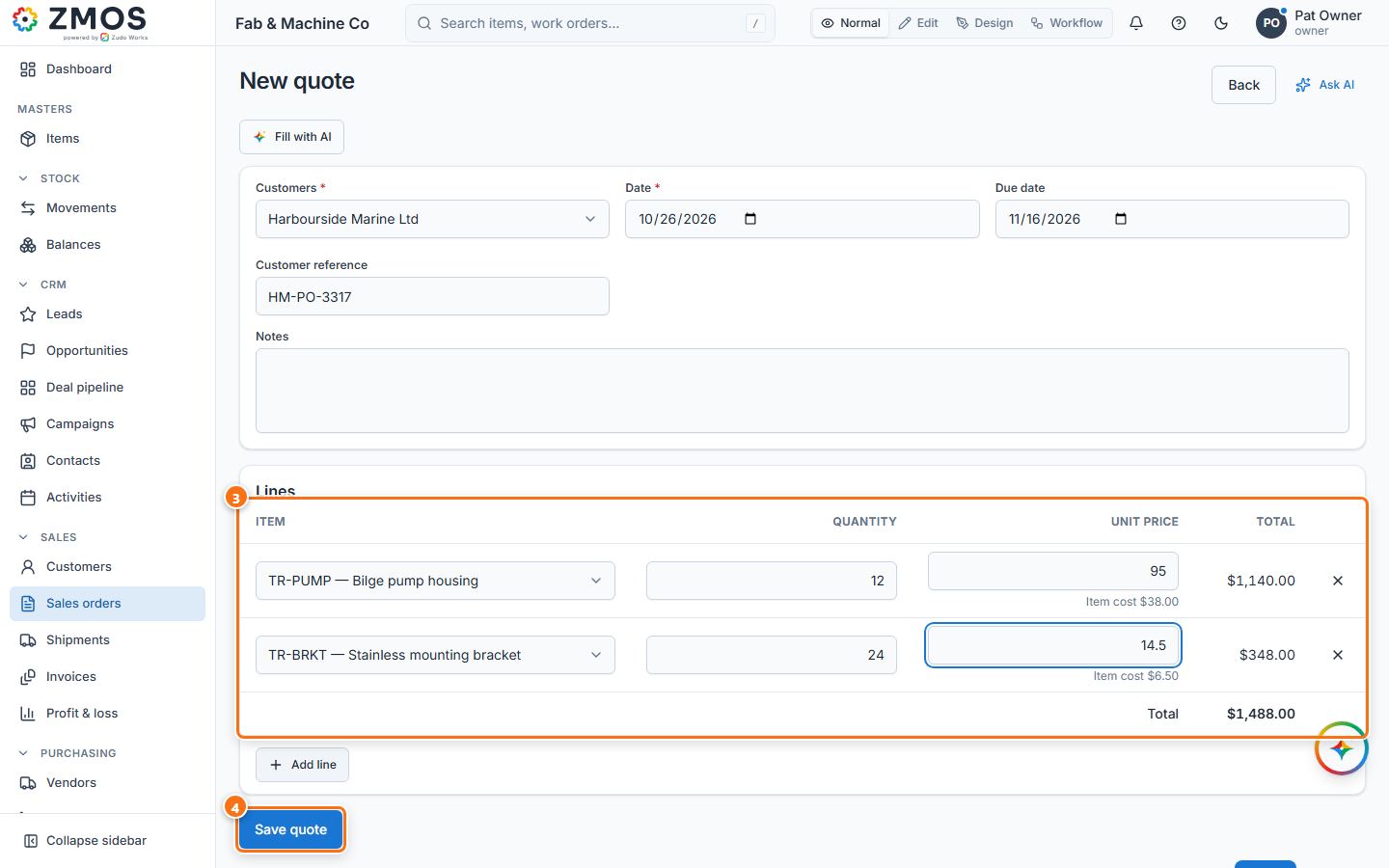
- In the sidebar, under Sales, click Sales orders. The New quote page opens.
- Pick the customer in Customer. Check Date (today) and, if you like, set Due date, Customer reference (their PO number) and Notes.
- Under Lines, choose the Item, type the Quantity and the Unit price (an empty price is filled with the item's standard cost). Press Add line for each further item; the Total updates as you type.
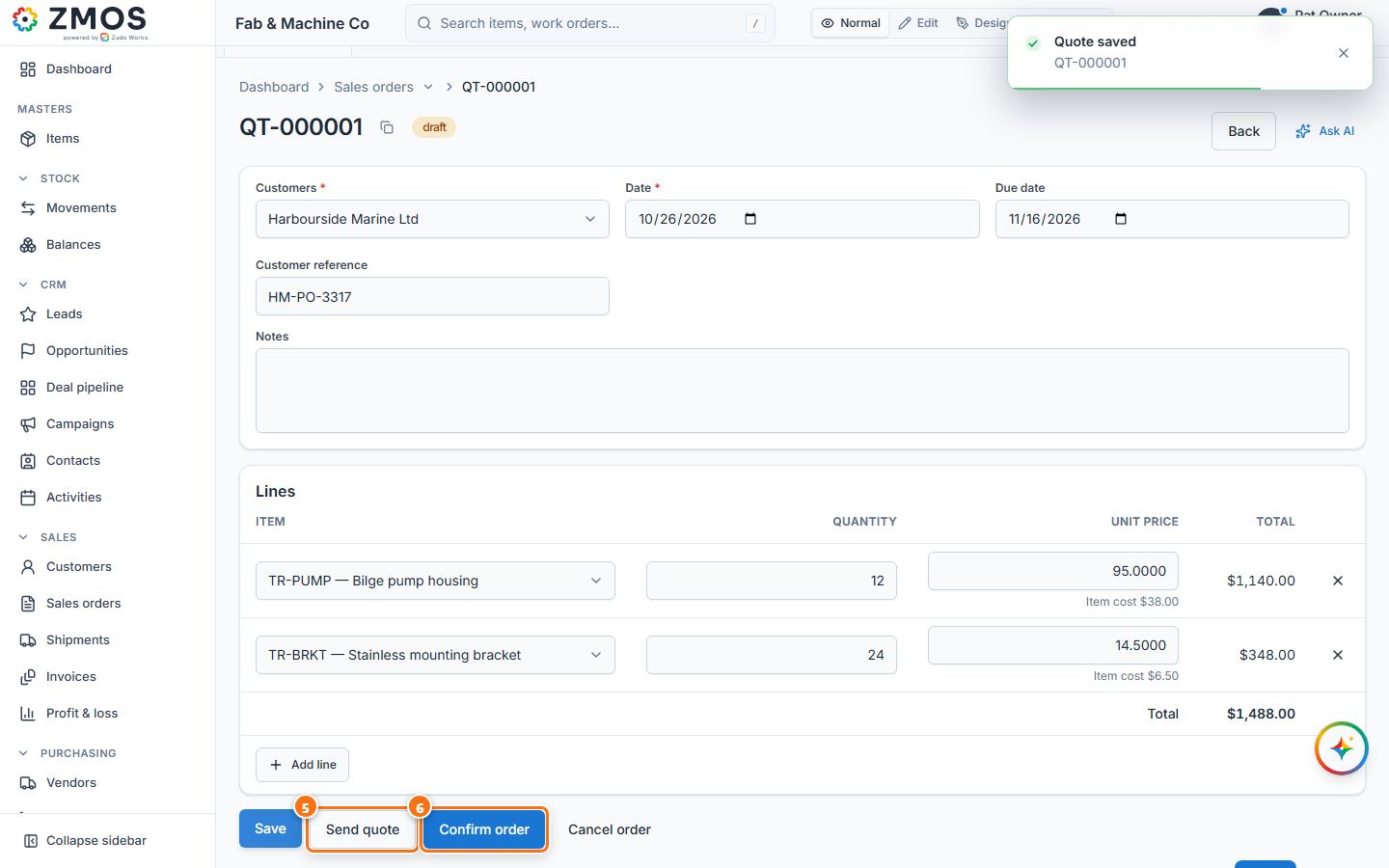
- Press Save quote. The page title becomes the quote number (QT-…) with the status Draft.
- When you have sent the quote to the customer, press Send quote — the status becomes Sent (the quote can still be edited).
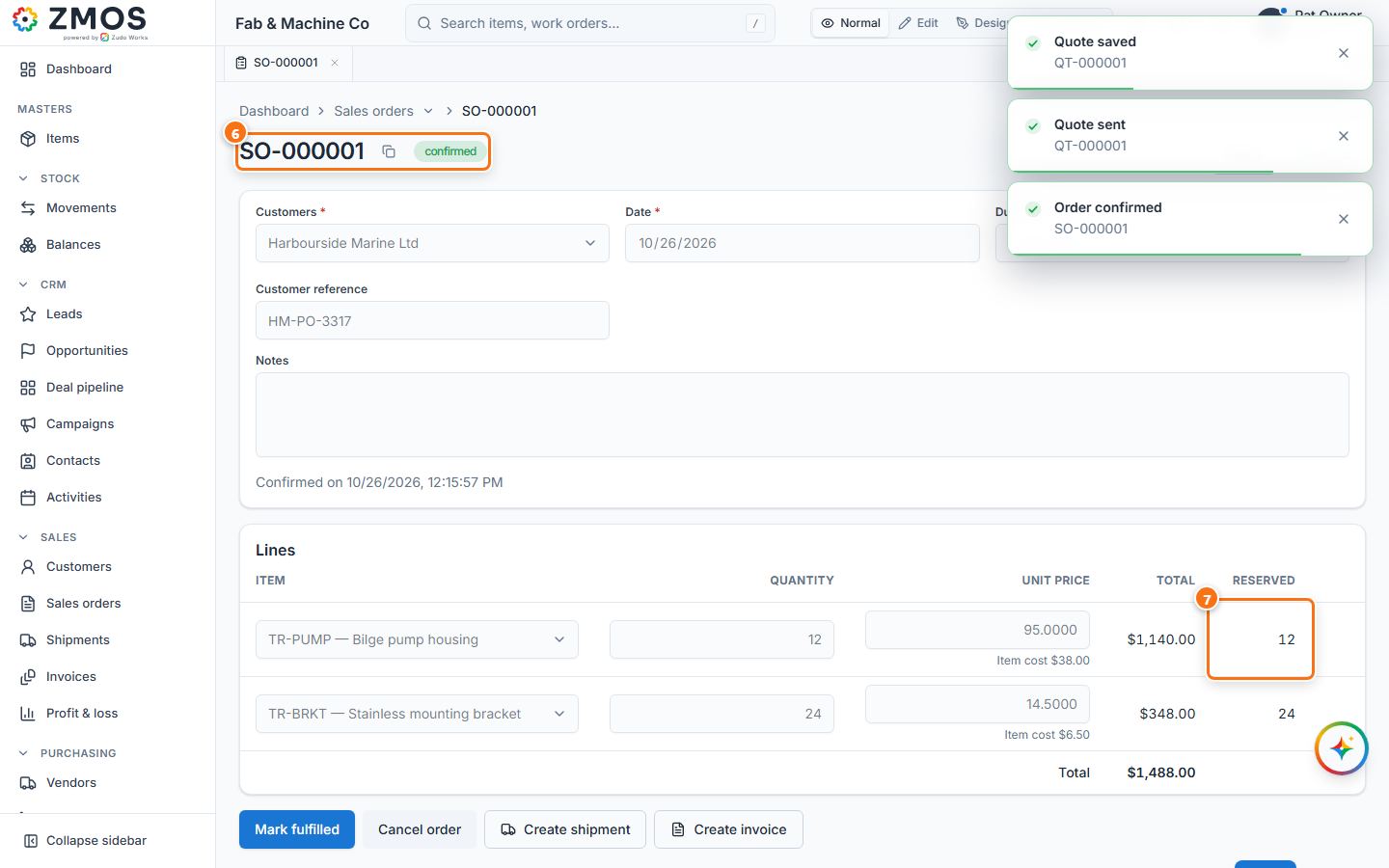
- When the customer accepts, press Confirm order. The quote gets its sales order number (SO-…), the status becomes Confirmed and the lines are locked.
- The new Reserved column shows how much of each line is reserved from stock on hand (0 when nothing is in stock yet).
Tip: a confirmed order is read-only. To stop it, press Cancel order (reserved stock is released). A quote that is not wanted any more is stopped with Cancel quote.
Last updated