 Zudo Works
How to deliver a sales order (shipment)
Record what leaves the building against a confirmed order: shipping issues the stock and fulfils the order lines.
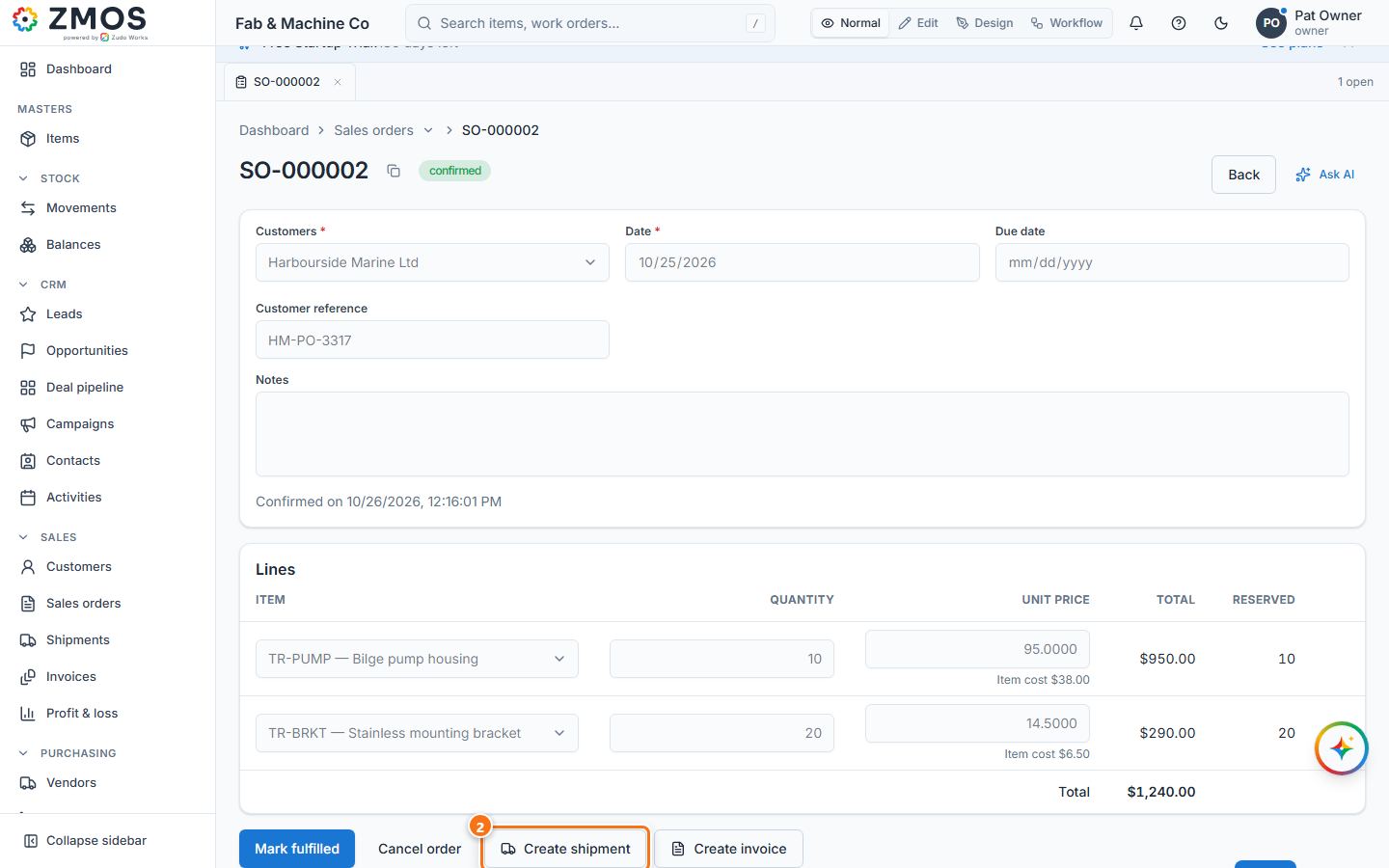
- Open the confirmed sales order: hover Sales orders in the sidebar, press its Report button and click the order (SO-…) in the list.
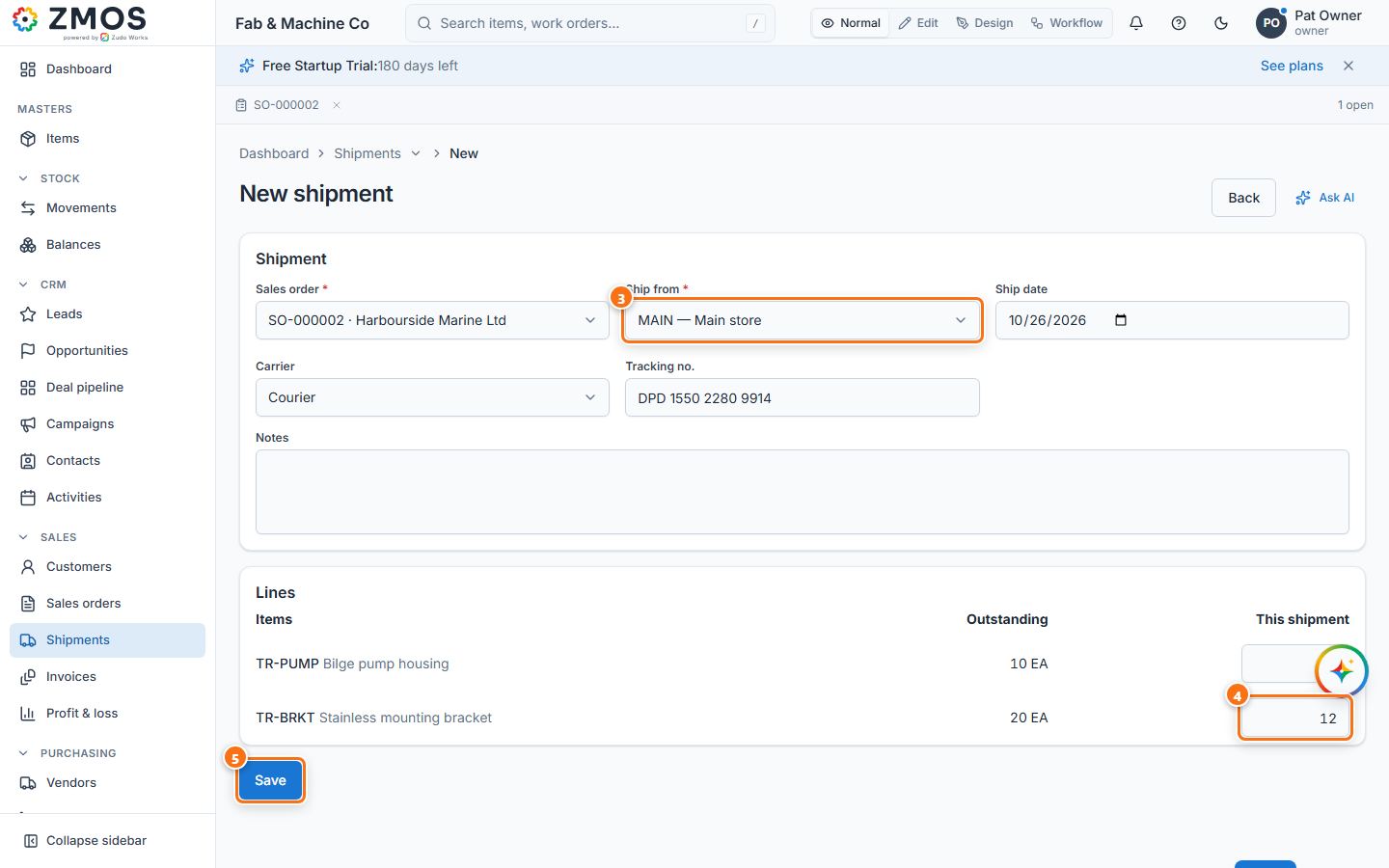
- Press Create shipment. The New shipment page opens with the order already picked in Sales order and, under Lines, the Outstanding quantity of every line copied into This shipment.
- Check Ship from — the warehouse the goods leave from (it starts on the first warehouse in the list, so pick the right one). Set the Ship date, the Carrier and the Tracking no..
- For a part delivery, lower the quantities in This shipment (a line at 0 is left out).
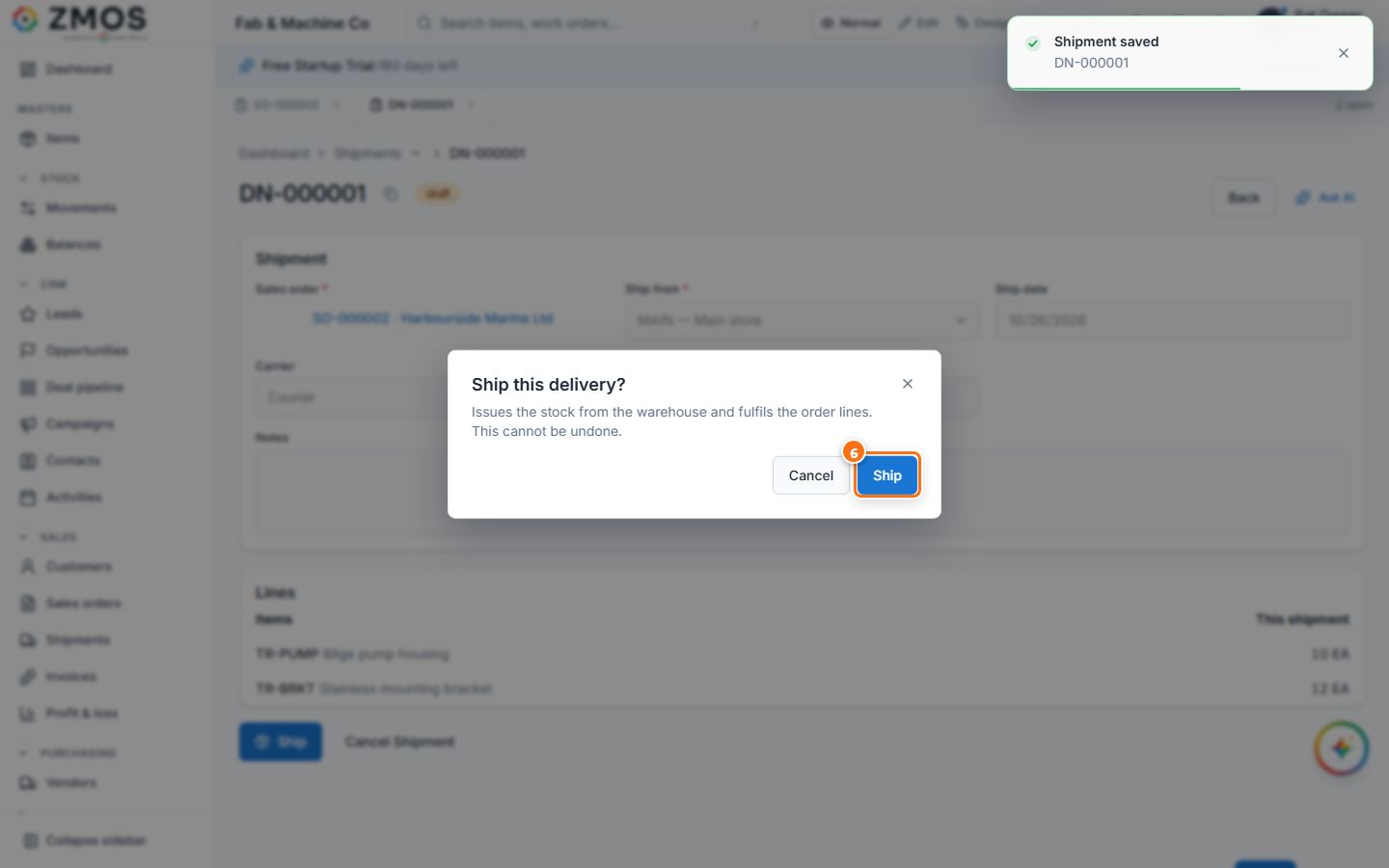
- Press Save. The shipment gets its number and the status Draft.
- Press Ship, then Ship again in Ship this shipment?. The stock is issued (the Stock movement line shows the ISS-… number), the order lines are fulfilled and the status becomes Shipped.
Tip: delivered outside the app? Mark fulfilled on the confirmed order closes it without a shipment — it asks first, because stock is not issued (use Create shipment to ship from stock). You can also start from Sales → Shipments, which opens New shipment: pick the order in Sales order (only confirmed orders with something left to deliver are listed).
Last updated