 Zudo Works
How to invoice a delivery and record the customer's payment
Bill the customer for what you shipped, then mark the invoice paid when the money arrives.
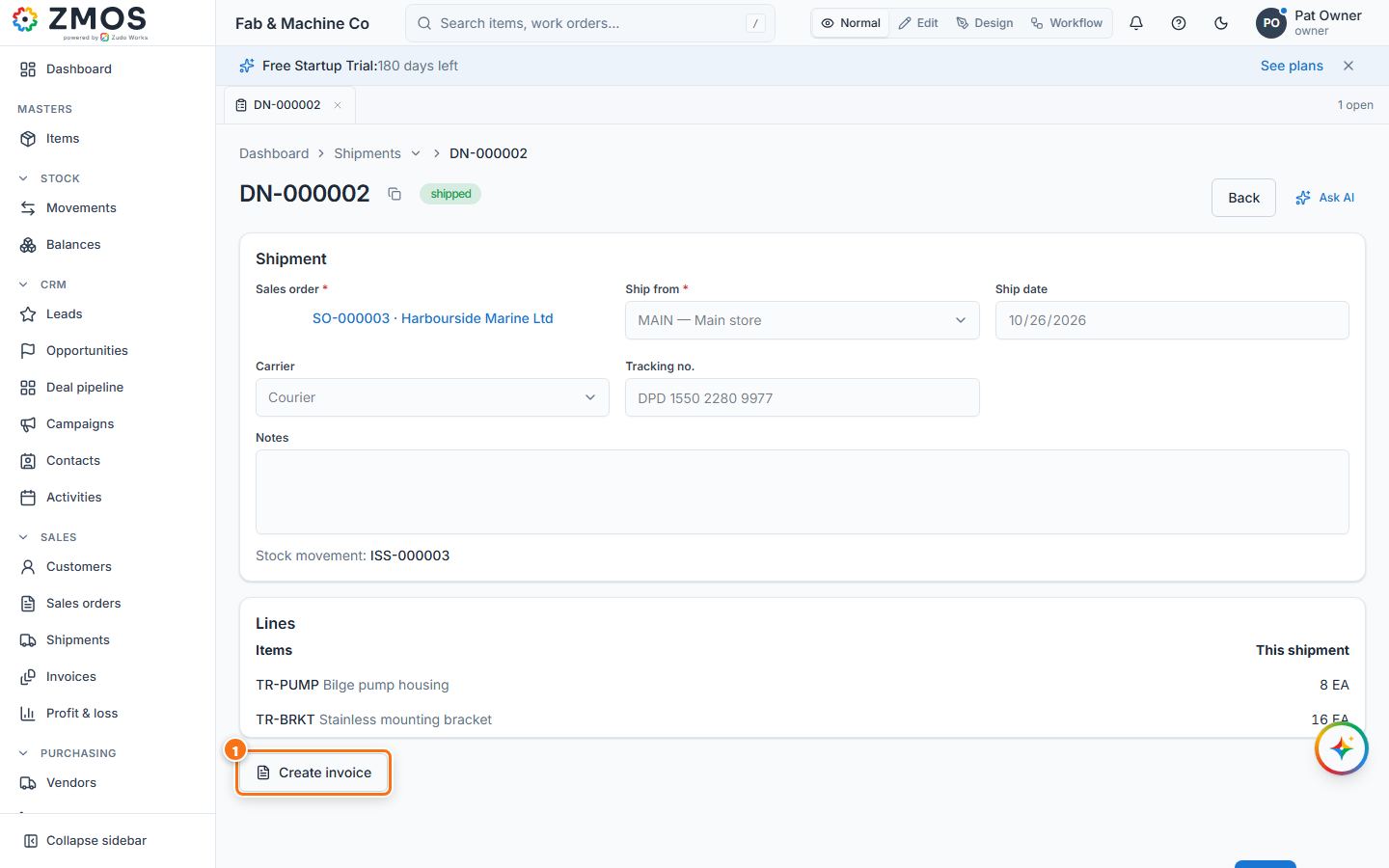
- Open the shipped shipment (straight after shipping, or hover Shipments in the sidebar, press Report and click the shipment) and press Create invoice.
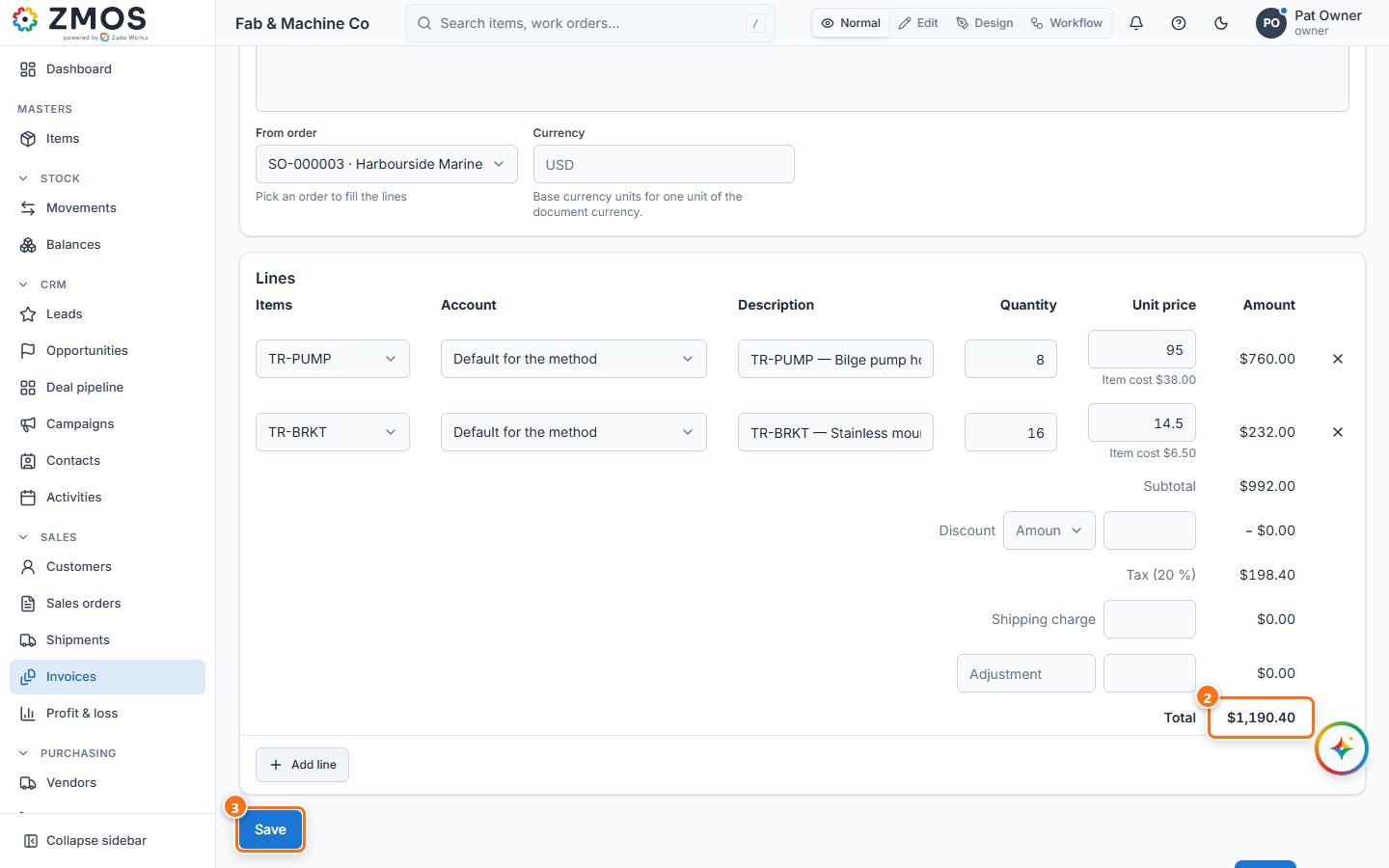
- The New invoice page opens with the customer and the shipped lines filled in. Check Invoice date and set Due date, Tax rate % and, if needed, Customer reference, Notes and Terms and conditions; discount, Shipping charge and an adjustment go under the lines. Total updates as you type.
- Press Save. The invoice gets its number with the status Draft.
- Press Issue when the invoice goes to the customer. The status becomes Issued and the invoice is posted to the books (use PDF or Send to give it to the customer).
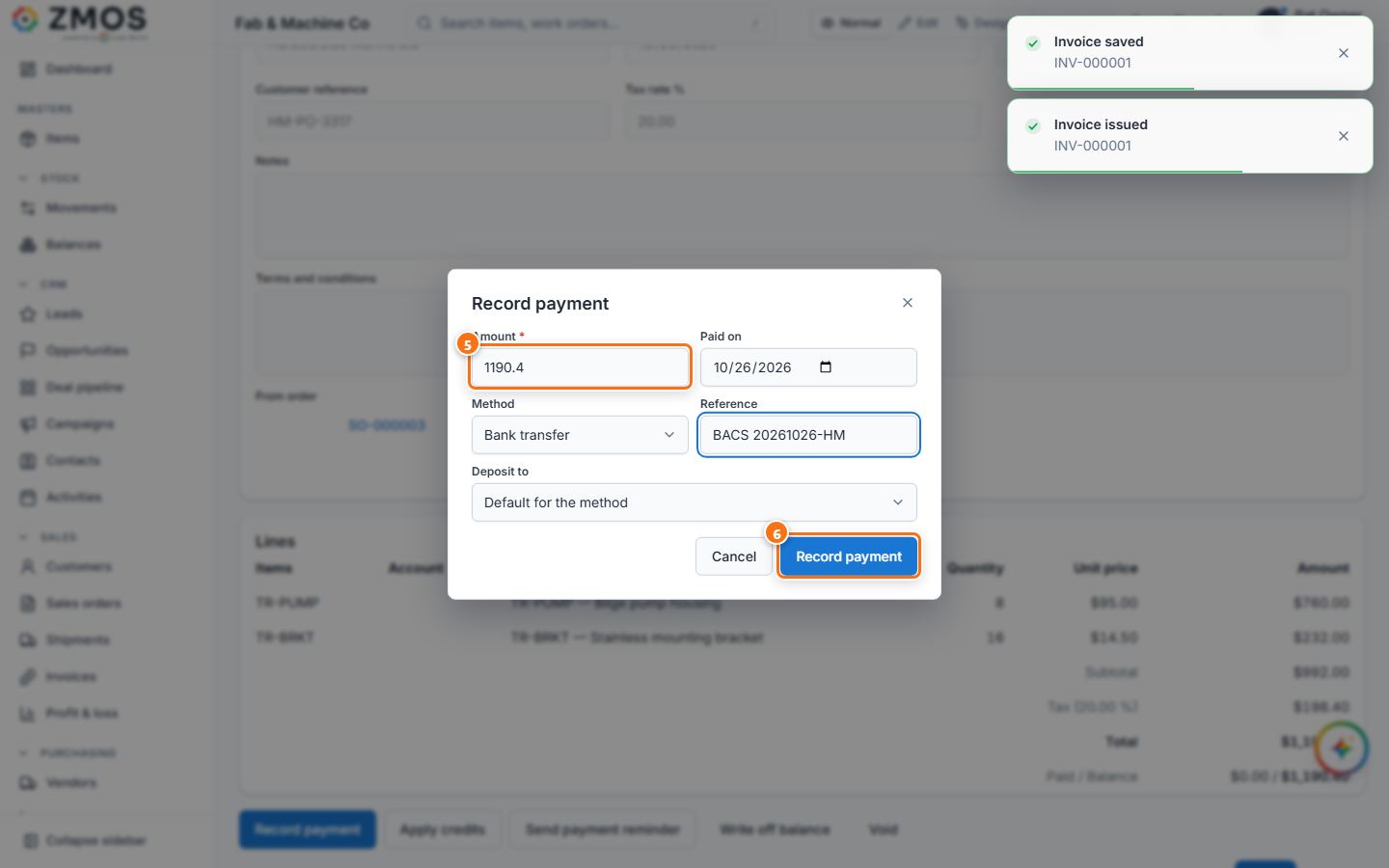
- When the customer pays, press Record payment. In the dialog, Amount is the open balance (lower it for a part payment); check Paid on, choose the Method, type the bank Reference and, if you keep the books, the Deposit to account.
- Press Record payment in the dialog. The status becomes Paid (or Partially paid) and the payment is listed under Payments.
Tip: a confirmed order can also be invoiced without a shipment — press Create invoice on the sales order.
Last updated