 Zudo Works
How to add a vendor
Add a supplier you buy from, so you can raise purchase orders and enter their bills.
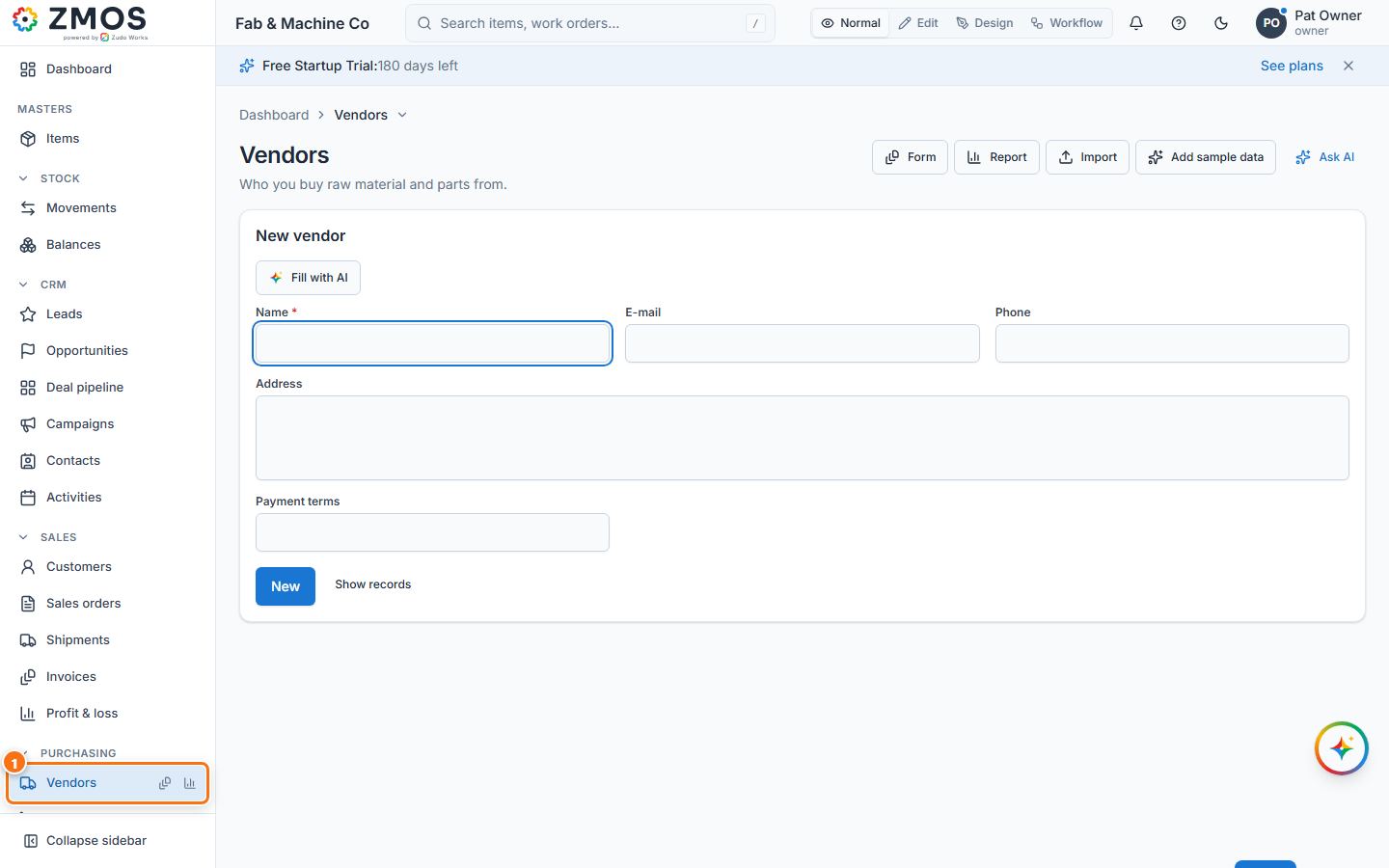
- In the sidebar, under Purchasing, click Vendors. The New vendor form opens on its own (the list is under the entry's Report button, or press Show records).
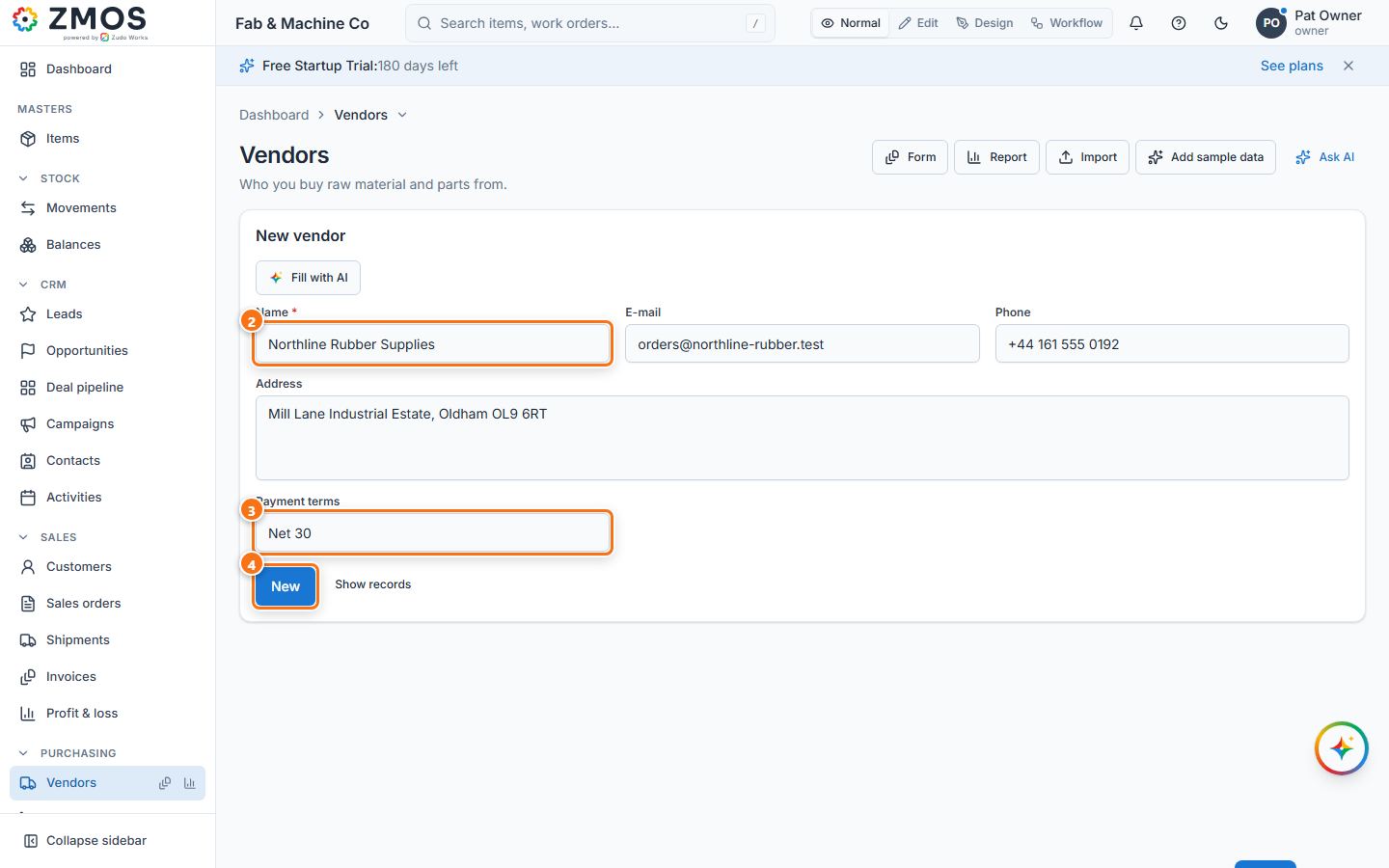
- Type the vendor's Name (required, unique).
- Fill in E-mail (purchase orders are e-mailed here), Phone, Address and Payment terms (for example "Net 30").
- Press Save to save the vendor.
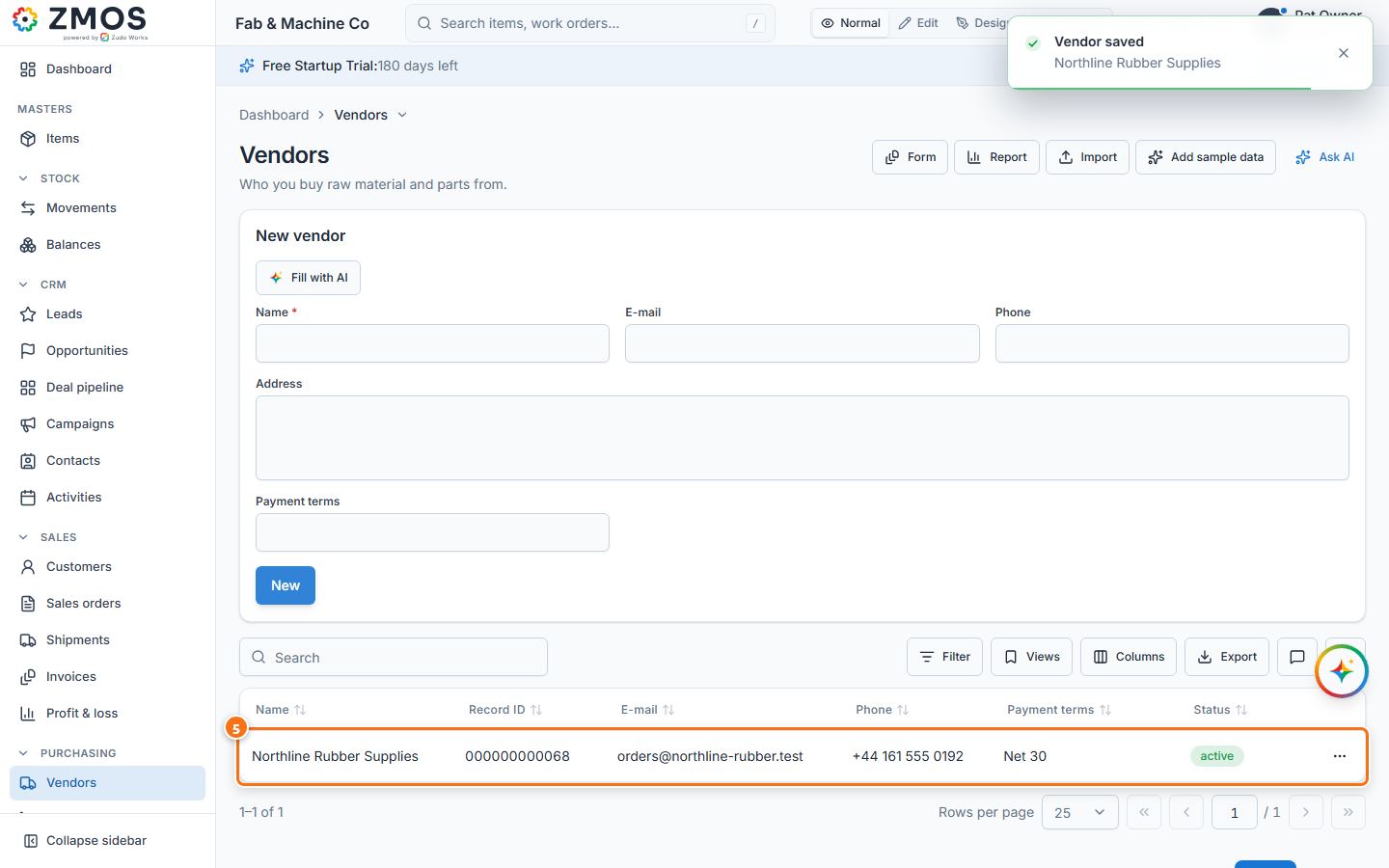
- "Vendor saved" appears, the form is cleared and the vendors list opens under it, showing the new vendor with its terms. Edit or deactivate it later from the row's ⋯ (Row actions) button.
Last updated