 Zudo Works
How to create a purchase order and receive it
Order material from a vendor and book the delivery into stock when it arrives.
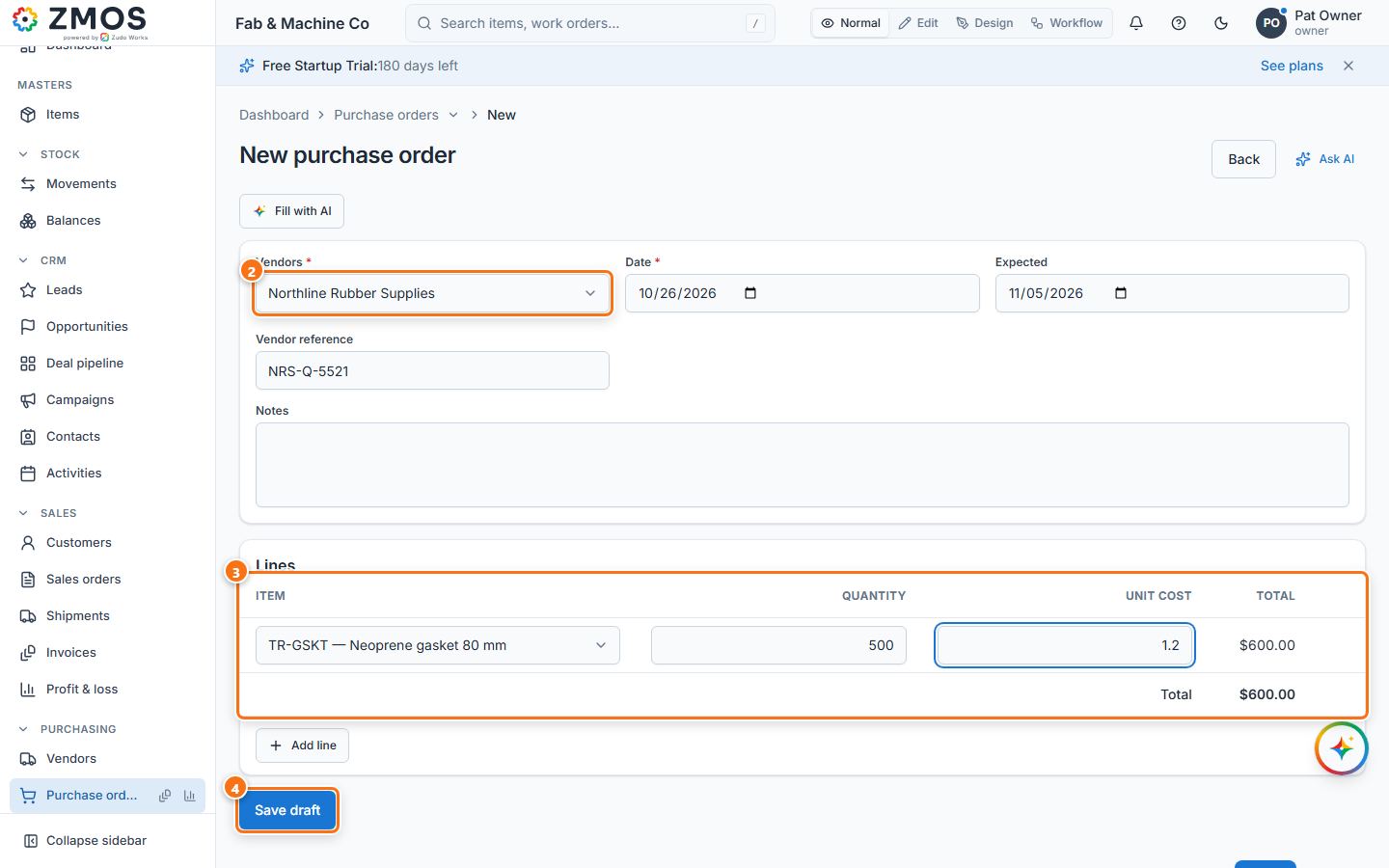
- In the sidebar, under Purchasing, click Purchase orders. The New purchase order page opens.
- Pick the supplier in Vendor. Check Date, and set Expected (the promised delivery date), Vendor reference (their quote number) and Notes as needed.
- Under Lines, choose the Item, type the Quantity and the Unit cost. Add line adds more items; the Total updates.
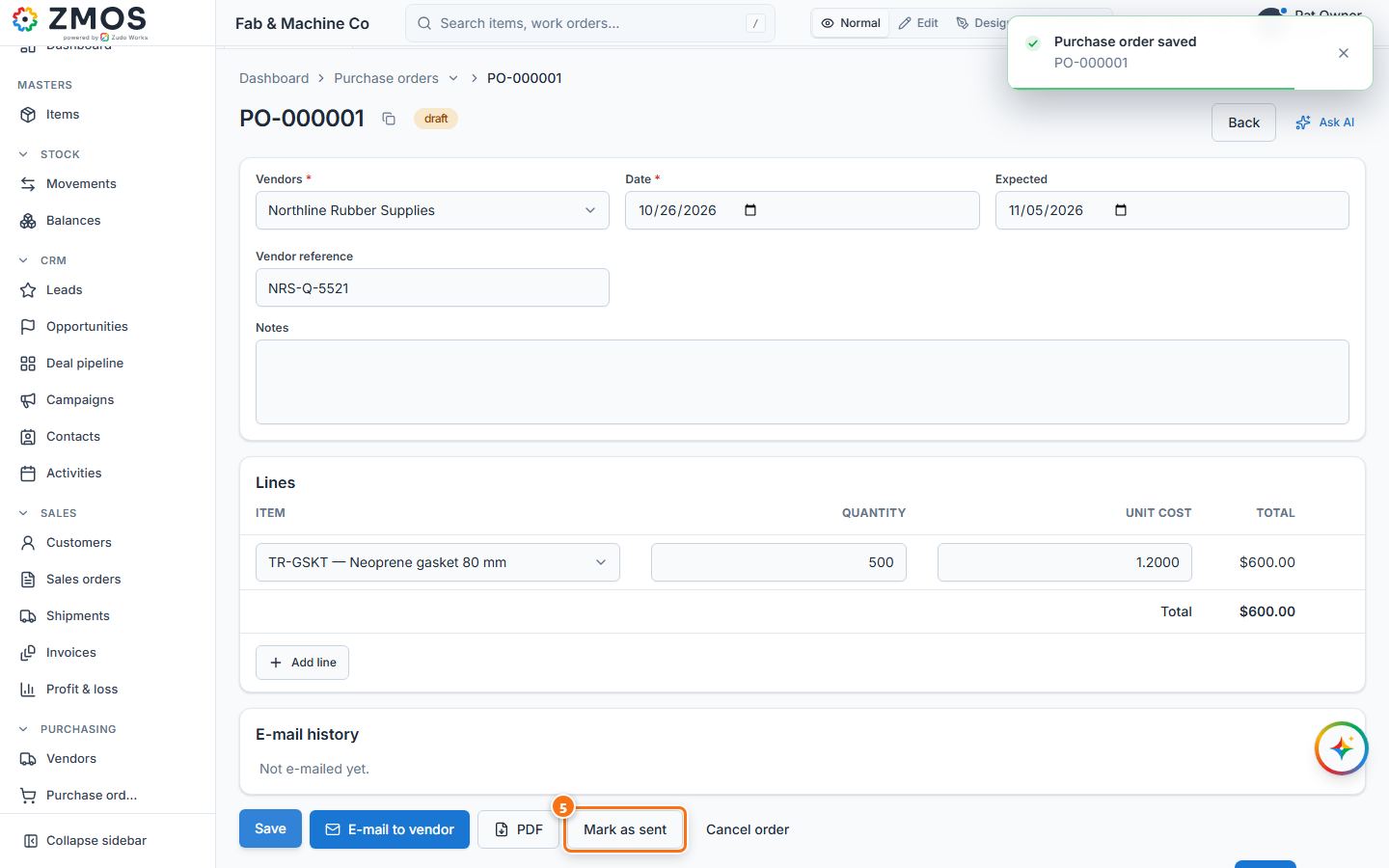
- Press Save draft. The order gets its number (PO-…) with the status Draft.
- Send it: press E-mail to vendor (or PDF to print it), then Mark as sent. The status becomes Sent.
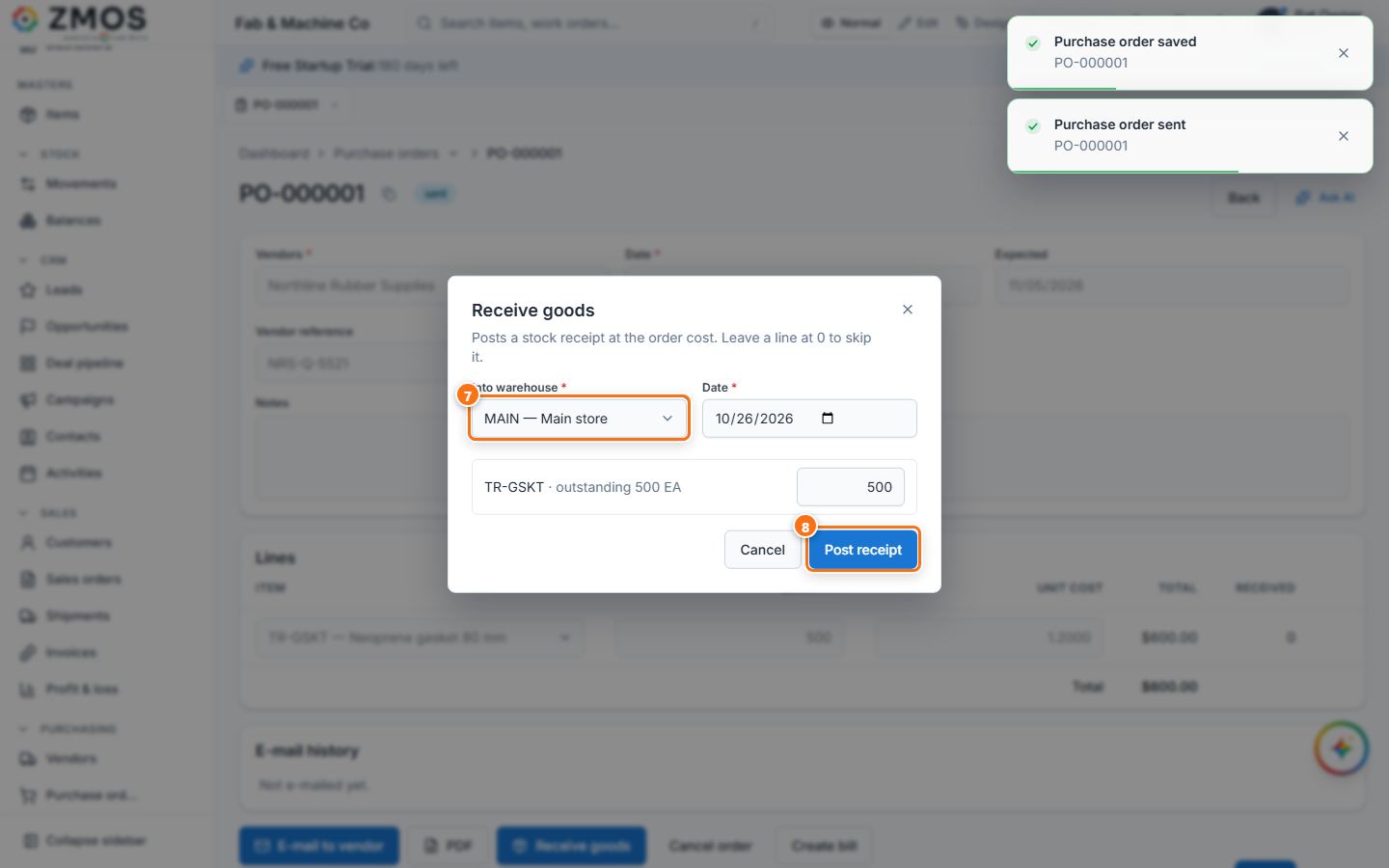
- When the goods arrive, press Receive goods.
- In the Receive goods dialog choose Into warehouse and the Date; each line shows the outstanding quantity — change it for a part delivery (leave a line at 0 to skip it).
- Press Post receipt. A stock receipt (RCV-…) is posted at the order cost and listed under Receipts; the status becomes Received when everything has arrived (it stays Sent after a part delivery).
Last updated