 Zudo Works
How to enter a vendor bill and pay it
Record the supplier's invoice for goods you ordered, approve it, and record the payment you make.
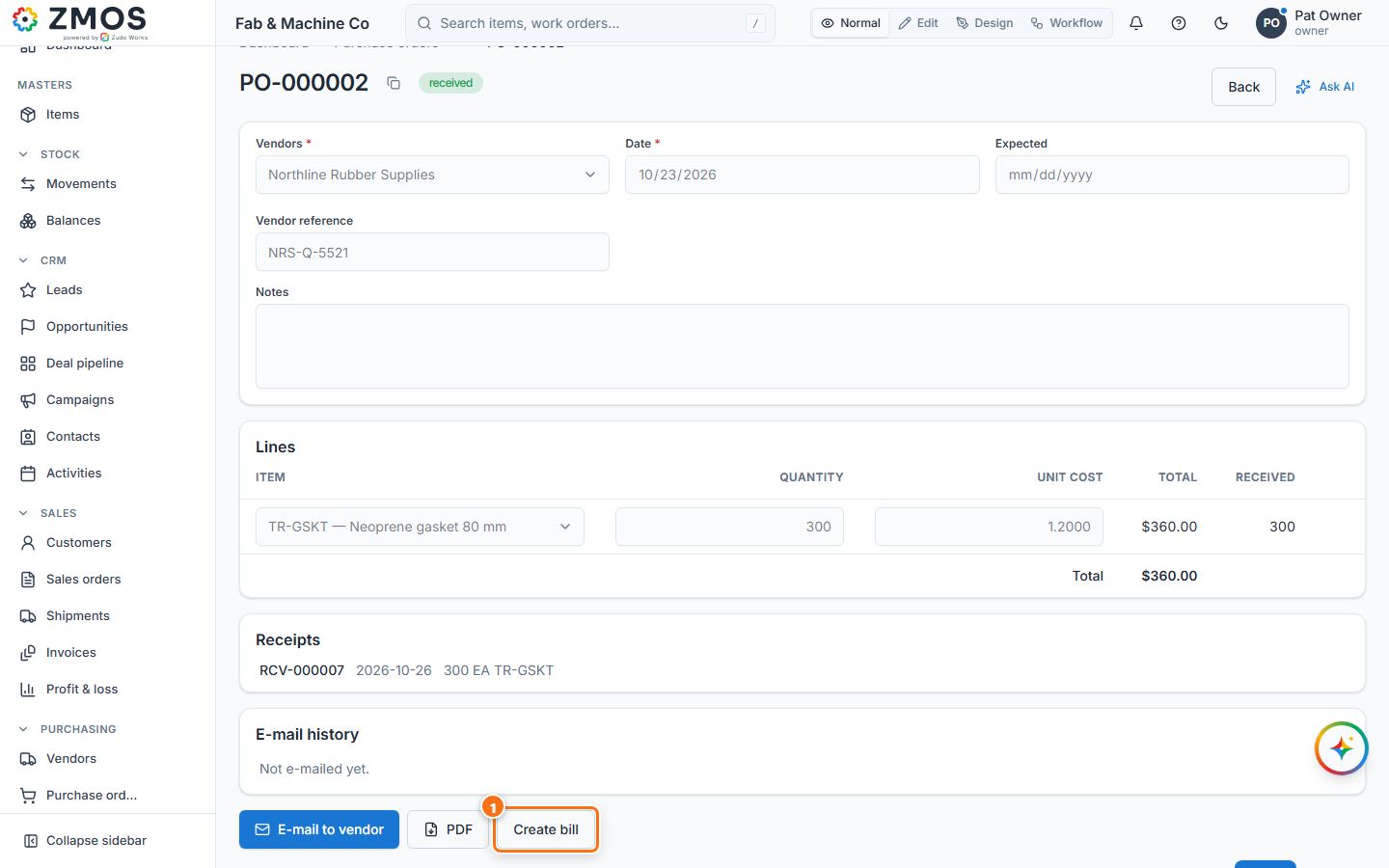
- Open the purchase order (hover Purchase orders in the sidebar, press Report and click the order) and press Create bill. (Or click Purchasing → Vendor bills, which opens New bill, and pick the vendor and the order in From purchase order.)
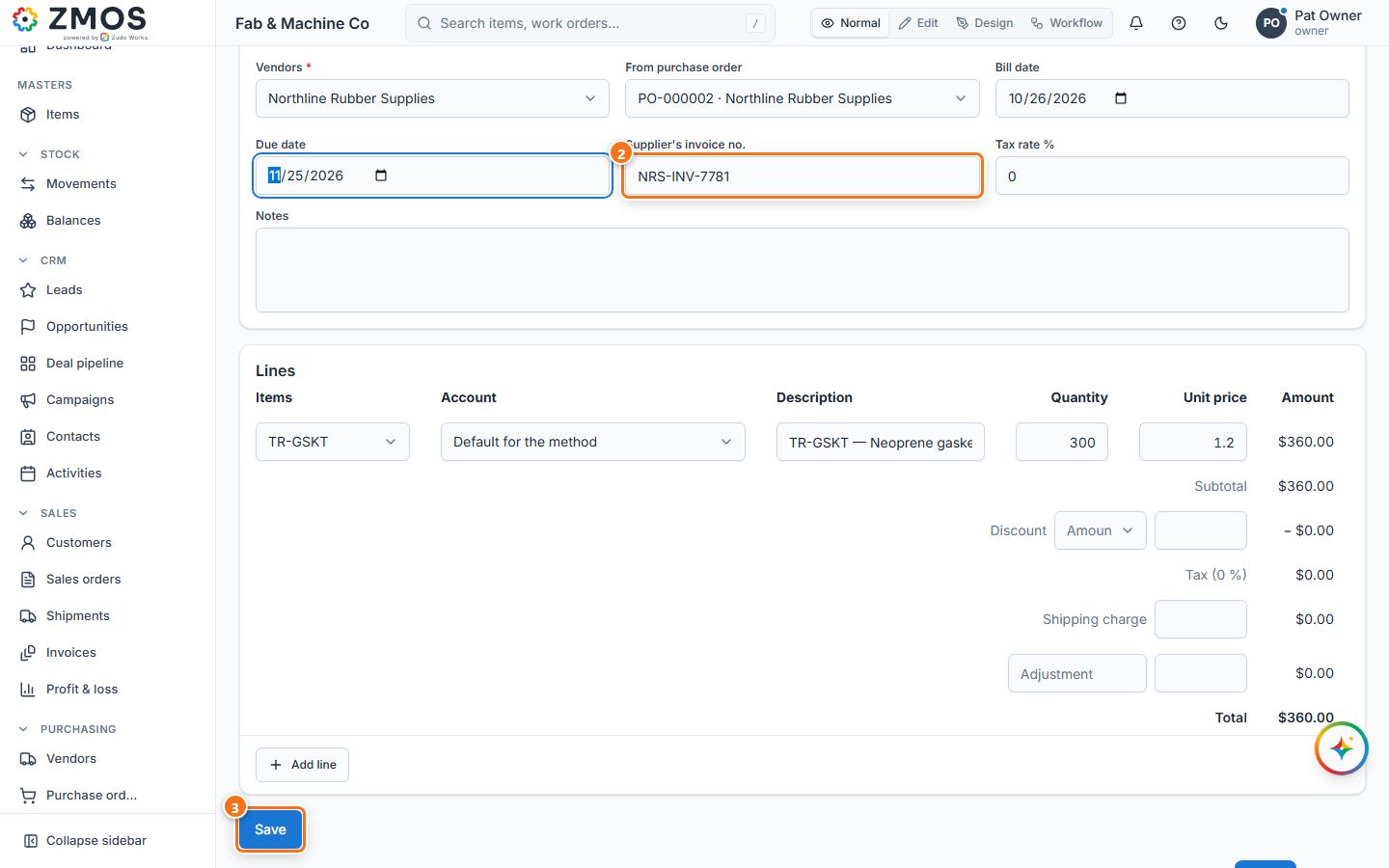
- The New bill page opens with the vendor and the received lines at the order cost. Type the Supplier's invoice no., check Bill date and set Due date and Tax rate %.
- Press Save. The bill gets its number with the status Draft.
- Press Approve. The status becomes Approved and the amount is owed to the supplier in the books.
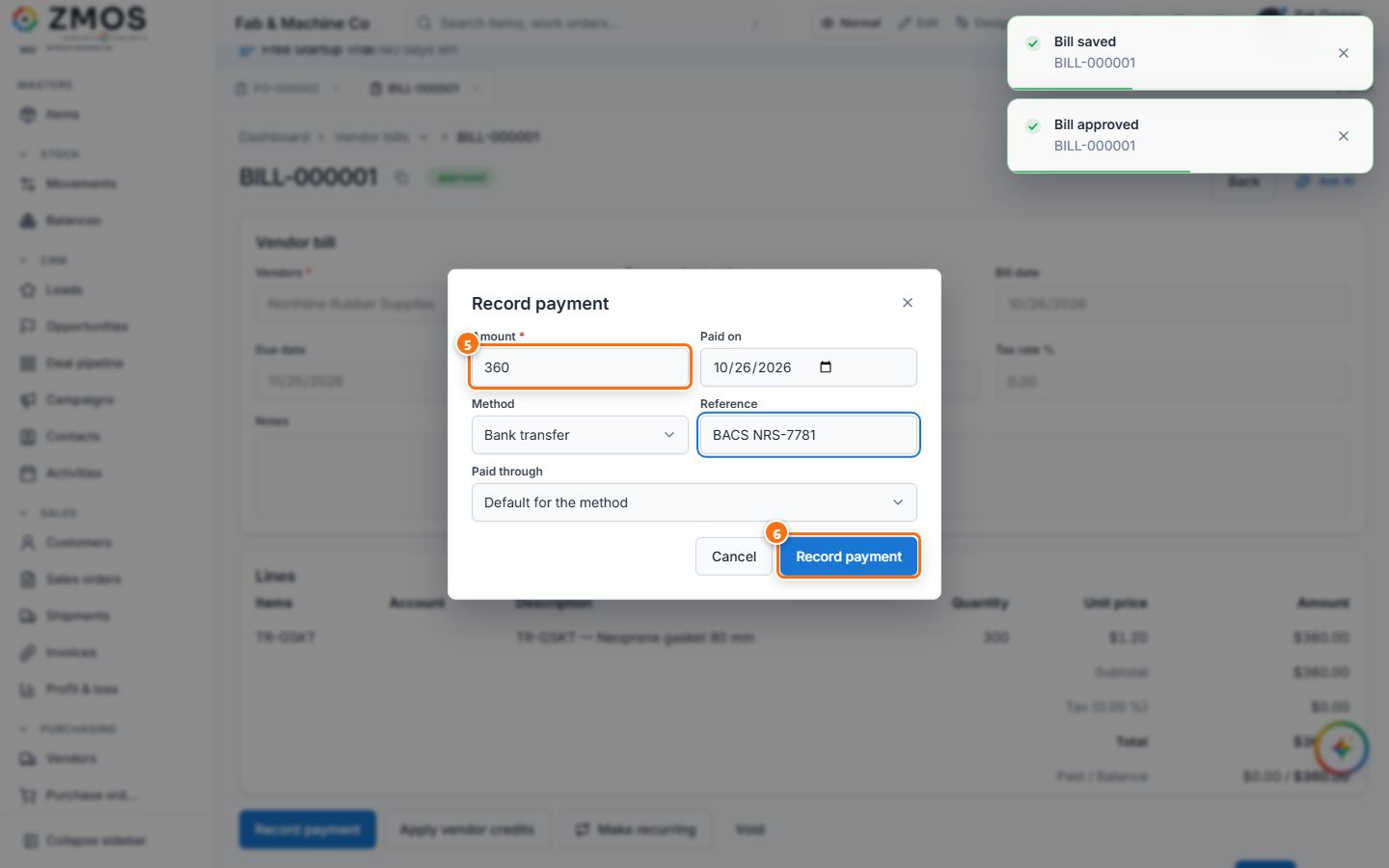
- When you pay, press Record payment. Amount is the open balance; check Paid on, choose the Method, type the Reference and, if you keep the books, the Paid through account.
- Press Record payment in the dialog. The status becomes Paid (or Partially paid) and the payment is listed under Payments.
Last updated