 Zudo Works
How to export a table
Every list can be saved as a CSV, Excel or PDF file — for a spreadsheet, a stock report or the accountant.
- Open the list you want — for example, in the sidebar under Stock, click Balances. (Items, Movements, Jobs and every other list work the same way.)
- Narrow it first if you like: Search, Filter, Columns — the file contains the rows you see and the visible columns in their current order.
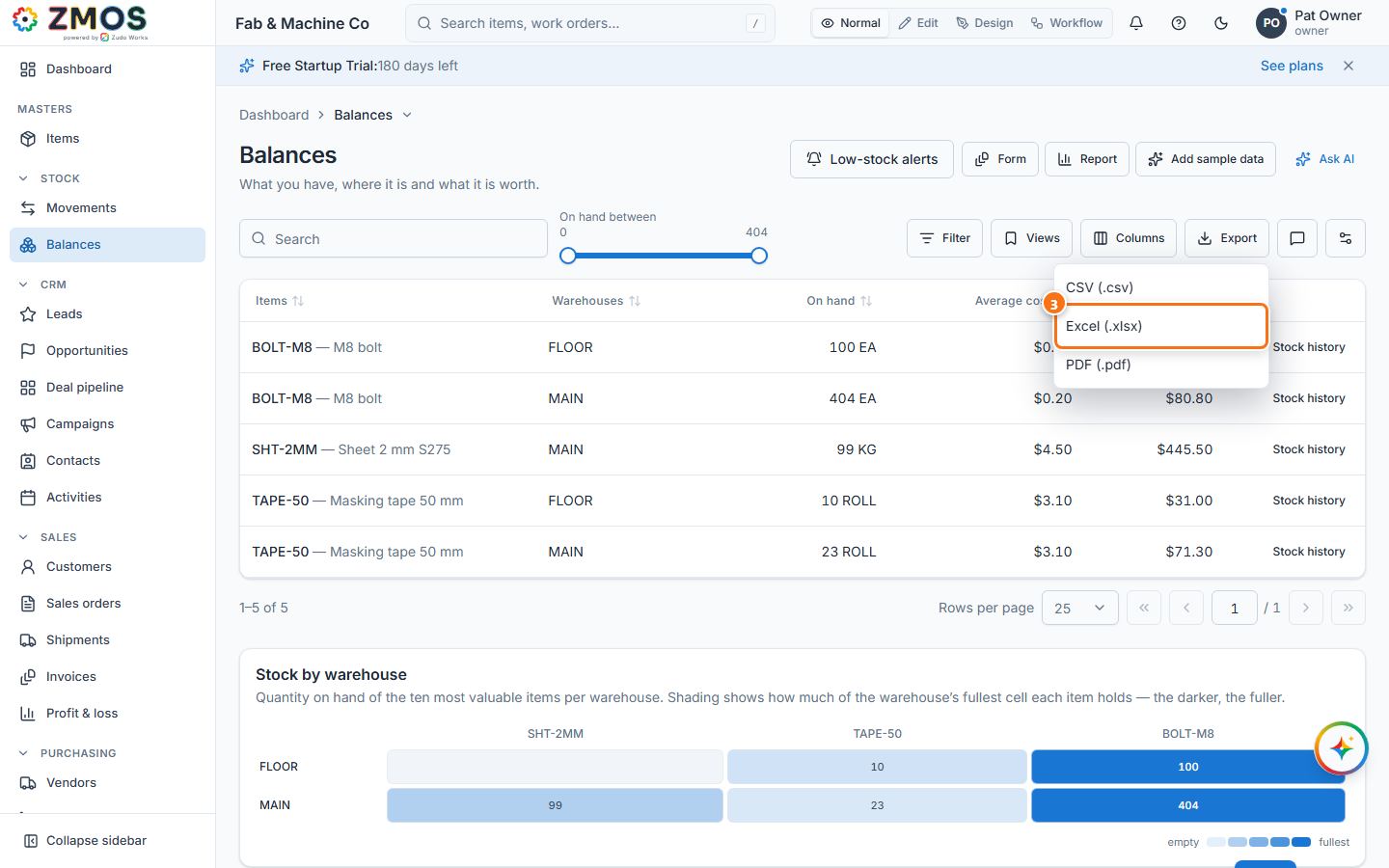
- Press Export at the top right of the table and choose CSV (.csv), Excel (.xlsx) or PDF (.pdf).
- The file downloads and "Export ready" appears. On lists with tick boxes (such as Items), tick rows first and the menu also offers Selected rows only.
Last updated