 Zudo Works
How to import a CSV file
Bring many records in at once from a spreadsheet saved as CSV — items here; units, warehouses, work centers, customers, vendors and custom forms work the same way.
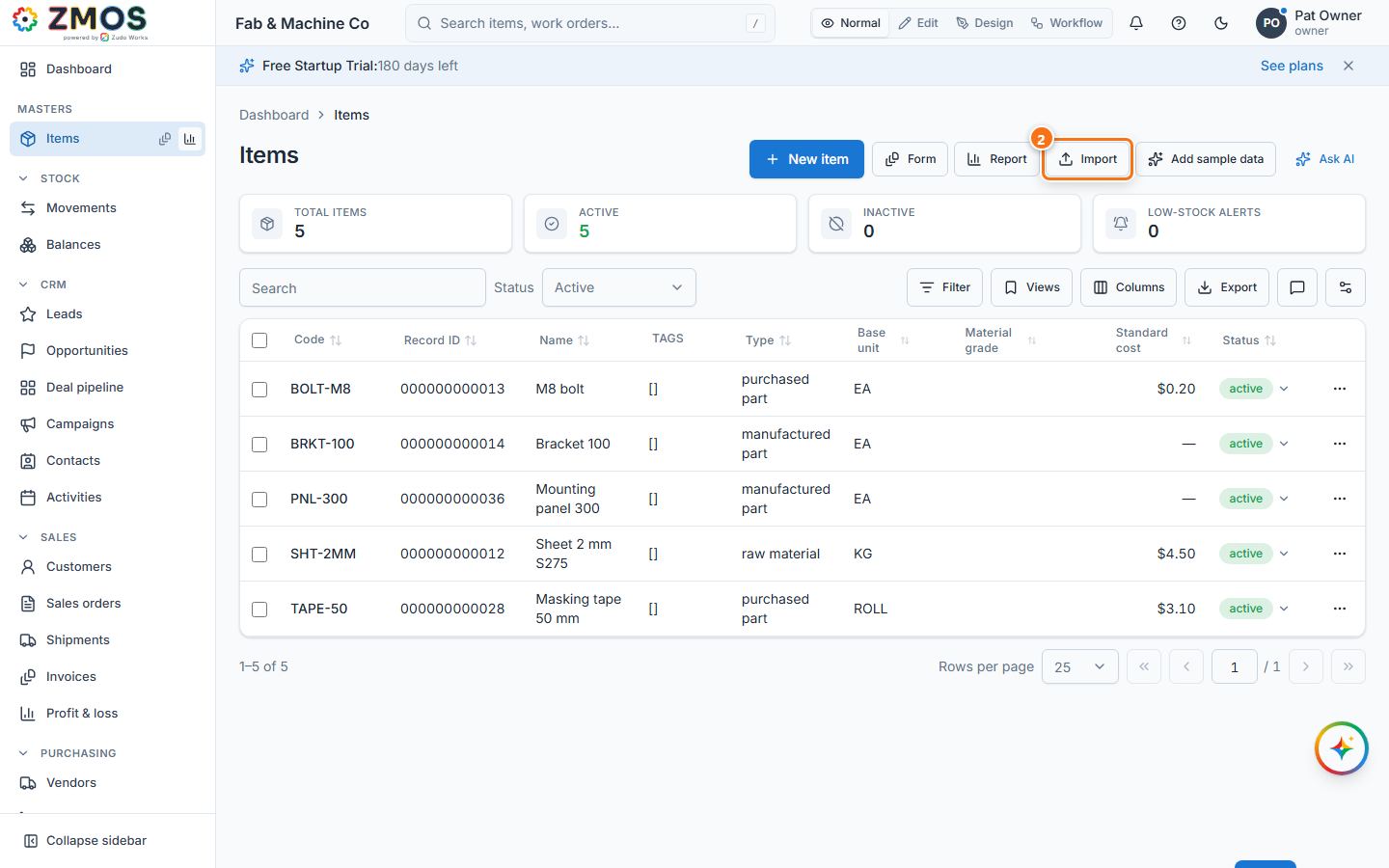
- Open the Items list: in the sidebar, hover Items (under Masters) and press its Report icon.
- Press Import at the top right. The Import from CSV: Items window opens. Download a template gives you a file with the right column headers.
- Click Choose a CSV file, pick your file (UTF-8, a header row first) and press Upload and read.
- Map columns: each field shows the column of your file it was matched to; change any with its list or choose "— not imported —". Fields marked required must be mapped. Leave Update records that already exist ticked to update items whose Code is already there.
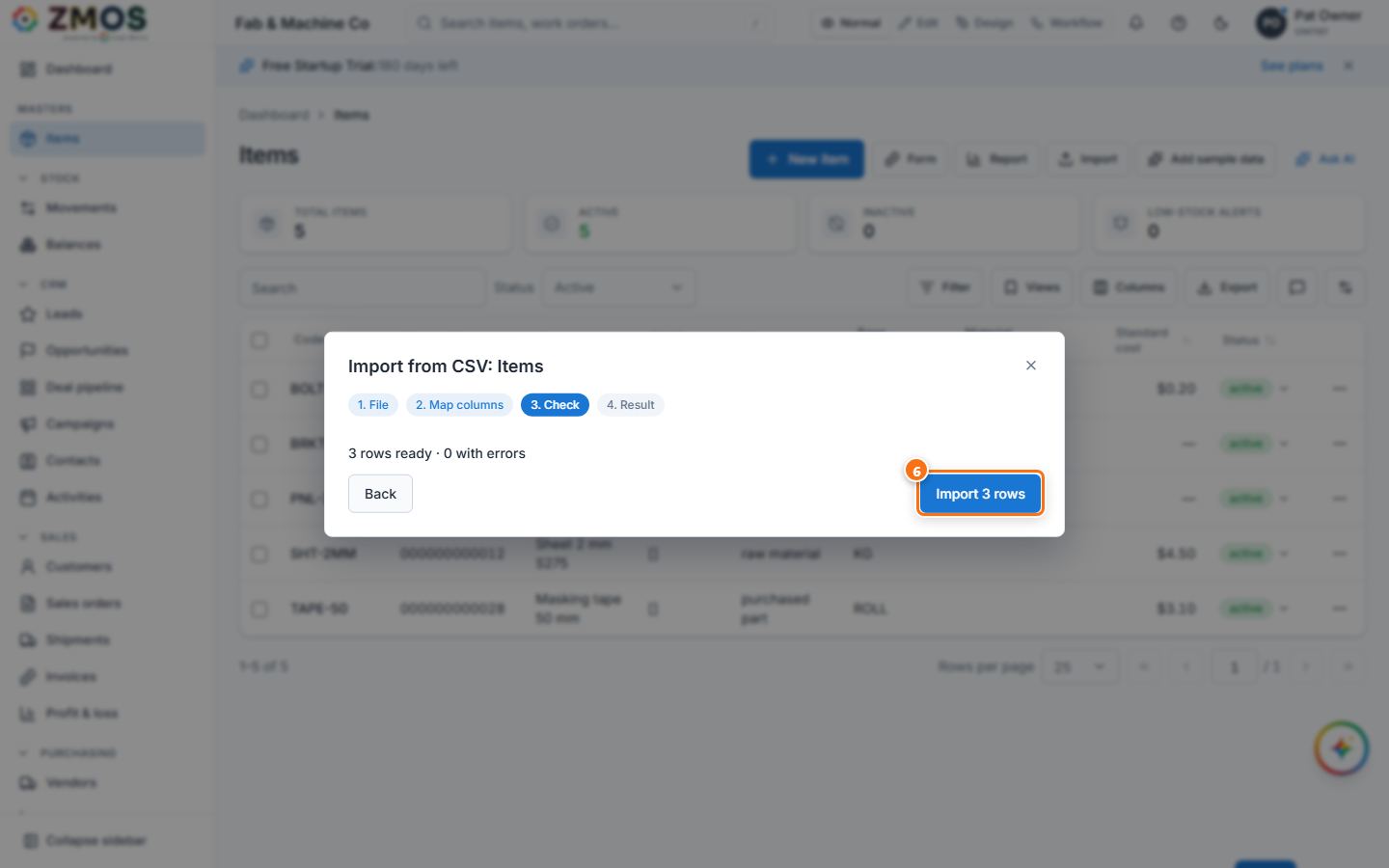
- Press Check rows. You see "N rows ready · M with errors"; rows with errors are listed and are not imported.
- Press Import N rows, then Done. The new items are in the list. (More than 200 rows run in batches in the background — follow them under Settings → Imports.)
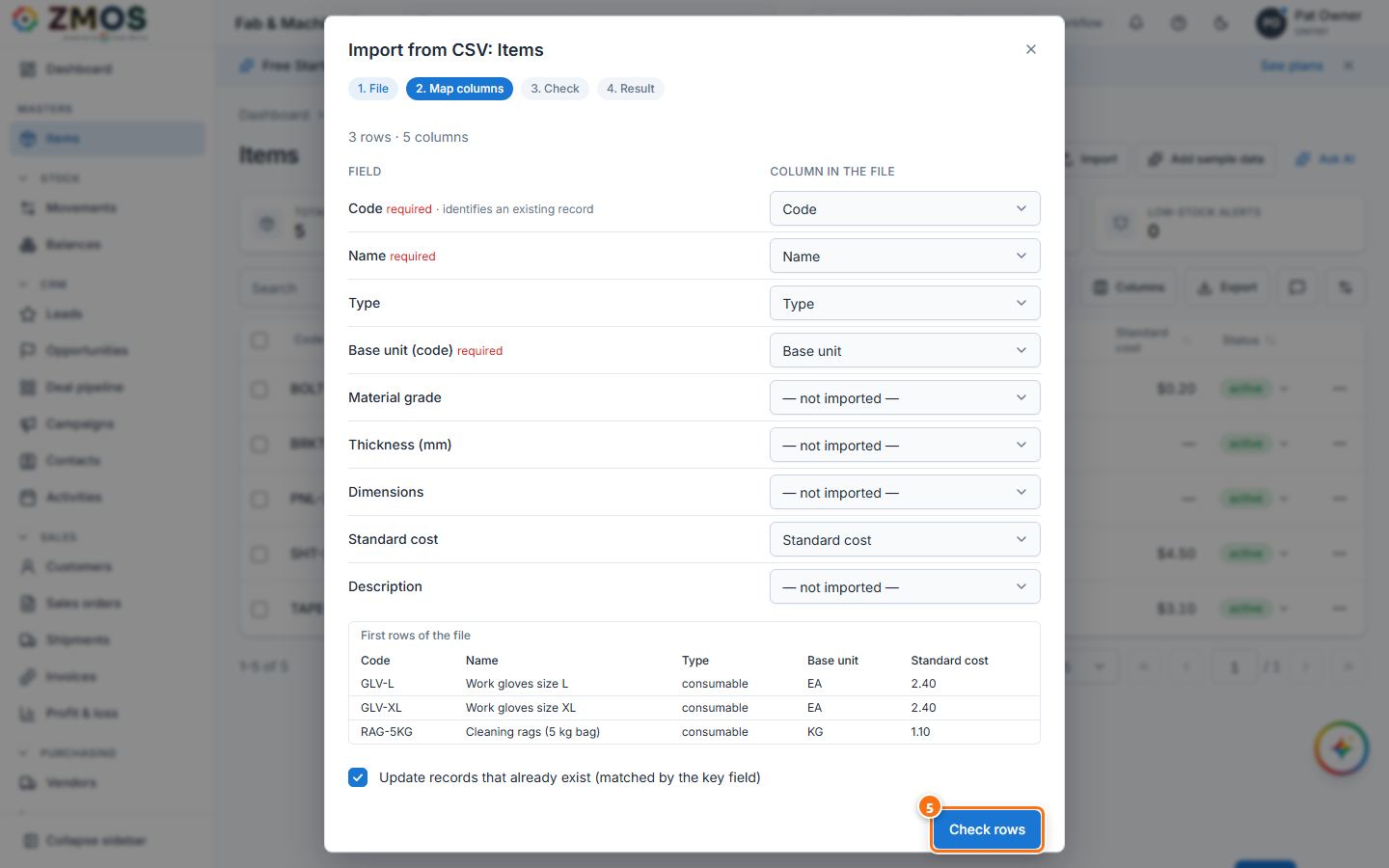
Tip: Type accepts raw_material, purchased_part, manufactured_part or consumable; Base unit takes the unit code (EA, KG …).
Last updated