 Zudo Works
How to add a lead and move its deal on the board
Capture a possible buyer, convert it into a customer with a deal, and move the deal through the stages.
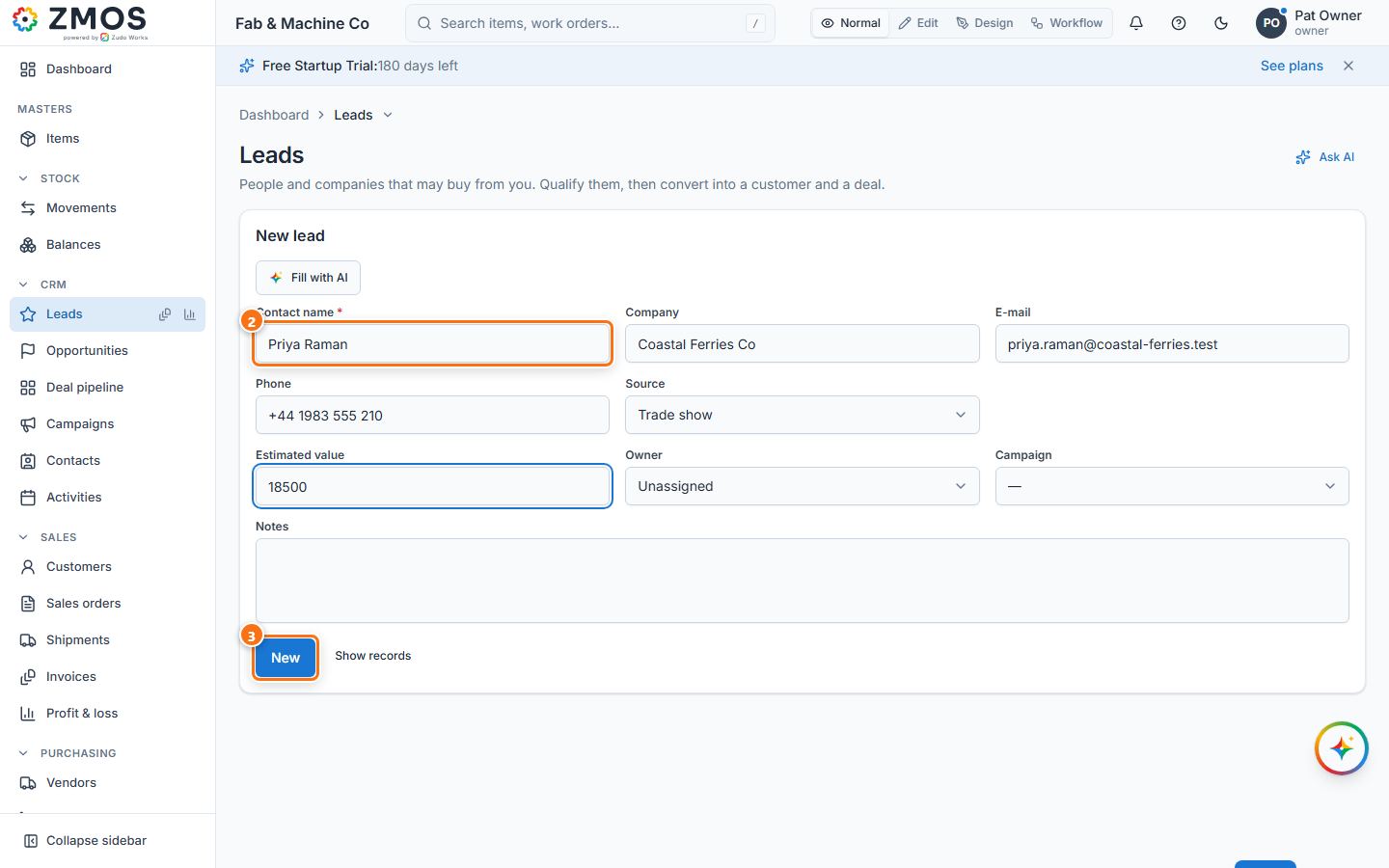
- In the sidebar, under CRM, click Leads. The New lead form opens.
- Type the Contact name (required) and, as far as you know them, Company, E-mail, Phone, Source, Estimated value, Owner and Campaign.
- Press Save. "Lead saved" appears and the lead is listed with the status New.
- When the lead is real, press the row's ⋯ (Row actions) button and choose Convert.
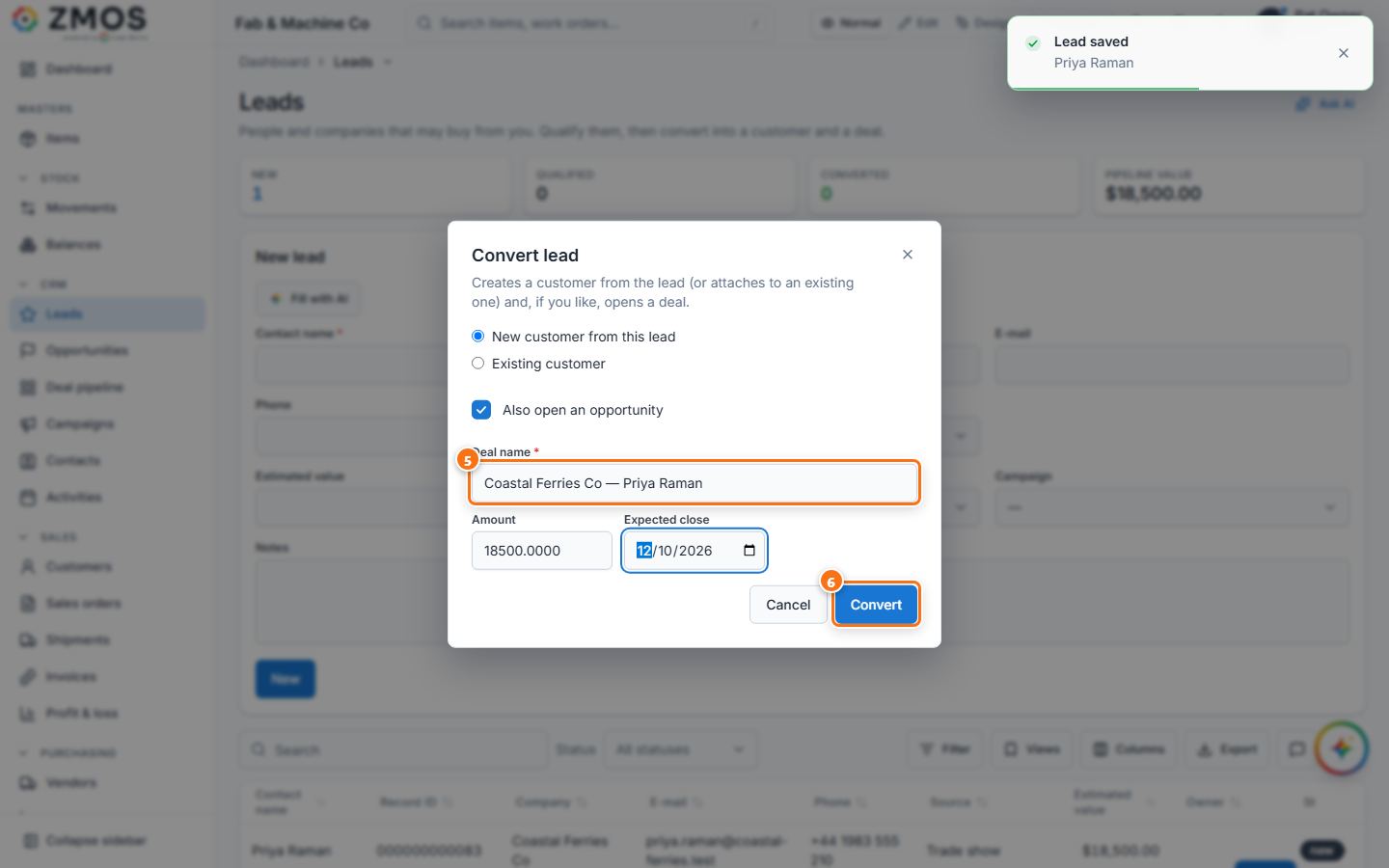
- In Convert lead, keep New customer from this lead (or choose Existing customer), keep Also open an opportunity ticked and check Deal name, Amount and Expected close.
- Press Convert. "Lead converted" appears; the lead shows Converted, the customer is created and the deal is open.
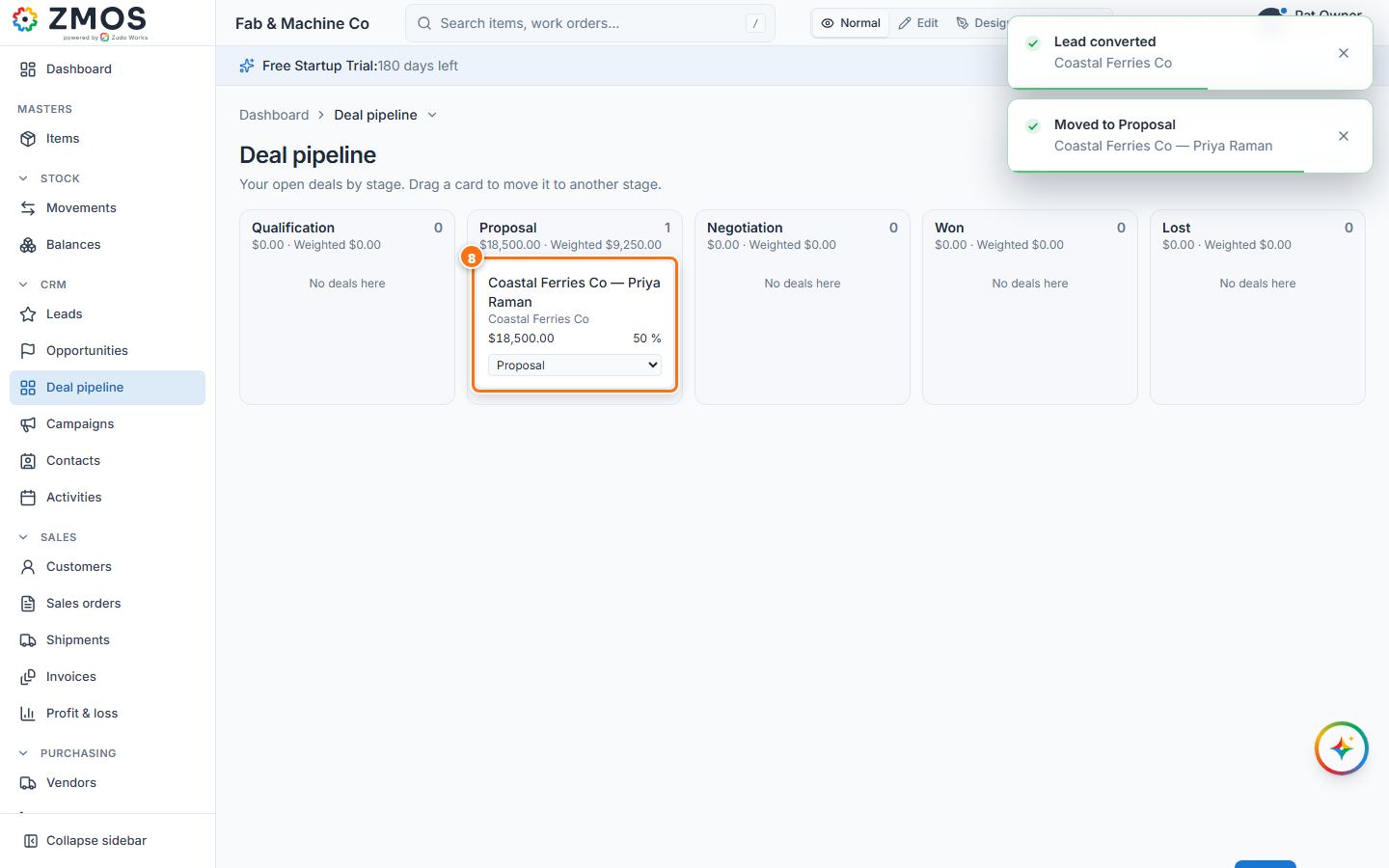
- In the sidebar, under CRM, click Deal pipeline. The new deal is in the Qualification column.
- Drag the card to the next column, for example Proposal (or pick the stage in the menu on the card). "Moved to Proposal" appears and the probability follows the stage.
Tip: CRM → Opportunities shows the same deals: the sidebar entry opens New opportunity; press Show records (or the entry's Report button) for the Board and List tabs. On that board the Move to menu on each card changes the stage.
Last updated