 Zudo Works
How to add and remove sample data
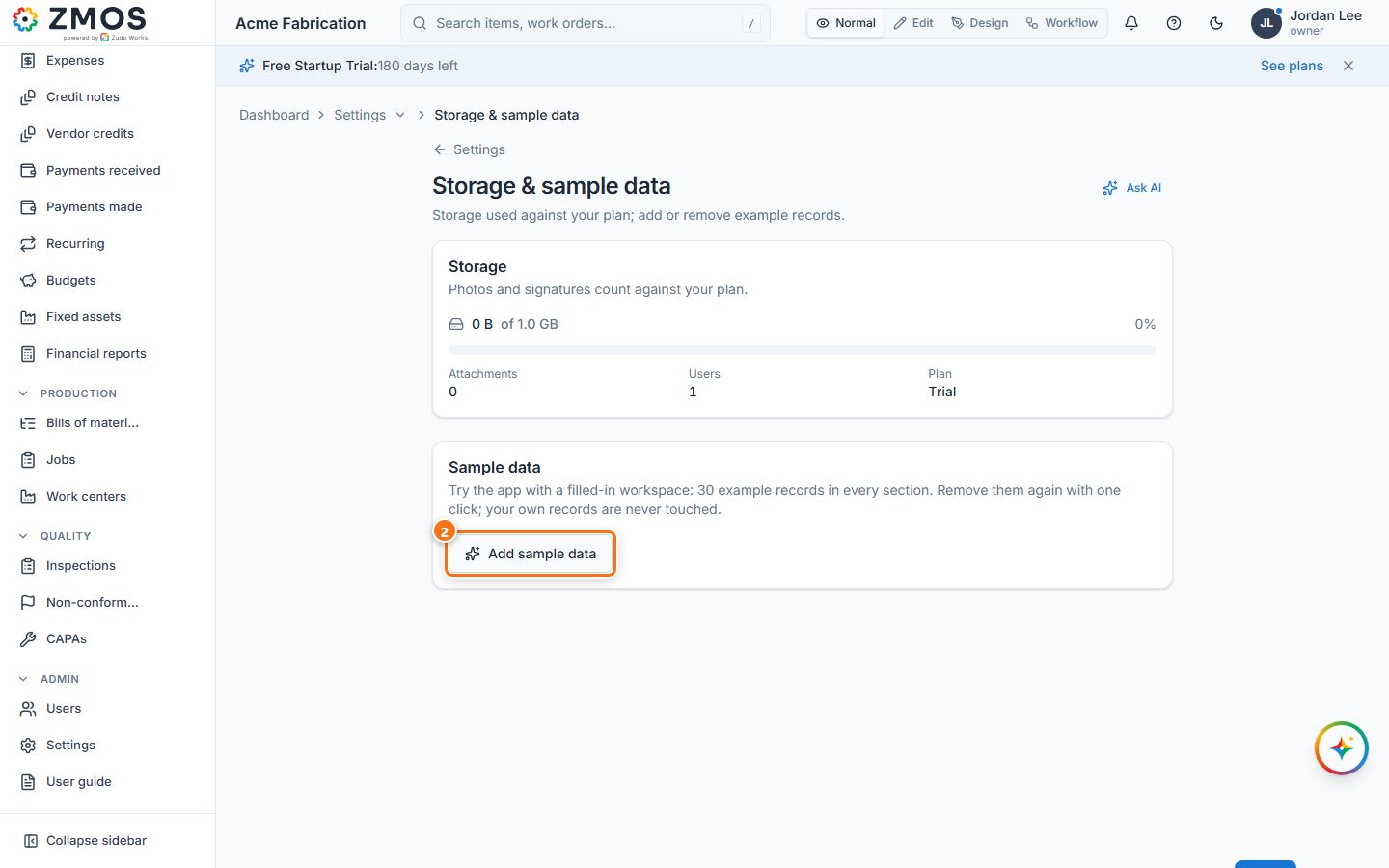
Fill a new workspace with example records to try everything out, then remove them with one click. Owners only; your own records are never touched.
- Open Settings in the sidebar and press Storage & sample data.
- In the Sample data card press Add sample data.
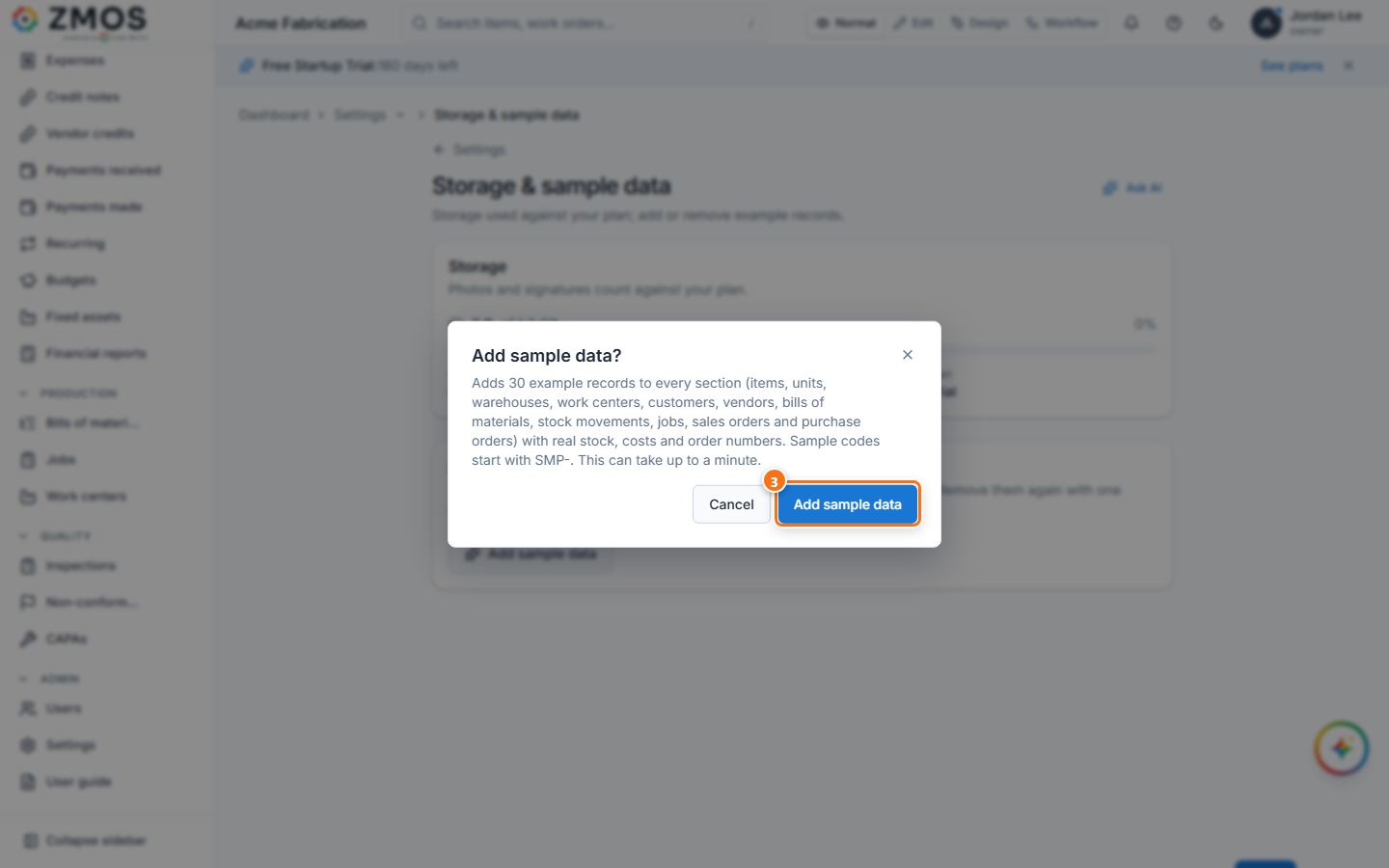
- Read Add sample data? and press Add sample data. It can take up to a minute.
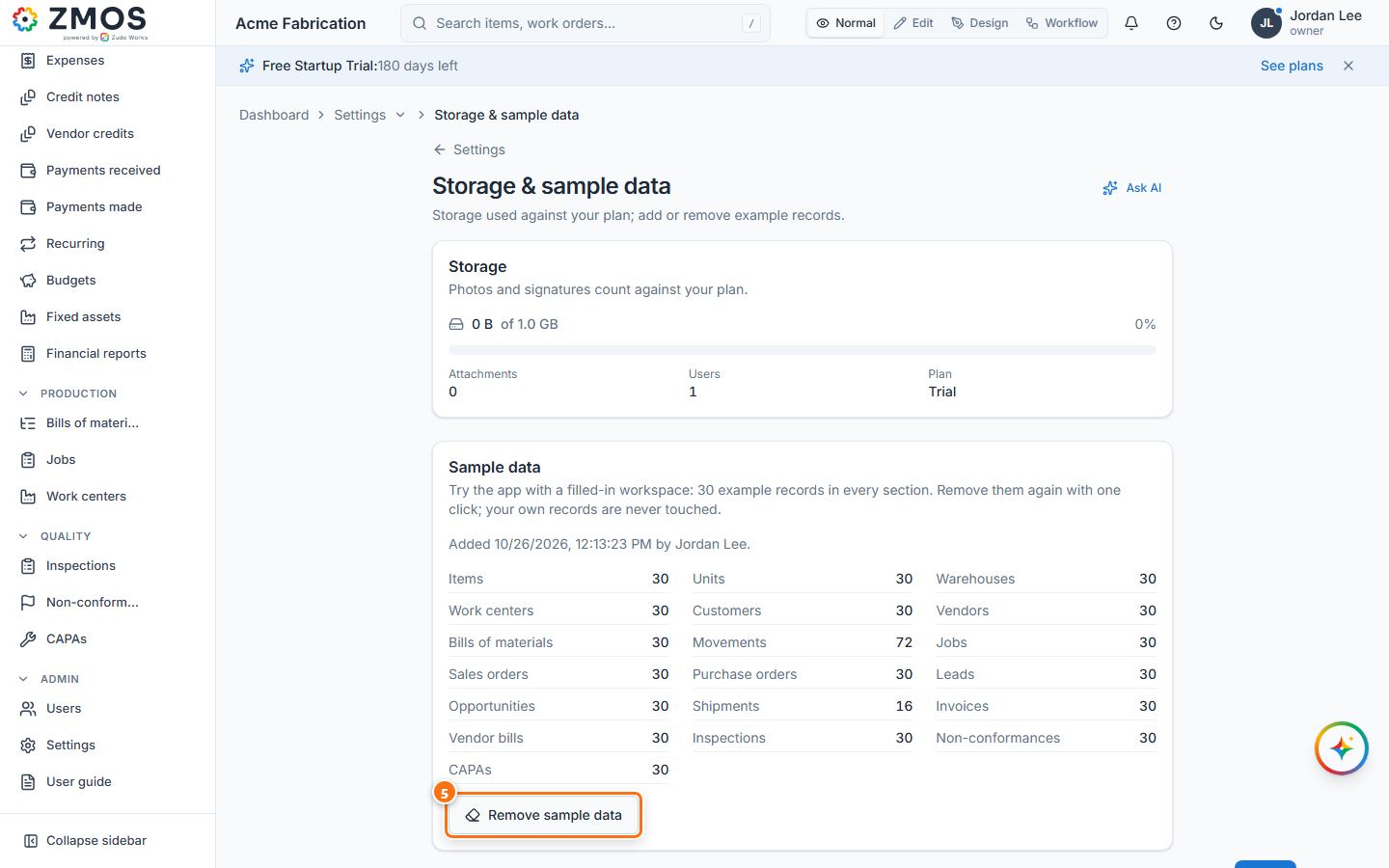
- “Sample data added” appears and the card counts the example records in every section (items, units, warehouses, work centers, customers, vendors, bills of materials, movements, jobs, orders …). Sample codes start with
SMP-. - When you are done, press Remove sample data in the same card.
- Confirm with Remove sample data. All sample records and their stock postings are removed (“Sample data removed”).
Tip: the same Add sample data / Remove sample data button is at the top of the section pages (for example Items, Units, Warehouses, Work centers and Bills of materials).
Last updated