 Zudo Works
How to edit the e-mail and invoice templates
Change the wording of the e-mails sent to customers and vendors, and the look of printed invoices, credit notes and statements. Owners only.
- Open Settings in the sidebar and press Templates.
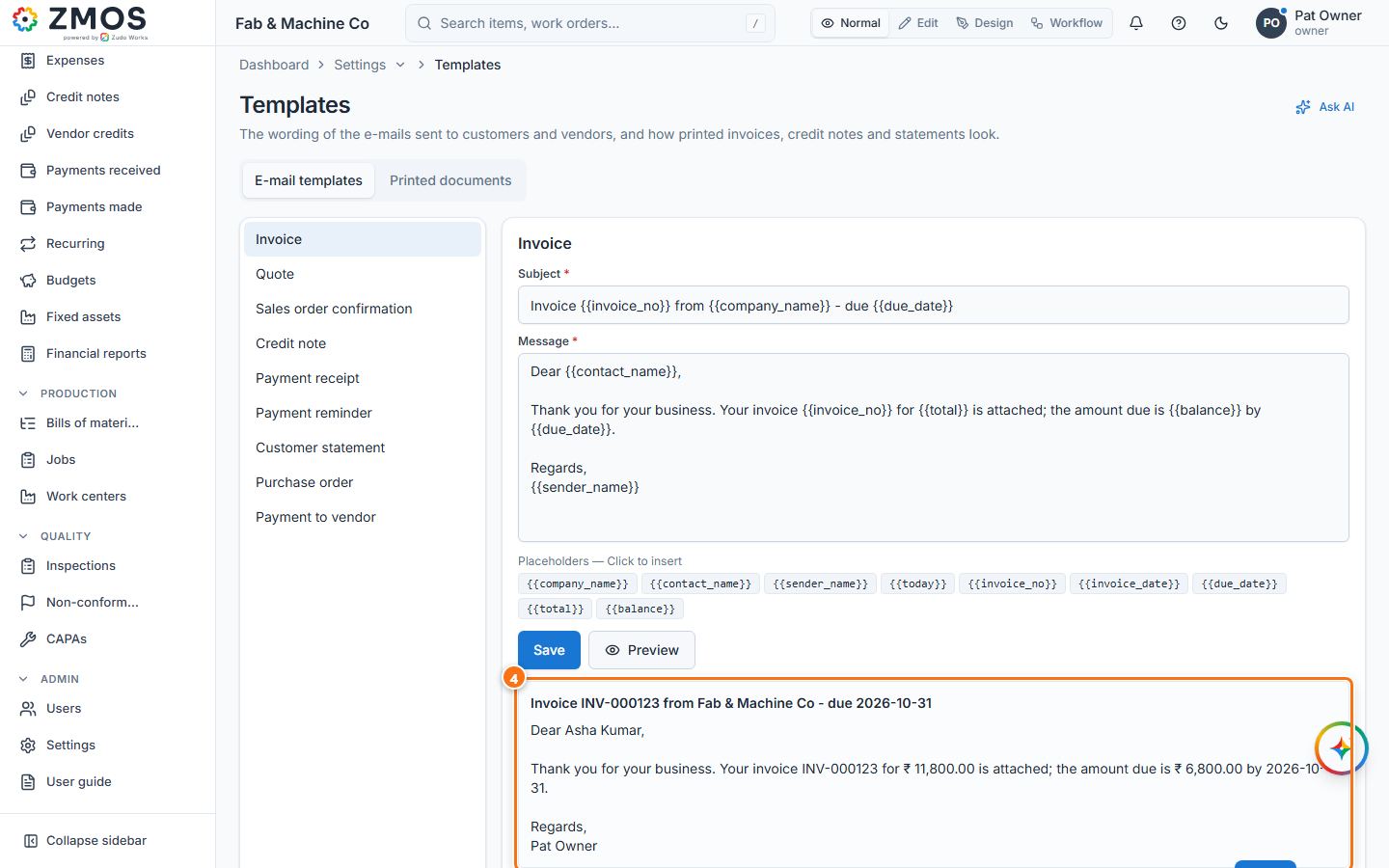
- On the E-mail templates tab, press the e-mail to change in the list on the left — for example Invoice (also Quote, Sales order confirmation, Credit note, Payment receipt, Payment reminder, Customer statement, Purchase order, Payment to vendor).
- Edit the Subject and the Message. Click a placeholder chip such as
{{invoice_no}}or{{due_date}}to insert it at the cursor; it is filled in for each document. - Press Preview to see the e-mail with sample values.
- Press Save. The template is marked Customised; Reset to default brings back the built-in text.
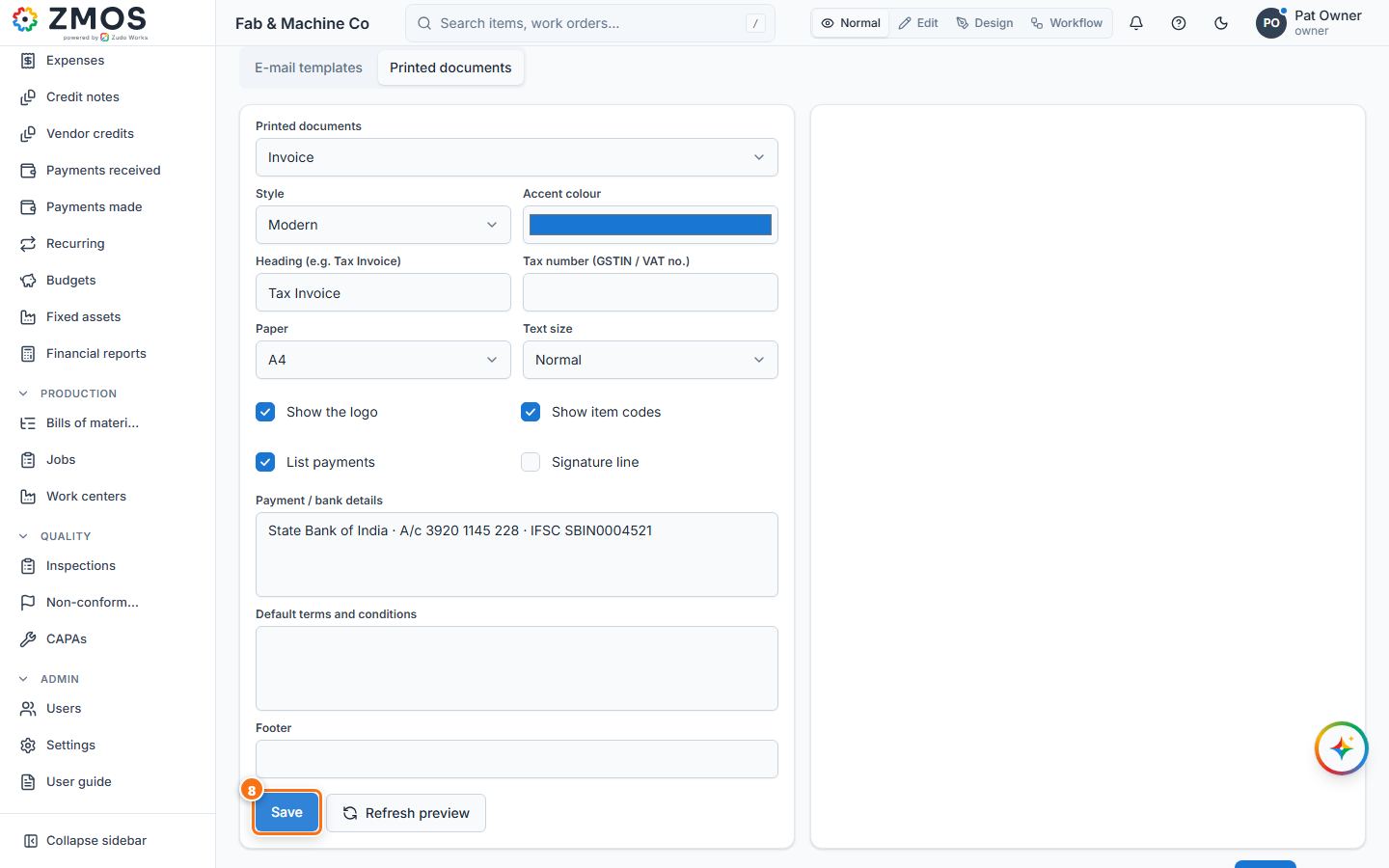
- Open the Printed documents tab and choose the document under Printed documents (Invoice, Credit note or Statement).
- Set the Style, Accent colour, Heading (e.g. Tax Invoice), Tax number (GSTIN / VAT no.), Paper, Text size, what to show (logo, item codes, payments, signature line), Payment / bank details, Default terms and conditions and Footer. Press Refresh preview to update the preview.
- Press Save. To see the result on a real document, open an invoice and press PDF.
Last updated