 Zudo Works
How to block a save with a validation rule
Stop incomplete or wrong records at the door with your own message — for example "Enter the material grade for raw material."
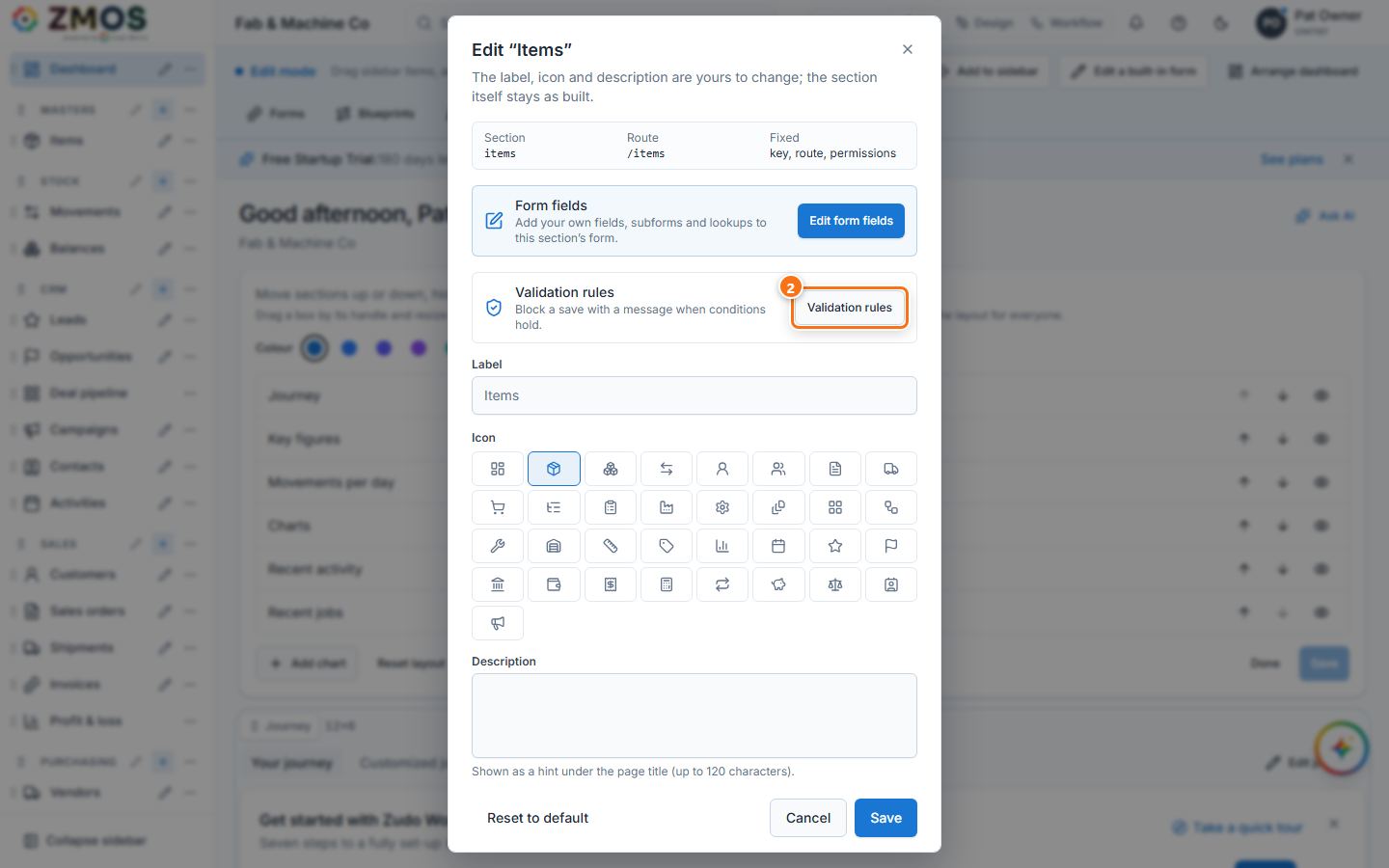
- Switch the top bar to Edit and press the small pencil at the right of the entry in the sidebar (here Items). Edit “Items” opens. (For your own forms: open the form builder and press Validation rules.)
- In the Validation rules row, press Validation rules.
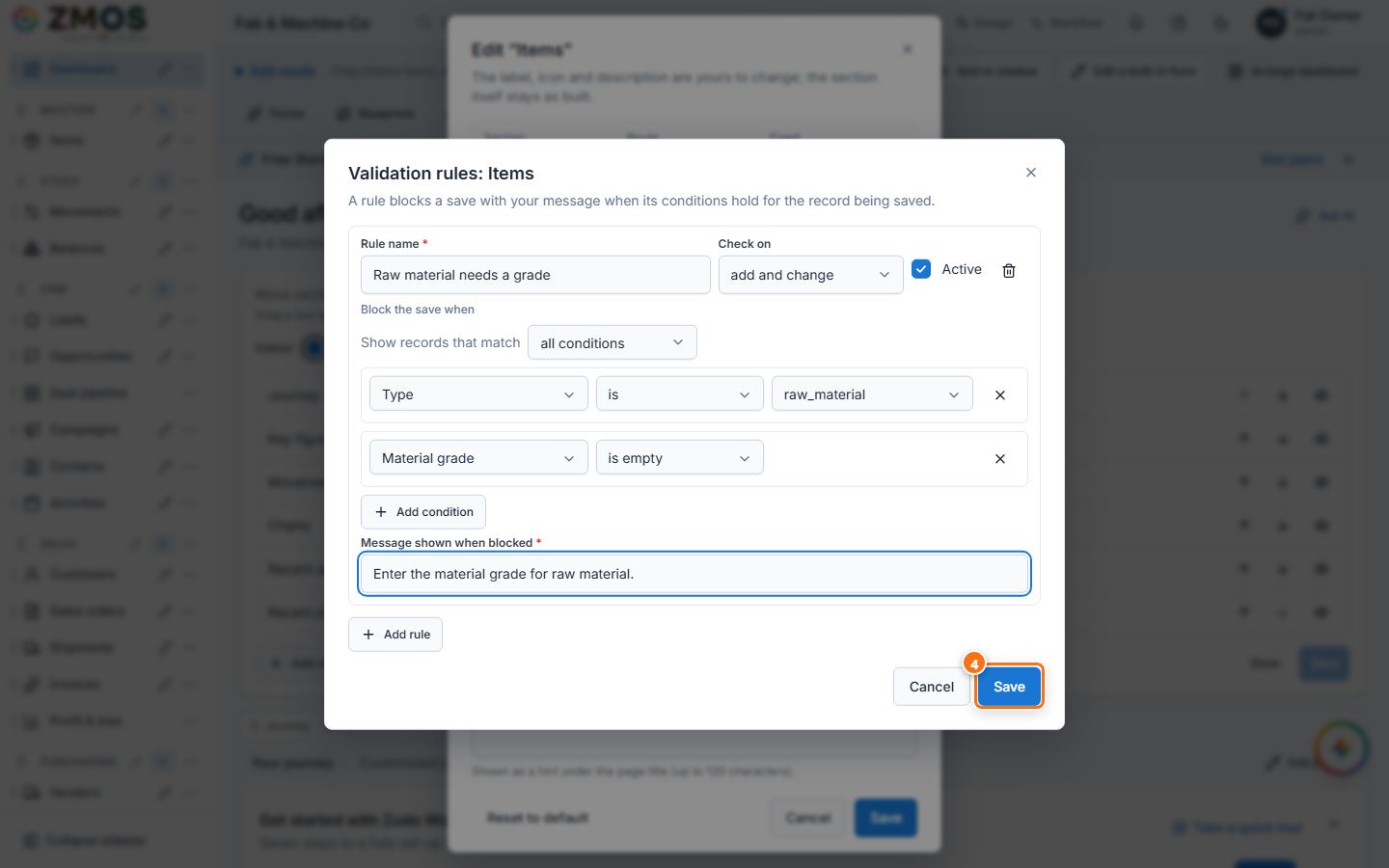
- In Validation rules: Items, press Add rule. Type the Rule name ("Raw material needs a grade"), choose Check on (add and change, add only or change only) and keep Active ticked. Under Block the save when, set the conditions that must ALL (or ANY) hold to block: Type is raw_material, then Add condition → Material grade is empty. Type the Message shown when blocked.
- Press Save ("Validation rules saved"), close Edit “Items” with Cancel and switch back to Normal.
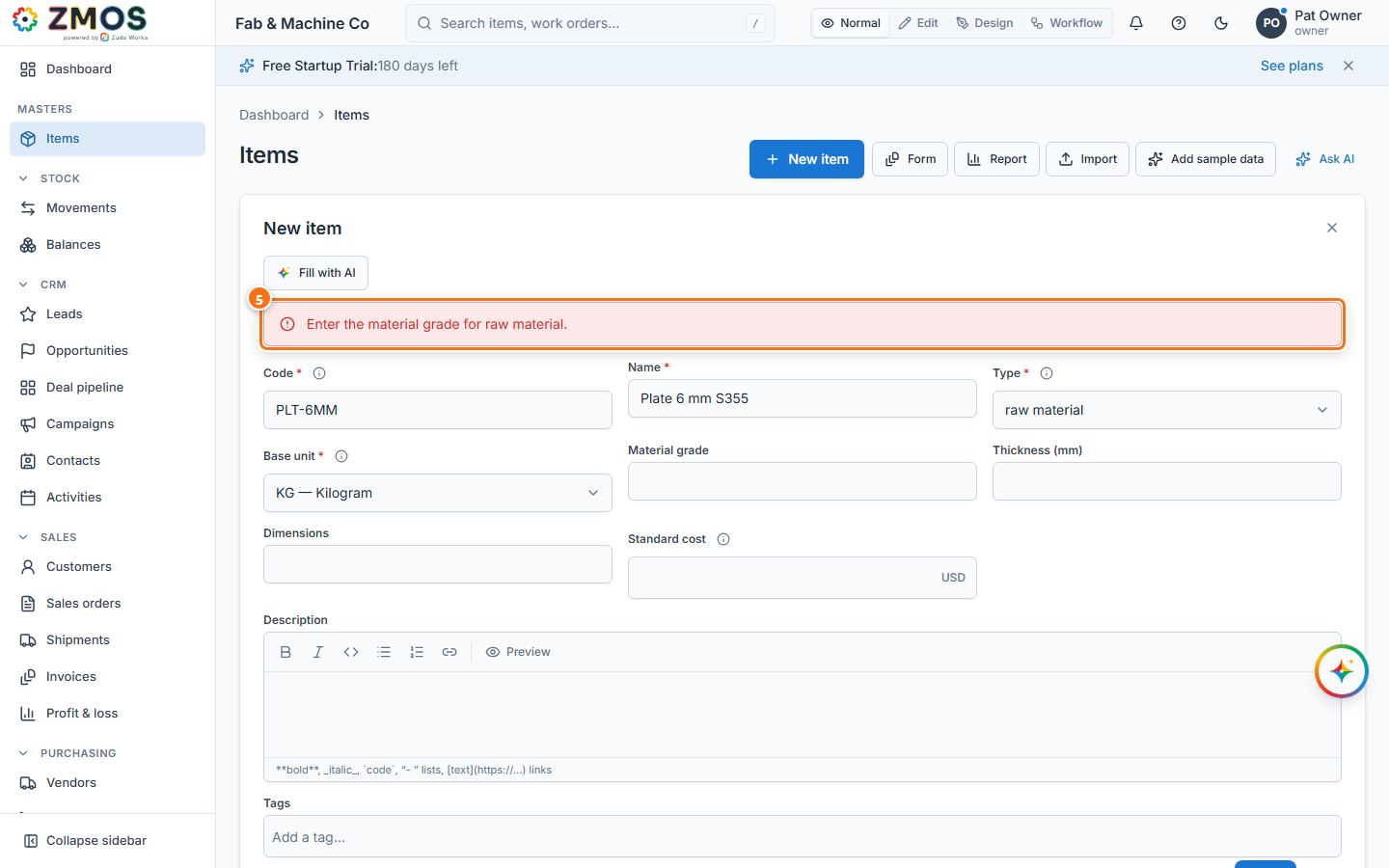
- From now on a save that matches is refused: a new raw-material item without a material grade shows "Enter the material grade for raw material." at the top of the form and is not saved. The same rule also guards saves made through the API.
- Fill in the Material grade and press Save — "Item saved".
Tip: conditions can use the built-in fields and your custom fields. To pause a rule without deleting it, untick Active; the bin removes it.
Last updated