 Zudo Works
How to count stock (stock take)
There is no separate count sheet: you compare your count with Balances and post an adjustment for the difference.
- Count what is on the shelf, item by item and warehouse by warehouse.
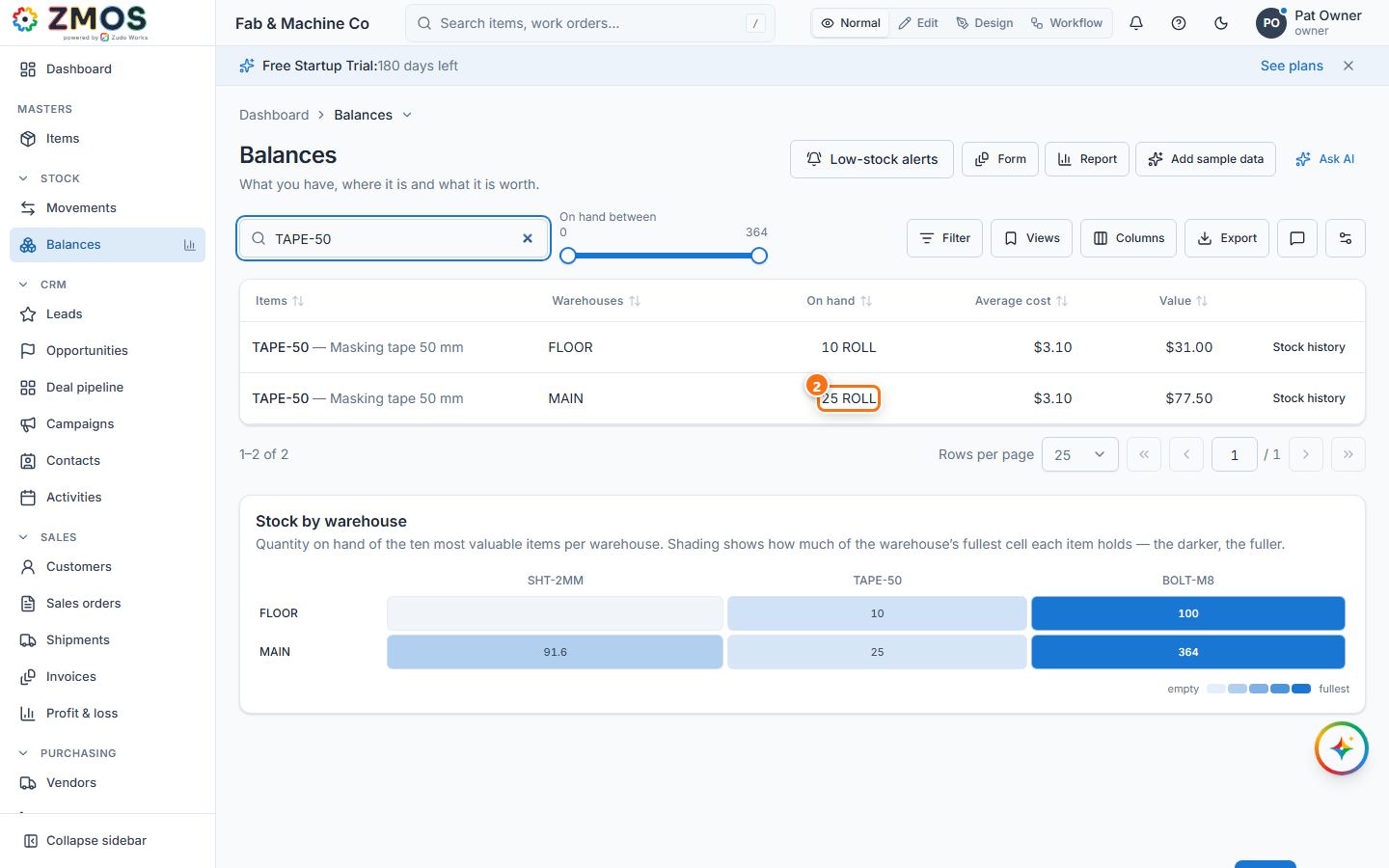
- In the sidebar, under Stock, click Balances, type the item code in Search and read On hand for the warehouse (for example 25 ROLL in MAIN).
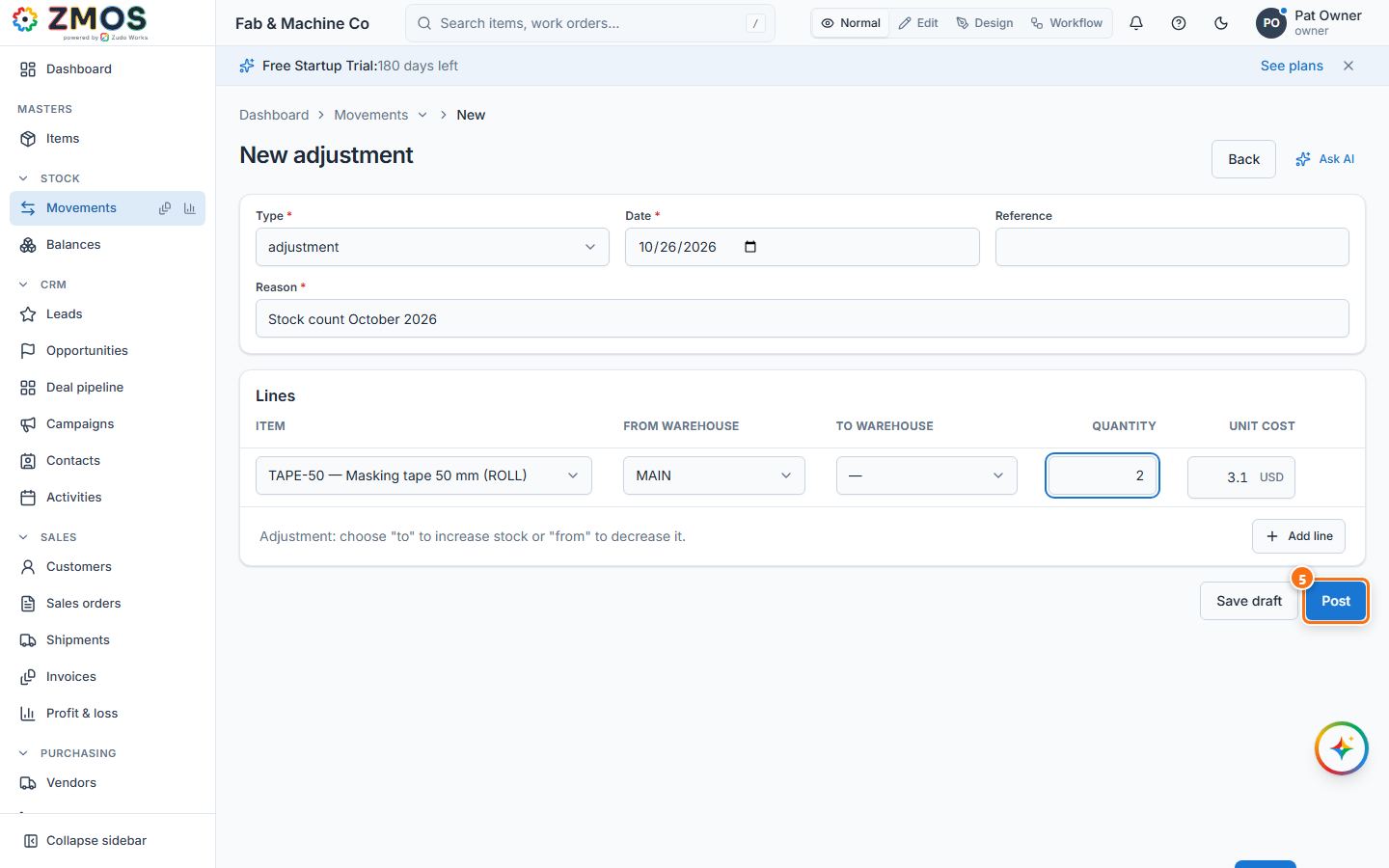
- Where your count differs, open Stock → Movements and set Type to Adjustment (or press New adjustment on the Movements list, or Adjust stock in an item's details on the Items list).
- Type a Reason (required — for example "Stock count October 2026").
- Under Lines, choose the Item and fill in only one warehouse: the From warehouse when you counted less than the system shows, the To warehouse when you counted more. Type the difference as the Quantity (counted 23, system 25 → 2) — not the counted quantity. Unit cost is only needed when you add stock. Press Post.
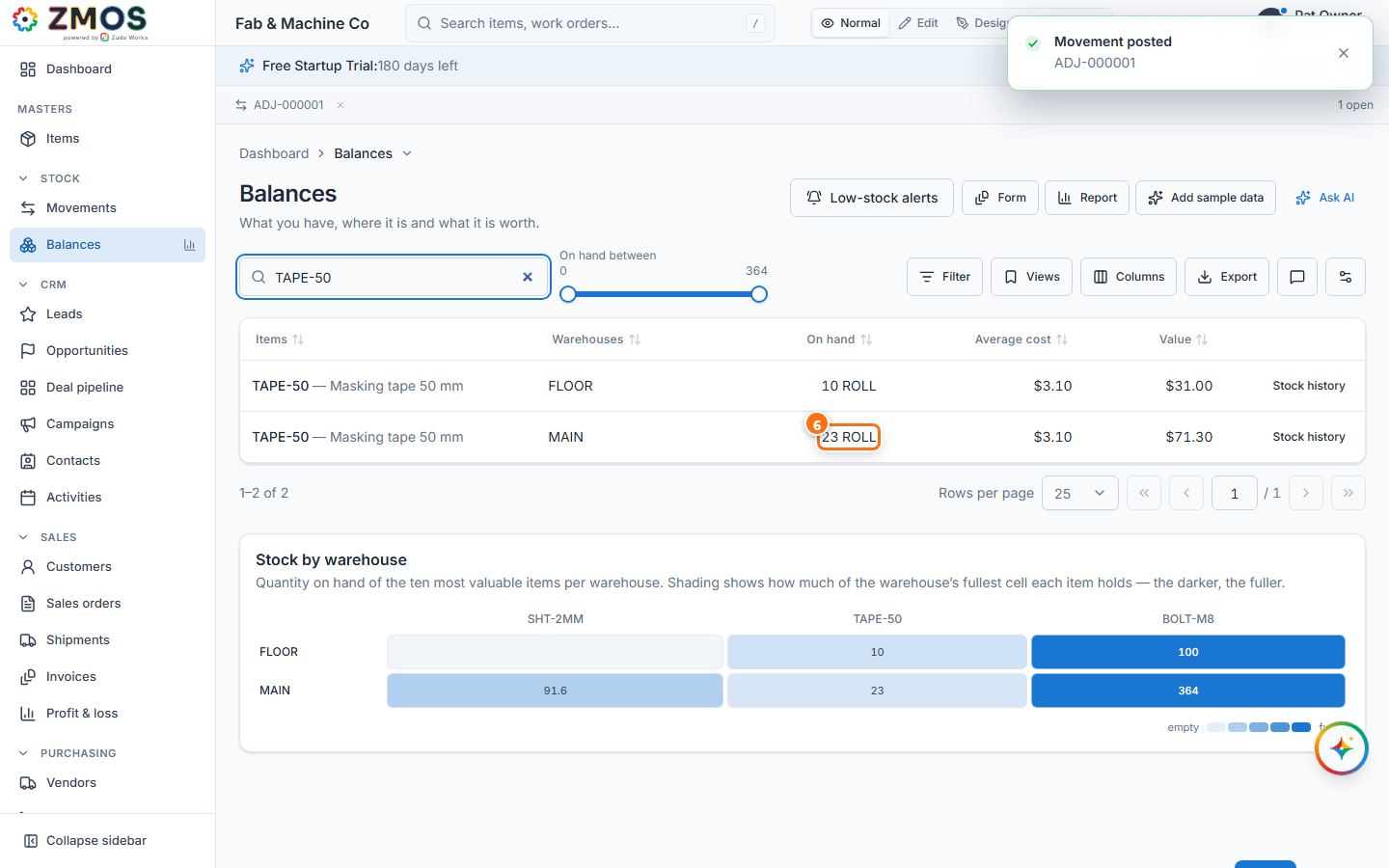
- Back in Balances, On hand now equals your count (23 ROLL).
Tip: count when no receipts or issues are being posted, so the On hand figure you compare with does not move under you.
Last updated