 Zudo Works
How to create a role and choose its permissions
Give people exactly the access they need, for example a quality inspector who may read stock and move work orders but not see sales.
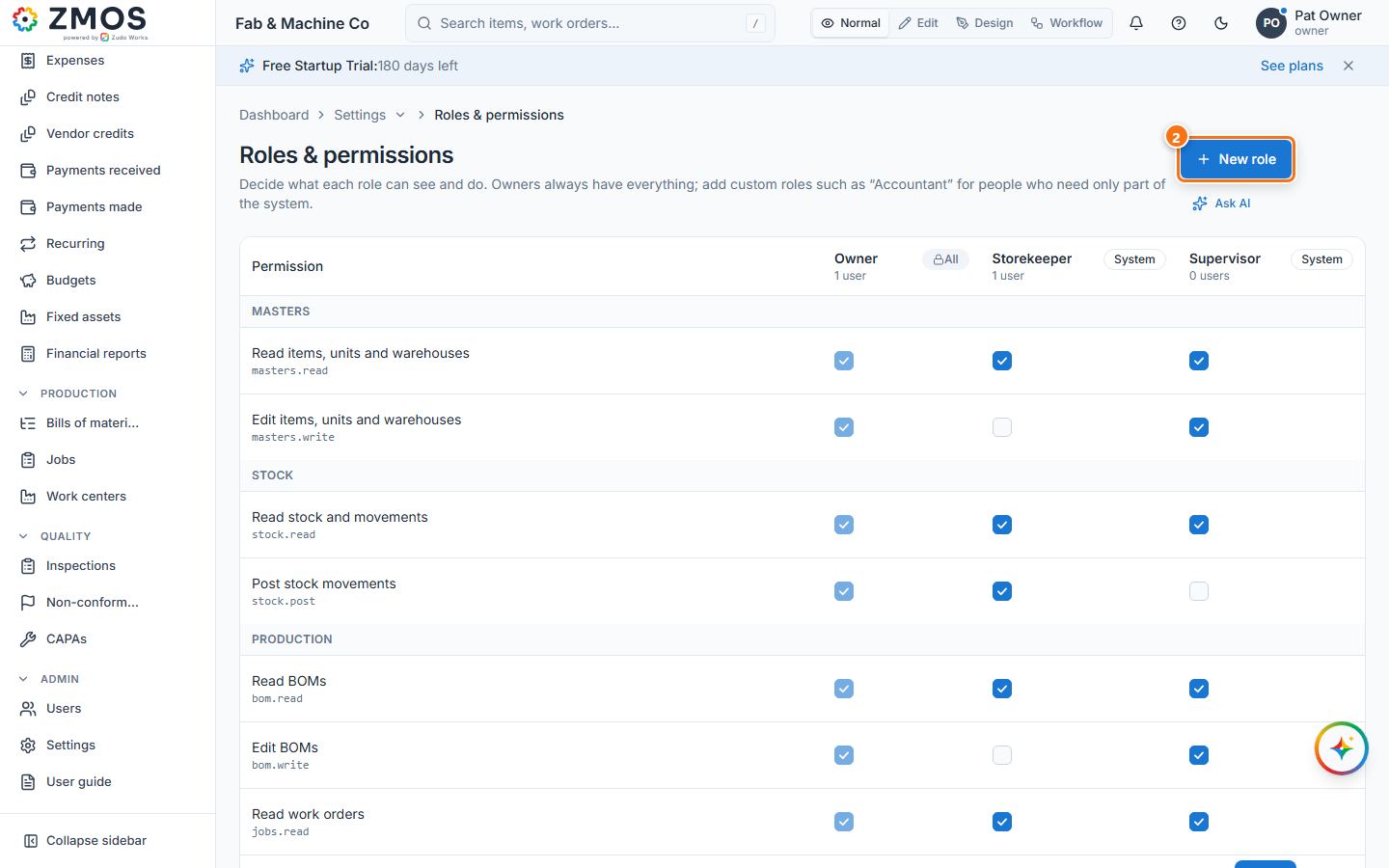
- In the sidebar open Settings and press Roles & permissions (or on Users press Manage roles & permissions).
- Press New role.
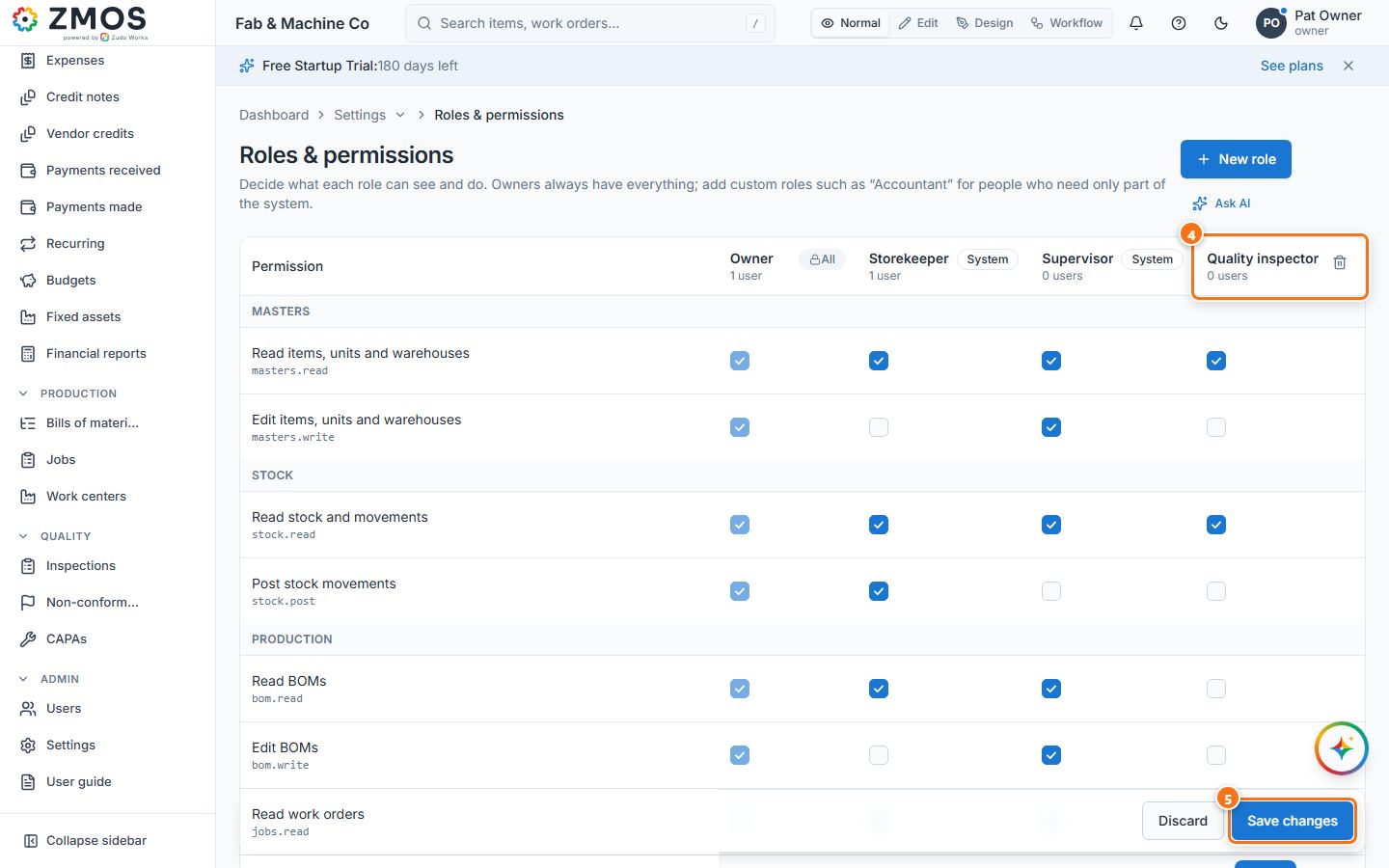
- Type the Role name (for example Quality inspector) and an optional Description, then press Create role. A new column appears in the matrix.
- In the new column tick the permissions the role should have — for example Read items, units and warehouses, Read stock and movements, Read work orders and Create and move work orders. Rows are grouped by module (Masters, Stock, Production, Sales …).
- Press Save changes in the bar at the bottom (it counts the changed roles; Discard undoes the ticks).
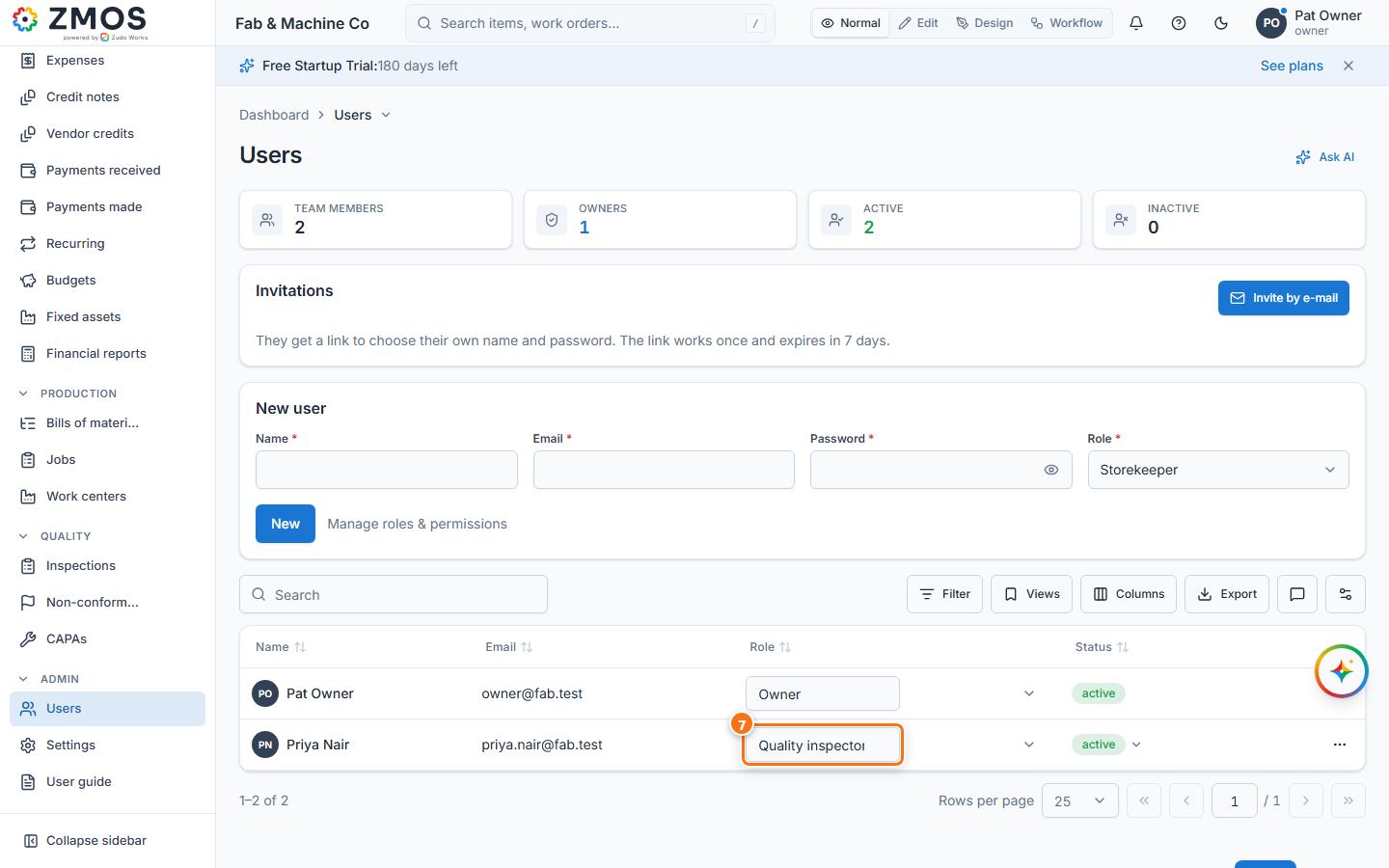
- To give the role to someone, open Admin → Users.
- In that person’s row, choose the new role in the Role column. The change is saved at once (“User updated”).
Tip: the Owner column is locked (owners always have everything). A custom role can be deleted with its bin icon only while nobody holds it.
Last updated