 Zudo Works
How to turn on the authenticator app for two-step sign-in
Use an authenticator app (Google Authenticator, Microsoft Authenticator, Authy, 1Password …) instead of e-mailed codes, and keep backup codes for emergencies.
- Open Settings in the sidebar and press Security.
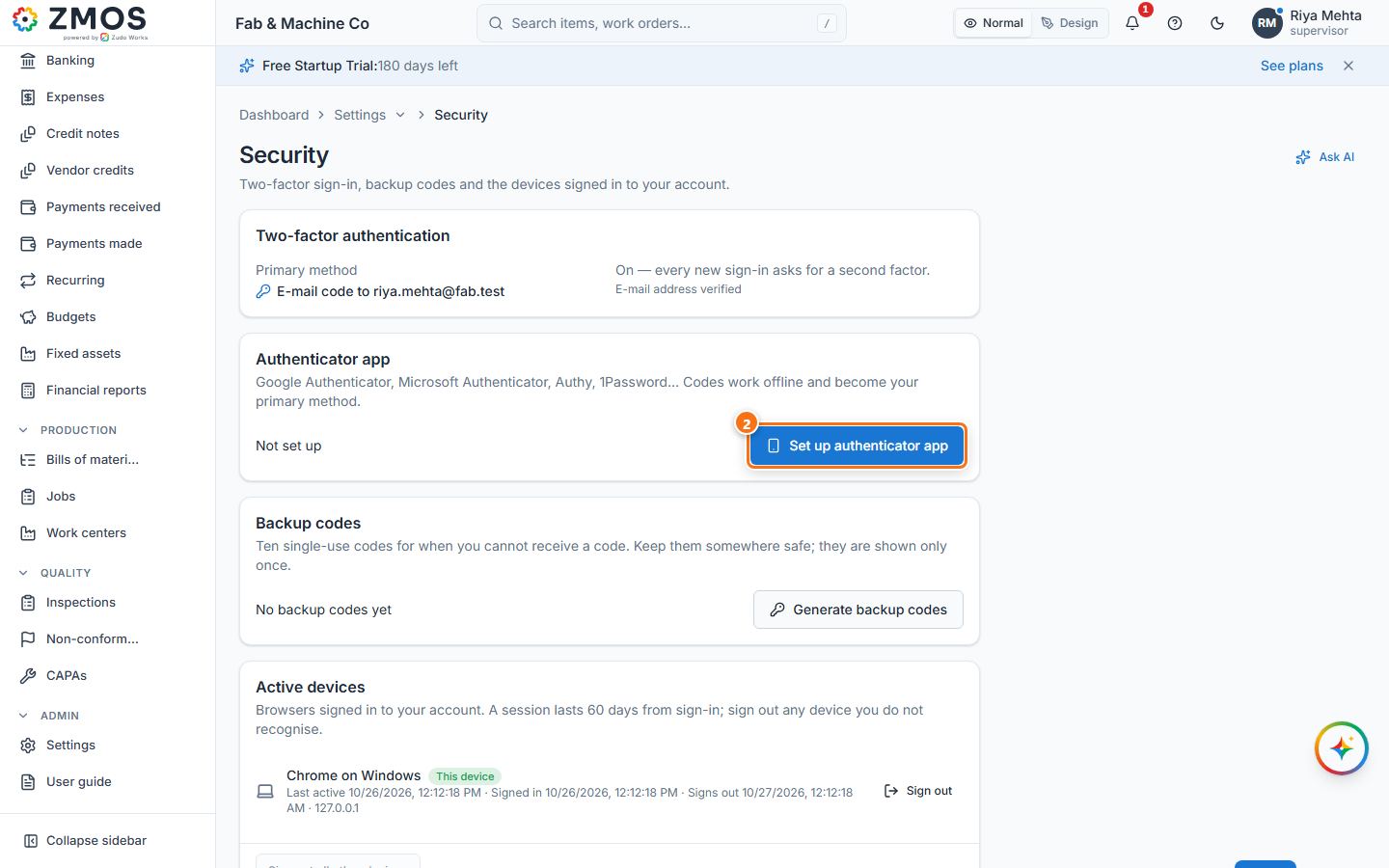
- In the Authenticator app card press Set up authenticator app.
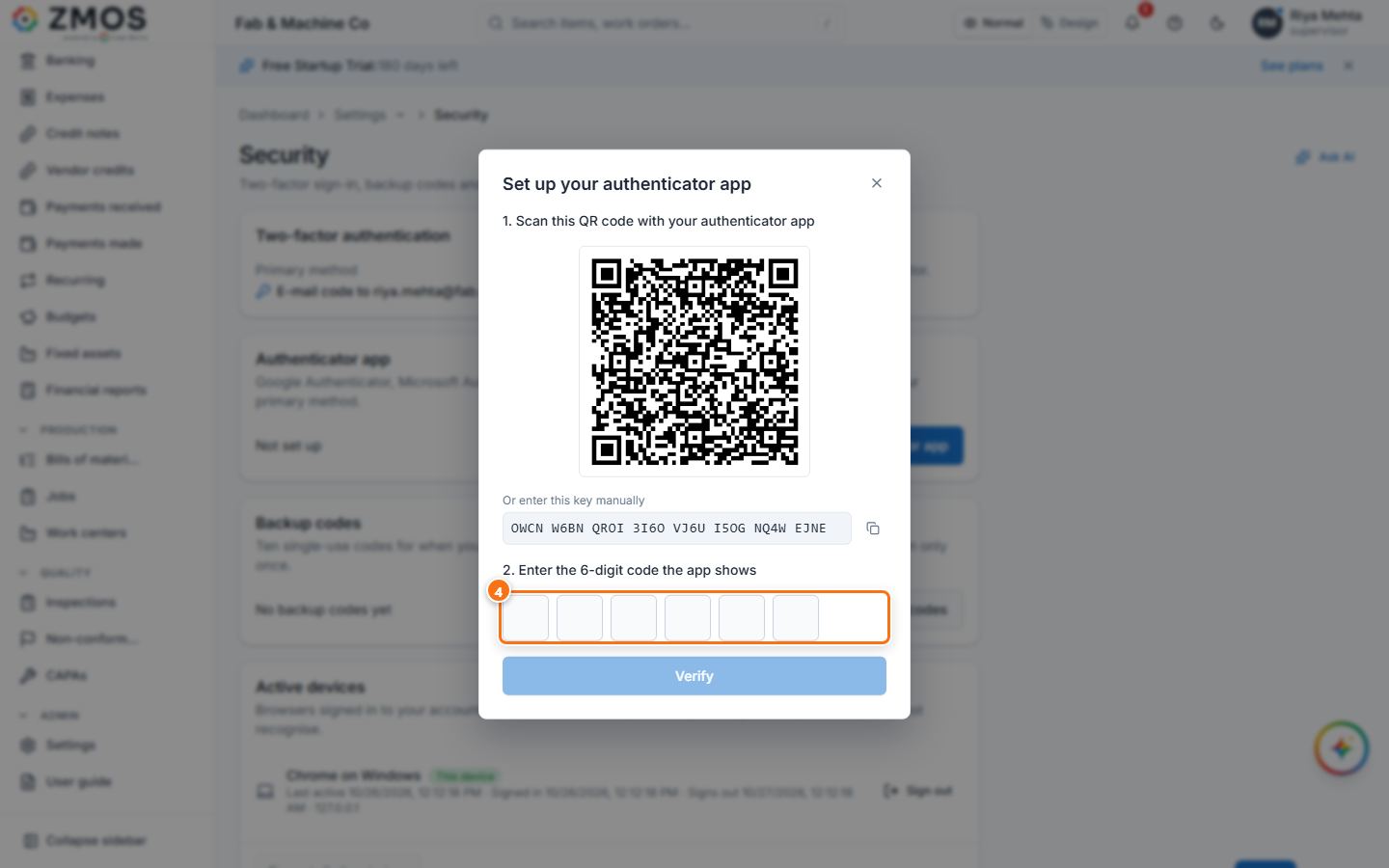
- Set up your authenticator app opens: scan the QR code with the app on your phone (or type the key shown under Or enter this key manually).
- Type the 6-digit code the app shows into the boxes; it is checked when the sixth digit is in (or press Verify). “Authenticator app enabled” confirms it — it is now your primary sign-in method.
- In the Backup codes card press Generate backup codes.
- In the password window type Your password and press Generate backup codes.
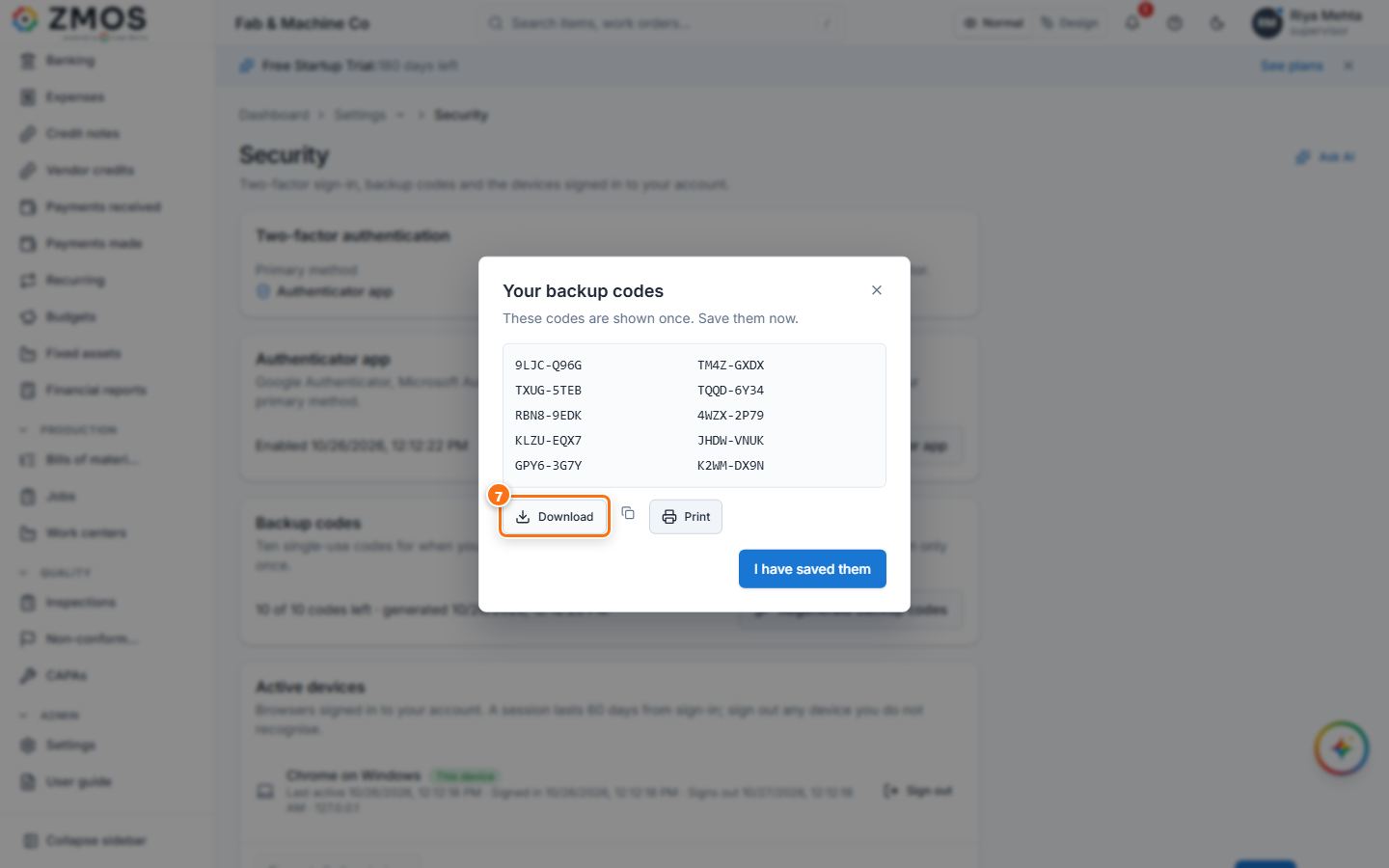
- Your backup codes shows ten single-use codes, only once: press Download, the copy icon next to it, or Print, and keep them safe.
- Press I have saved them. The card now shows “10 of 10 codes left”.
Tip: from now on sign-in asks for the app’s code. If you lose the phone, press and hold Use e-mail code instead (it appears after five wrong app codes) and later Use a backup code, or ask an owner to press Reset two-factor for you on the Users page. Owners can make the app compulsory for everyone with Require authenticator app for all users on the same page.
Last updated