 Zudo Works
How to invite a teammate
Ask a colleague to join your workspace by e-mail; they choose their own name and password.
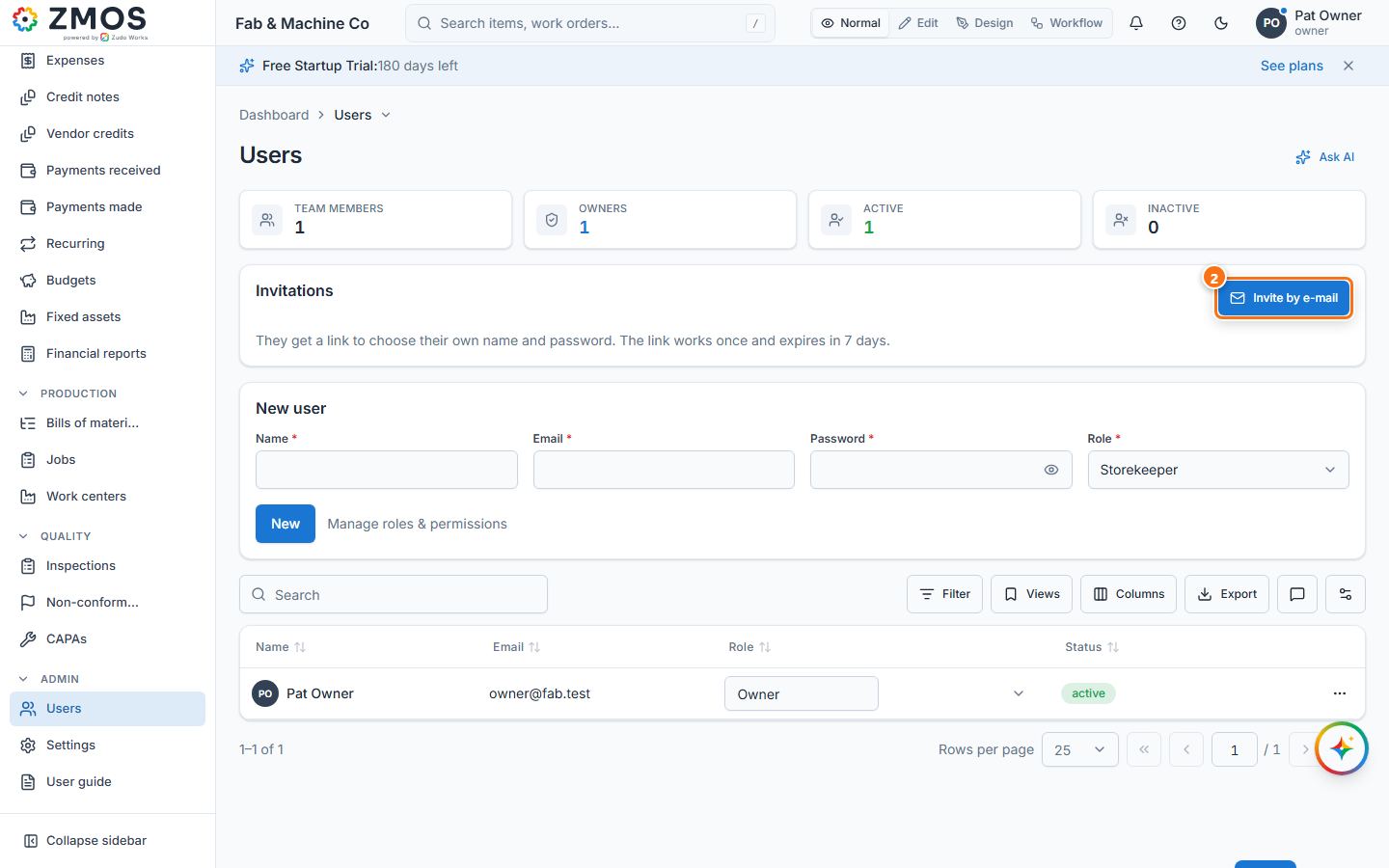
- In the sidebar, open Admin → Users (or Settings → Users).
- In the Invitations card press Invite by e-mail.
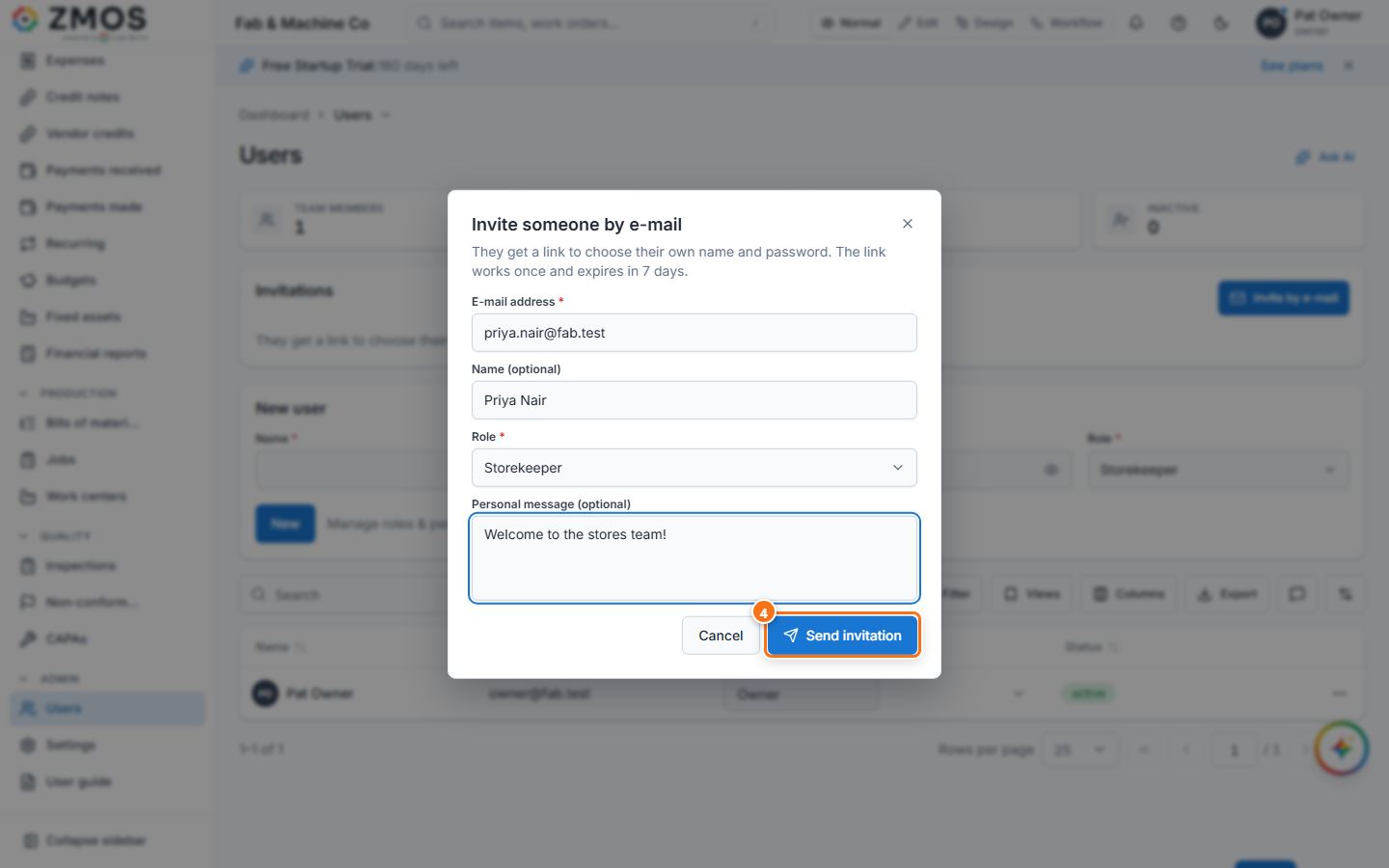
- In Invite someone by e-mail type the E-mail address, optionally a Name (optional), choose the Role and, if you like, a Personal message (optional).
- Press Send invitation. The invitation appears in the Invitations card as Waiting, with its expiry date; Send again re-sends it and Revoke cancels it.
- Your colleague receives an e-mail “… invited you to … on Zudo Works” with an Accept invitation link. The link works once and expires in 7 days.
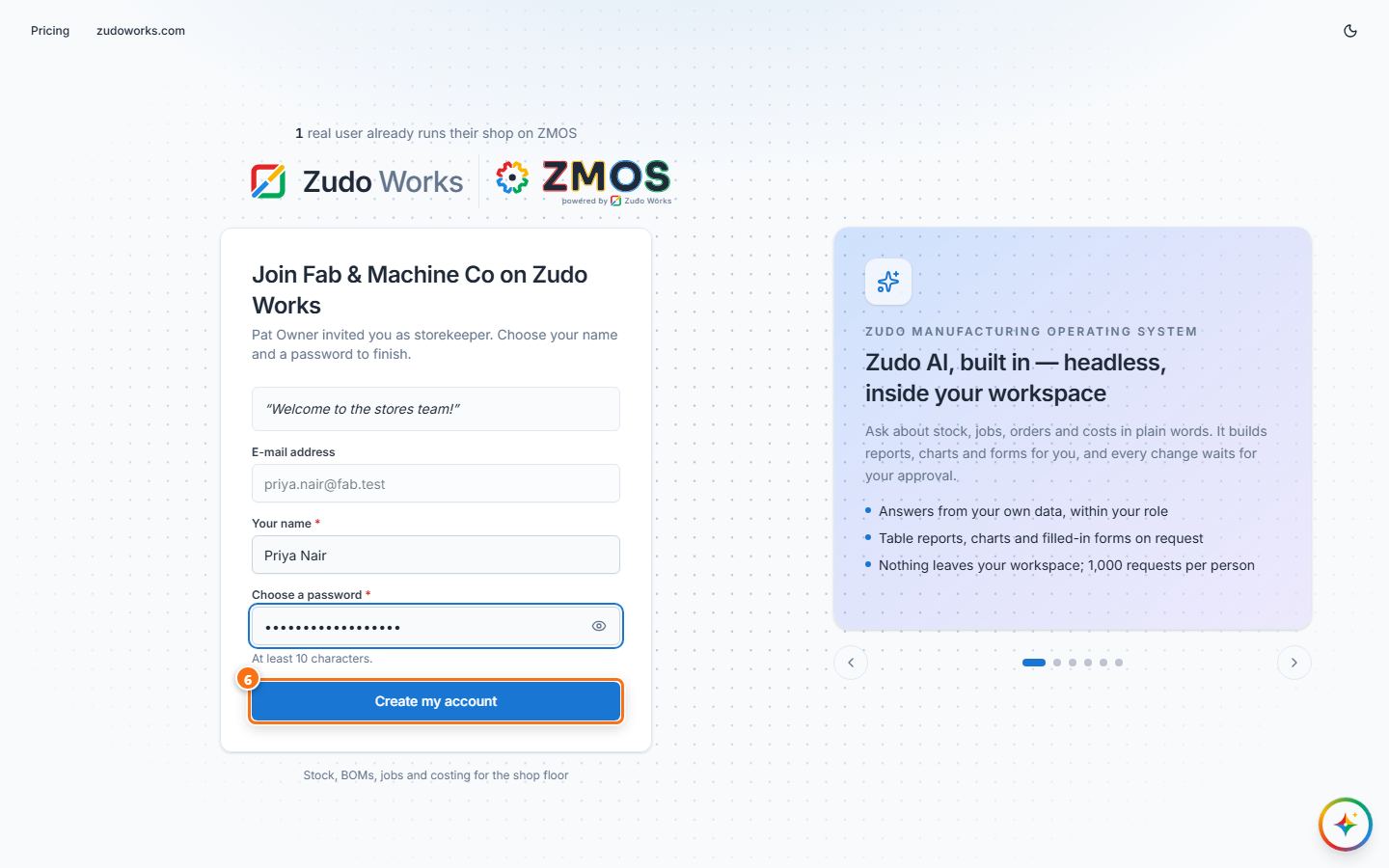
- The link opens Join <your company> on Zudo Works (with your message, if you wrote one): they check Your name, type Choose a password (at least 10 characters) and press Create my account.
- They press Go to sign in and sign in with their e-mail, password and the e-mailed code. They now appear in the Users list.
Tip: the New user card on the same page creates an account straight away with a password you choose and share yourself.
Last updated