 Zudo Works
How to create a workflow rule
Let the system act on its own when a record is created, changed or deleted — for example mark every failed machine check as escalated.
- In the sidebar, open Settings; under Forms & automation press Workflows.
- On the Rules tab, press New rule.
- Under When, type the Name (e.g. "Escalate failed checks"), pick the Form or section (a custom form such as Machine checks, or a built-in section) and the Trigger — e.g. Record created; there are also Record updated, Record created or updated, Record deleted and Button on a record, and built-in sections add their own events.
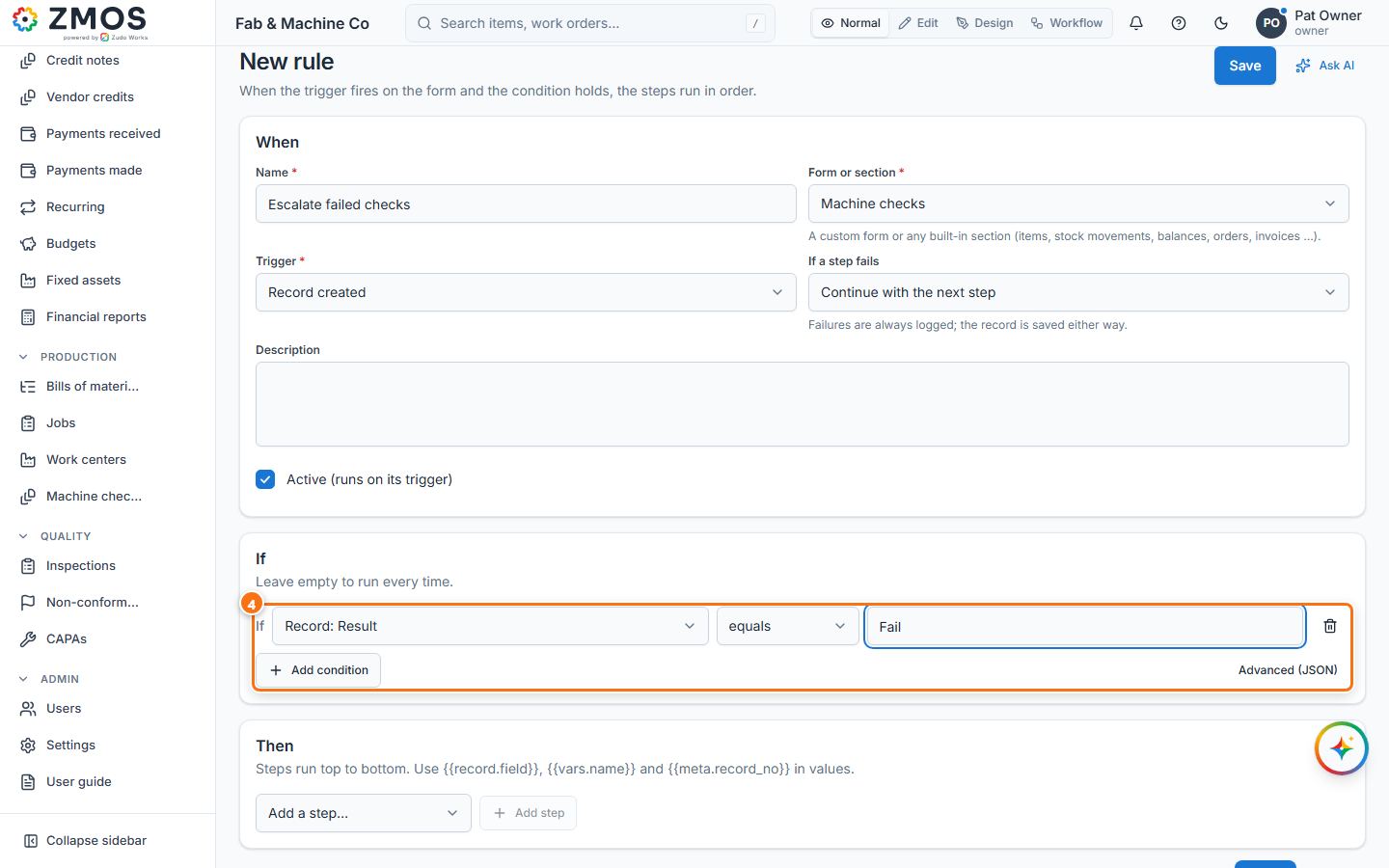
- Under If, press Add condition and pick the Field (e.g. Record: Result), the Operator (equals) and the Value (Fail). Leave it empty to run every time.
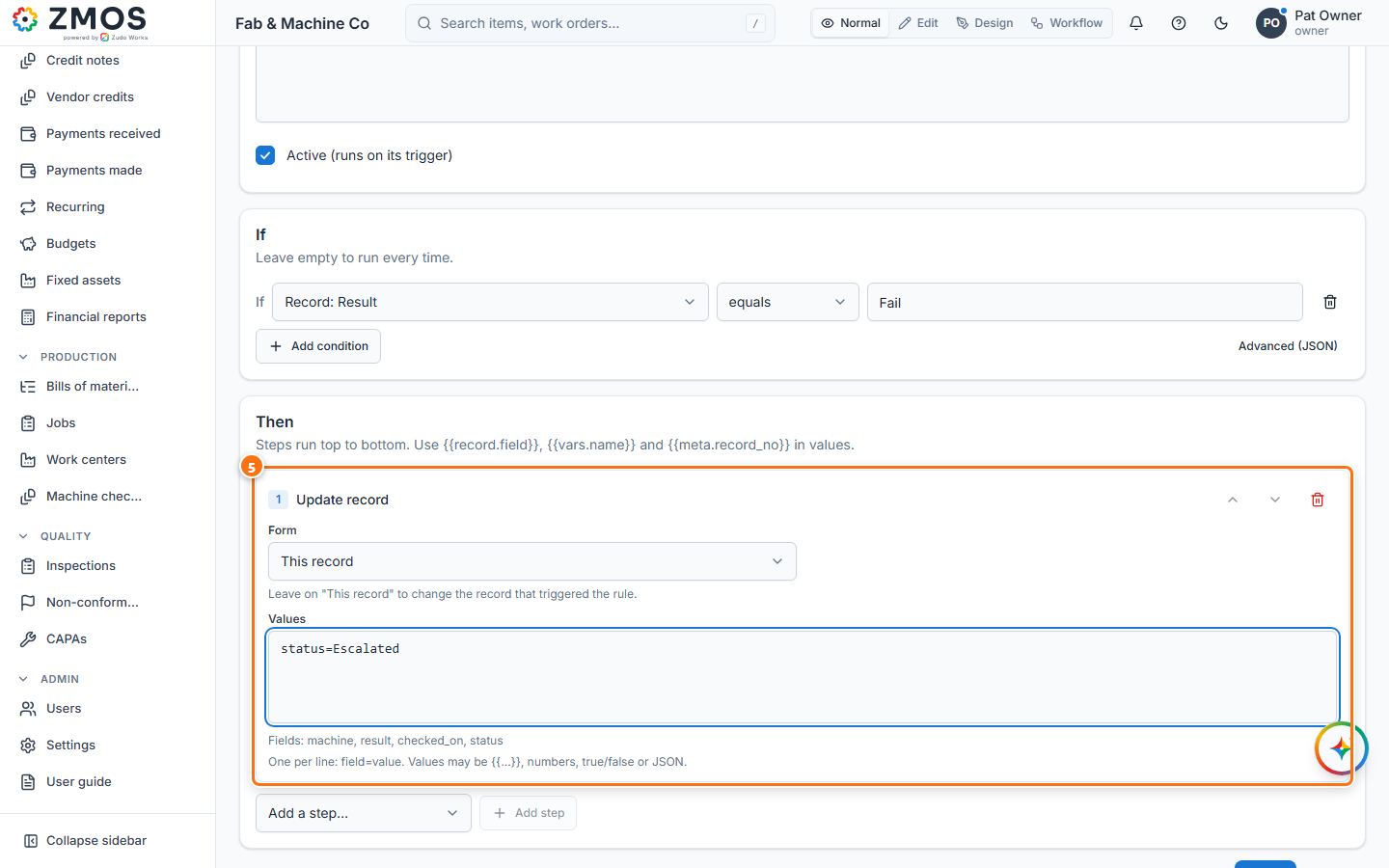
- Under Then, choose a step in Add a step… (e.g. Update record) and press Add step. Fill it in — for Update record, Values one per line as field=value, e.g.
status=Escalated. Values may use{{record.machine}}and the like. - Press Save. "Workflow saved" confirms it; the rule is active straight away.
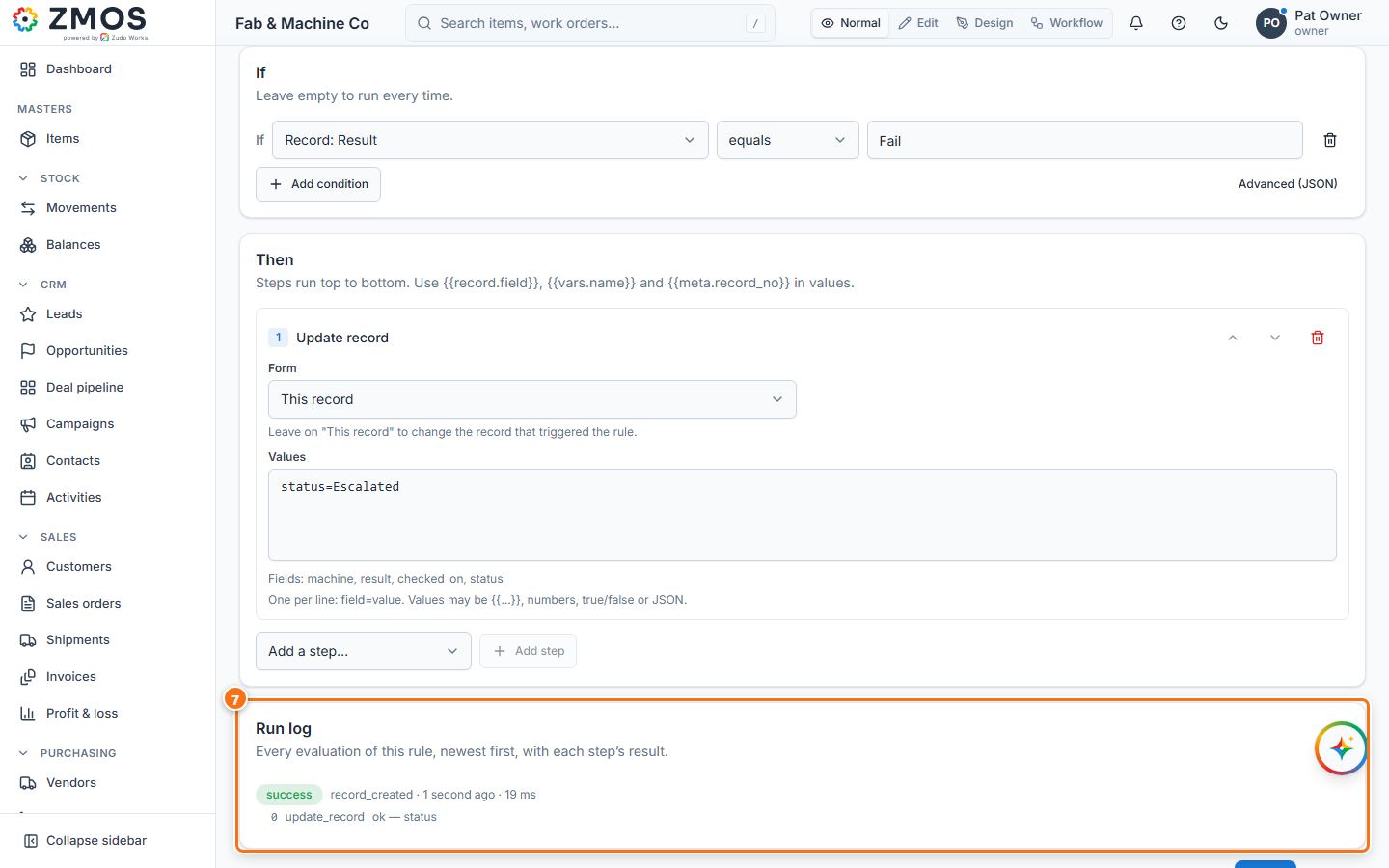
- Create a matching record: the rule runs, and the Run log at the bottom of the rule's page lists each run with the result of every step. Run now tries the rule on one record; the switch in the Rules list pauses it.
Last updated