 Zudo Works
How to rename, reorder, hide and show sidebar entries
Give sections and entries the names your team uses, put the most used ones on top and tuck away what nobody needs. The sidebar is the same for everyone in the workspace.
- In the top bar, switch the view mode to Edit. The Edit mode bar appears and the sidebar becomes editable.
- To rename a section, press the pencil beside its heading, type the new name and press Enter.
- To move a whole section, drag it by the grip (⋮⋮) at the left of its heading. With the keyboard: Tab to the grip, press Space, move it with the arrow keys and press Space again (Escape cancels).
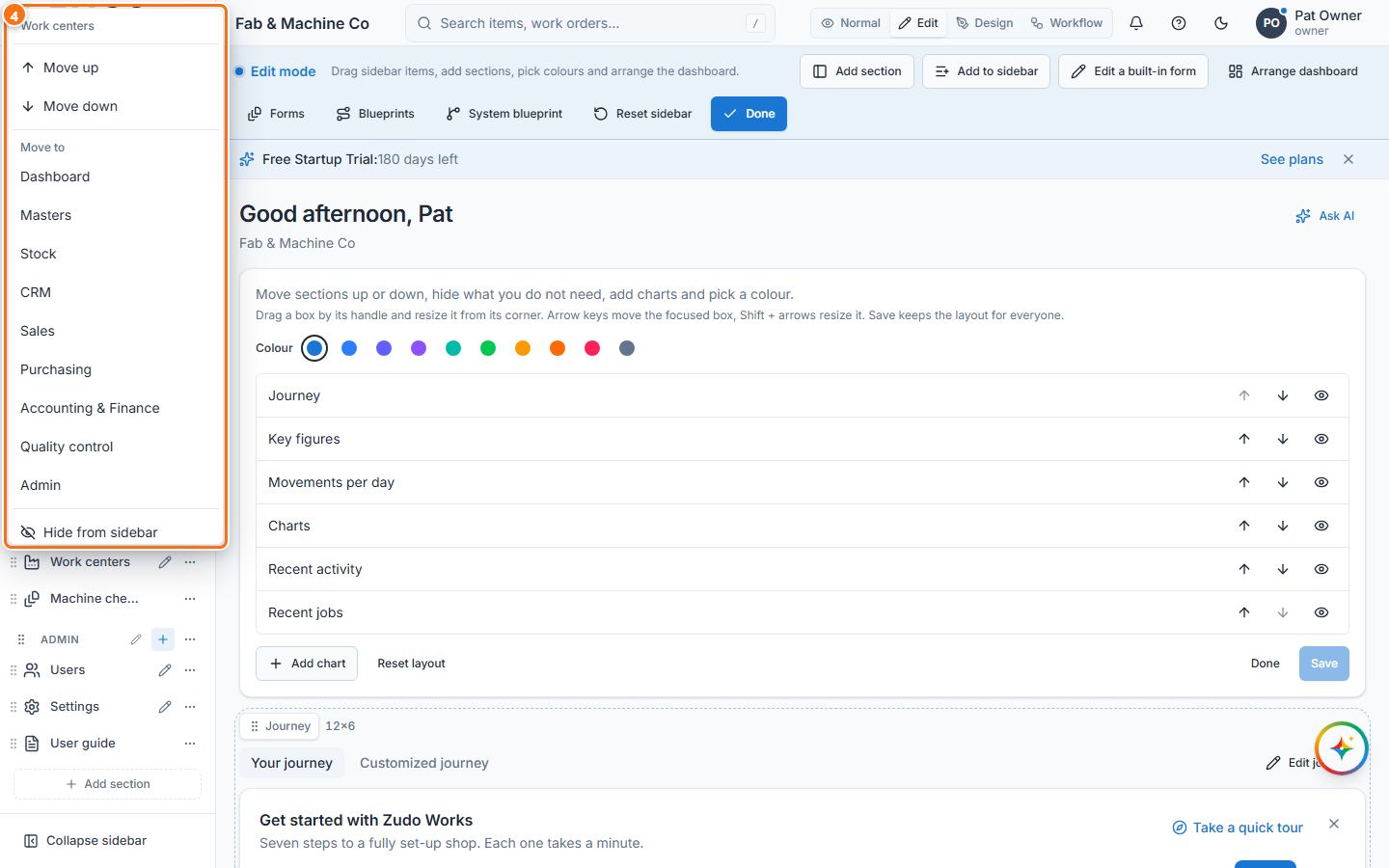
- To move an entry, drag it by its grip to another place or section — or press its … button and choose Move up, Move down or a section under Move to.
- To hide an entry, press its … button and choose Hide from sidebar; a section's … button has Hide section. The message that confirms it has Undo. Hidden pages still open by link and search. (Remove from sidebar is there for forms and reports you added.)
- To rename a built-in entry, press its pencil: in Edit “…” change the Label (you can also pick another Icon and write a Description) and press Save.
- Press Done in the Edit mode bar.
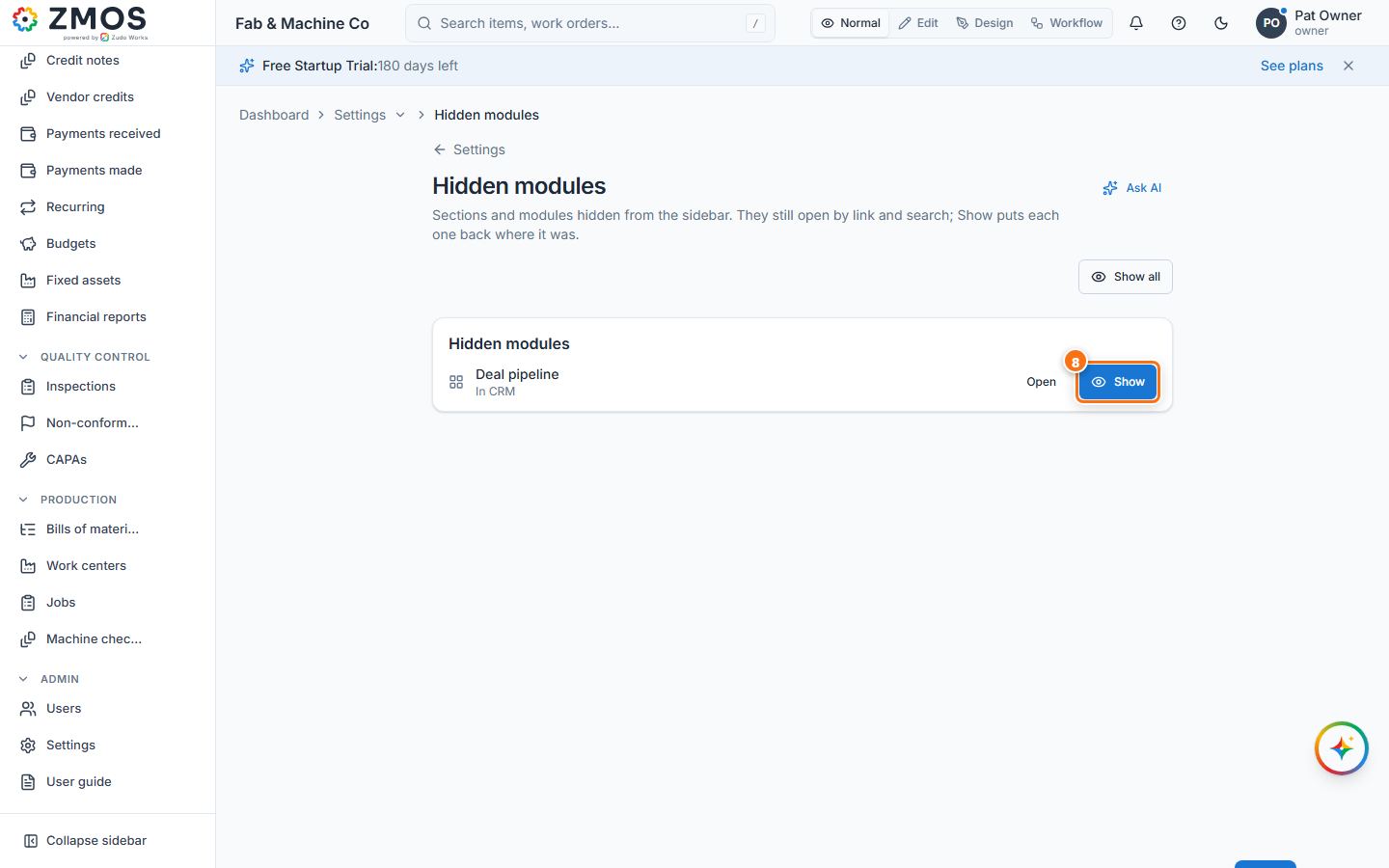
- To bring hidden sections or entries back, open Settings → Hidden modules (in Edit mode also the Hidden modules link at the bottom of the sidebar) and press Show — or Show all.
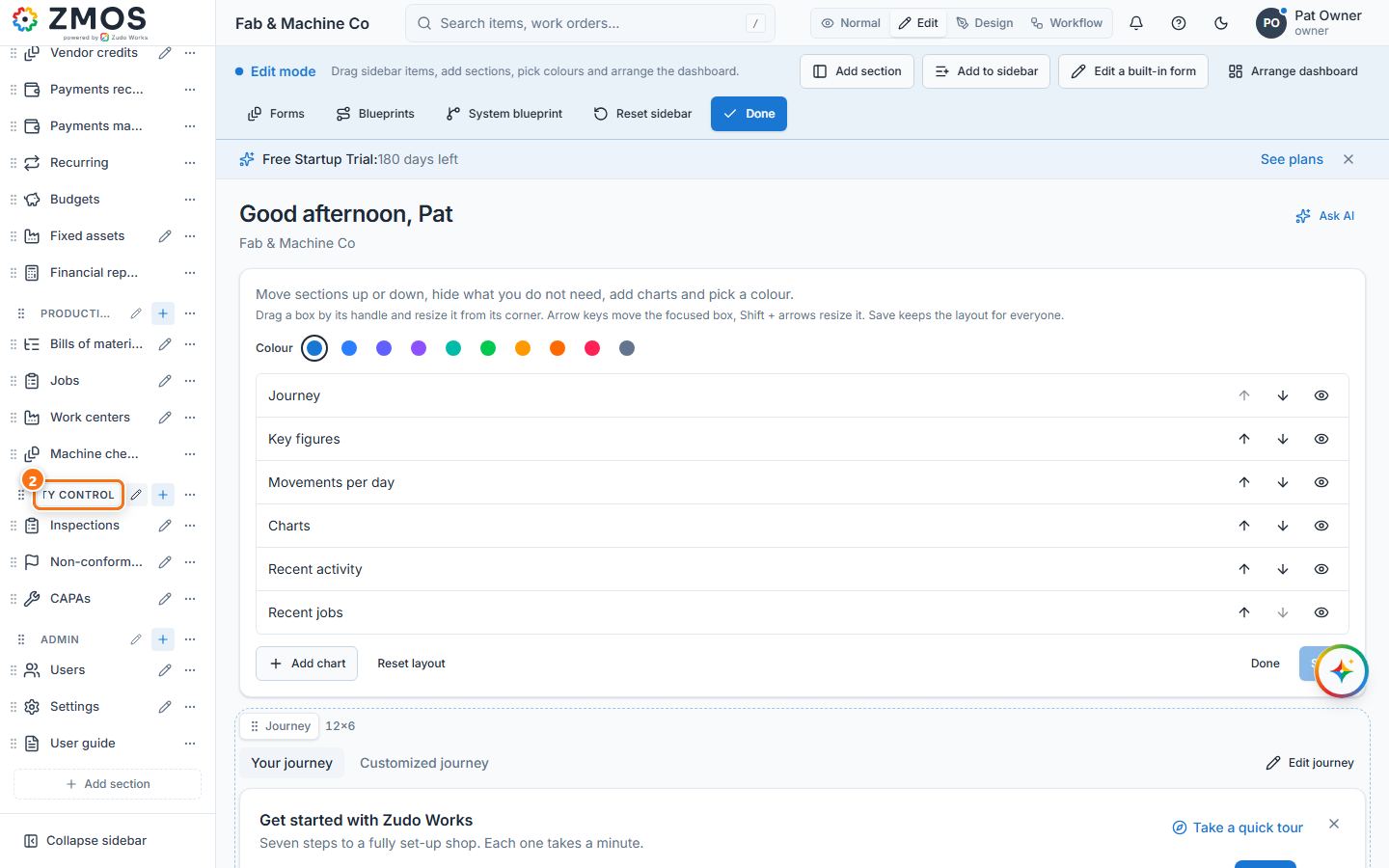
Tip: Add section at the bottom of the sidebar (Edit mode) creates a section of your own. Reset sidebar in the Edit mode bar puts every section and entry back where it started (colours too).
Last updated