 Zudo Works
How to schedule a task
Run an update by the clock — every evening, every Monday, once on a date — for example close every passed machine check at 18:00.
- In the sidebar, open Settings; under Forms & automation press Schedules.
- Press New schedule.
- Type the Name (e.g. "Close passed checks") and check the Time zone.
- Under What it does, keep Update fields that match a condition; under Records choose Custom form and the form (or Built-in section and the section).
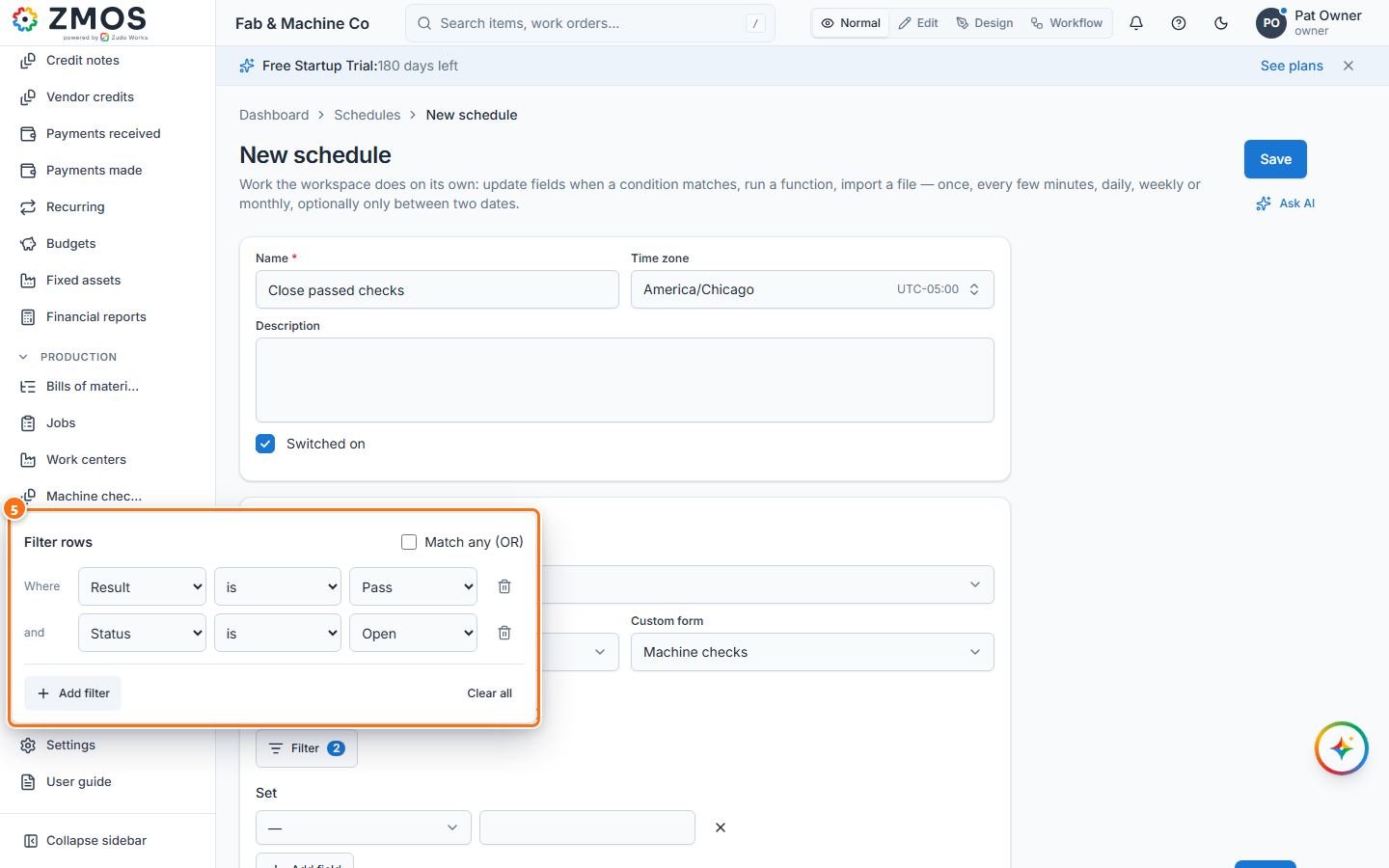
- Under Only records where, press Filter → Add filter: Result is Pass, then Add filter again: Status is Open. Leave it empty to update every record.
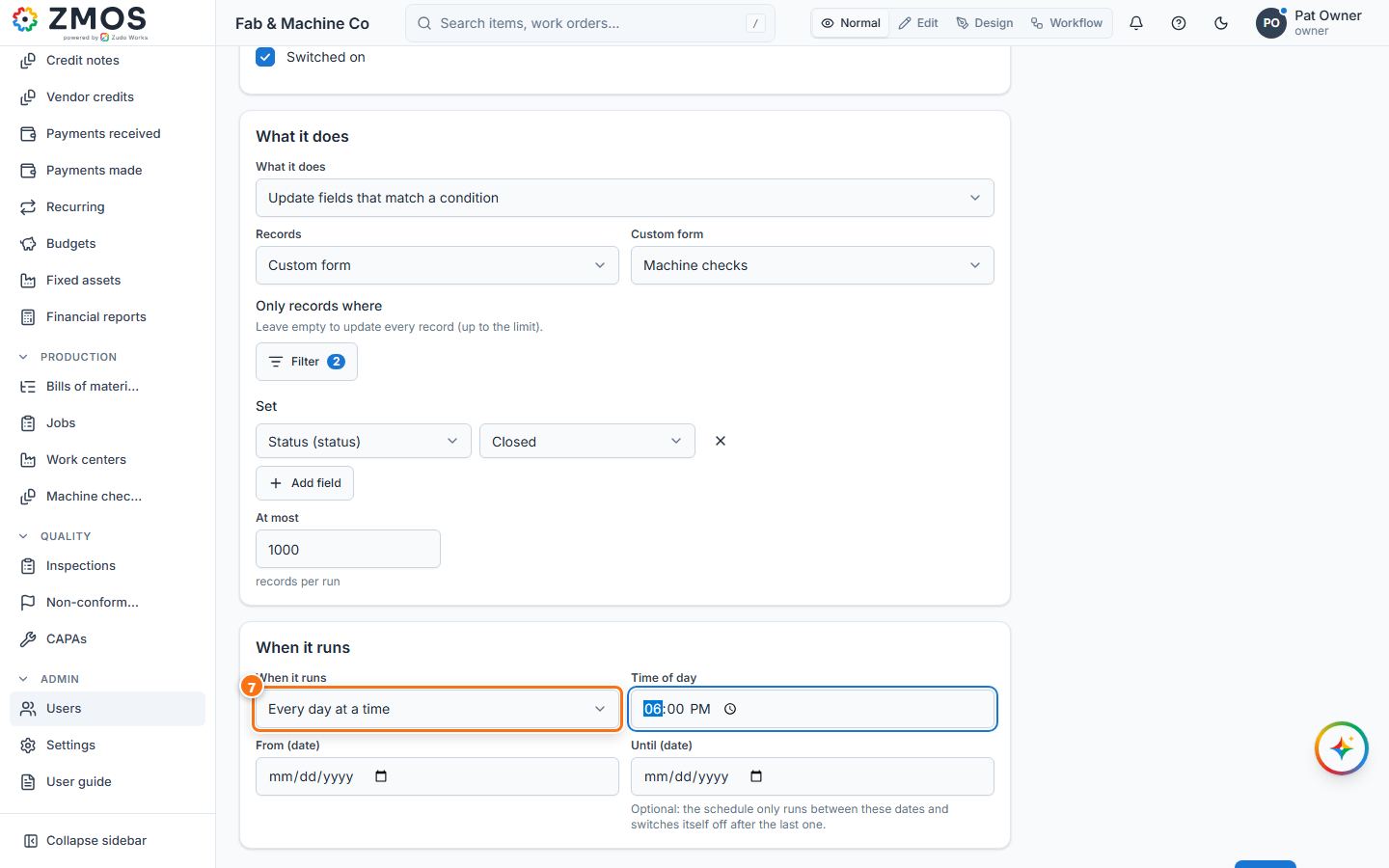
- Under Set, pick the Field (Status) and its New value (Closed); Add field sets more than one. At most caps the records per run.
- Under When it runs, choose e.g. Every day at a time and the Time of day (18:00). From (date) and Until (date) limit the period if needed.
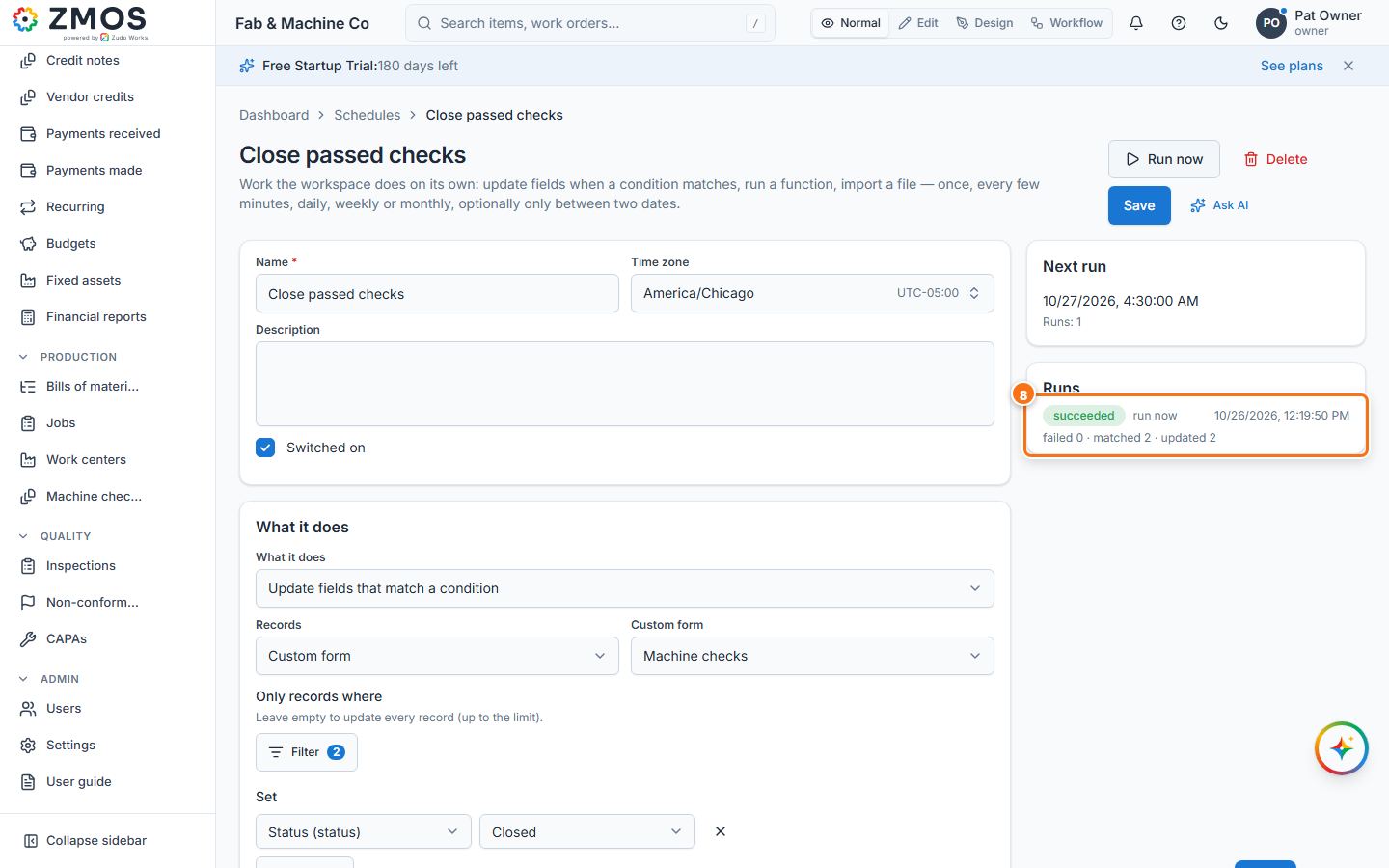
- Press Save. "Schedule saved" confirms it and Next run shows when it fires. Run now runs it at once; Runs lists every run with what it changed.
Tip: What it does can also run a workflow function or import the next batch of a CSV file. Settings → Schedules lists every schedule with its next and last run.
Last updated