 Zudo Works
How to issue materials to a work order and complete it
Issuing takes the material out of stock and charges it to the job; completing records how many good units were made.
- Open the released job (Production → Jobs, hover Jobs and press Report for the list, then click the job).
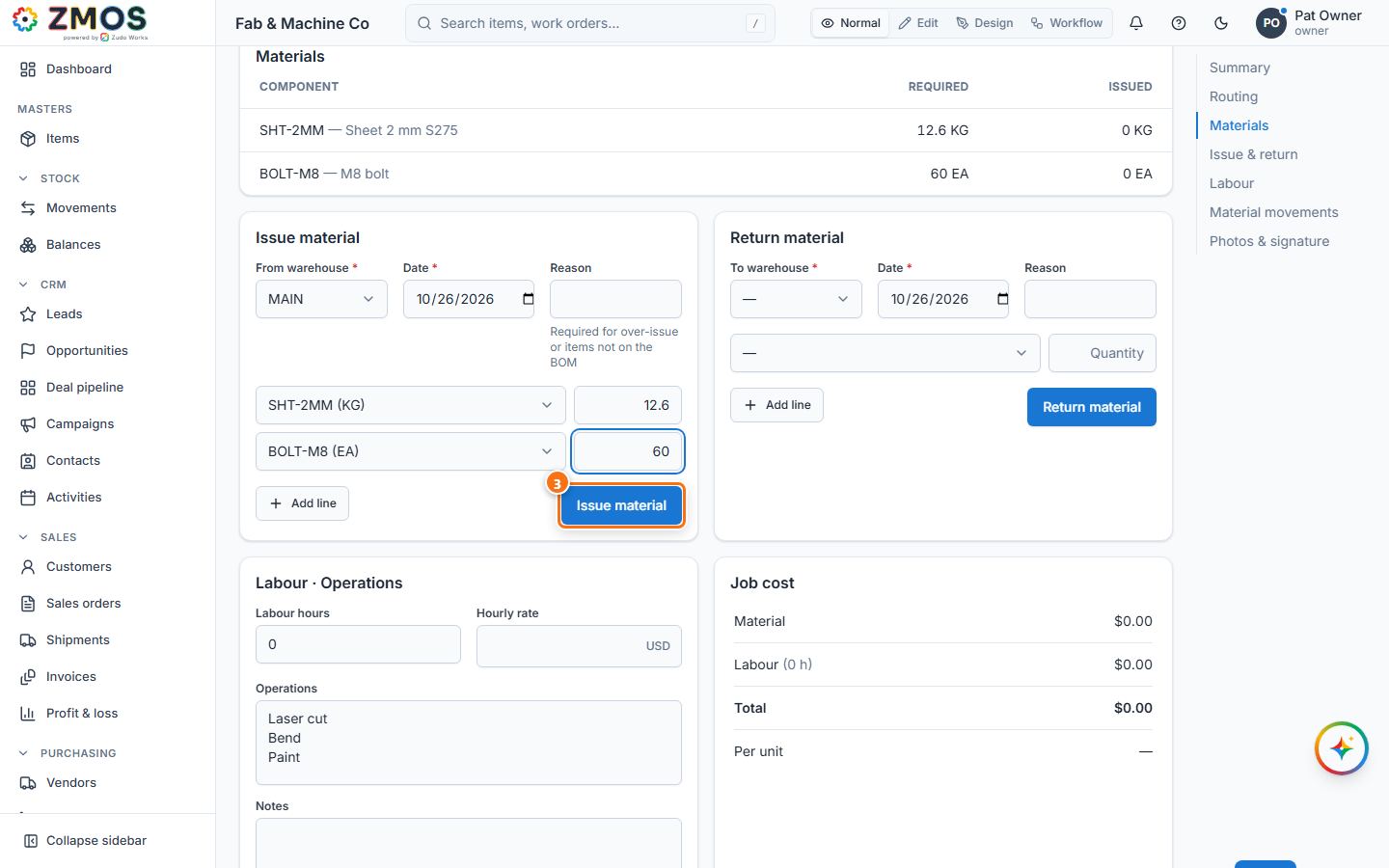
- In the Issue material card, choose the From warehouse. In each line choose the component and type the quantity; press Add line for the next component. Reason is only needed for over-issue or items not on the BOM.
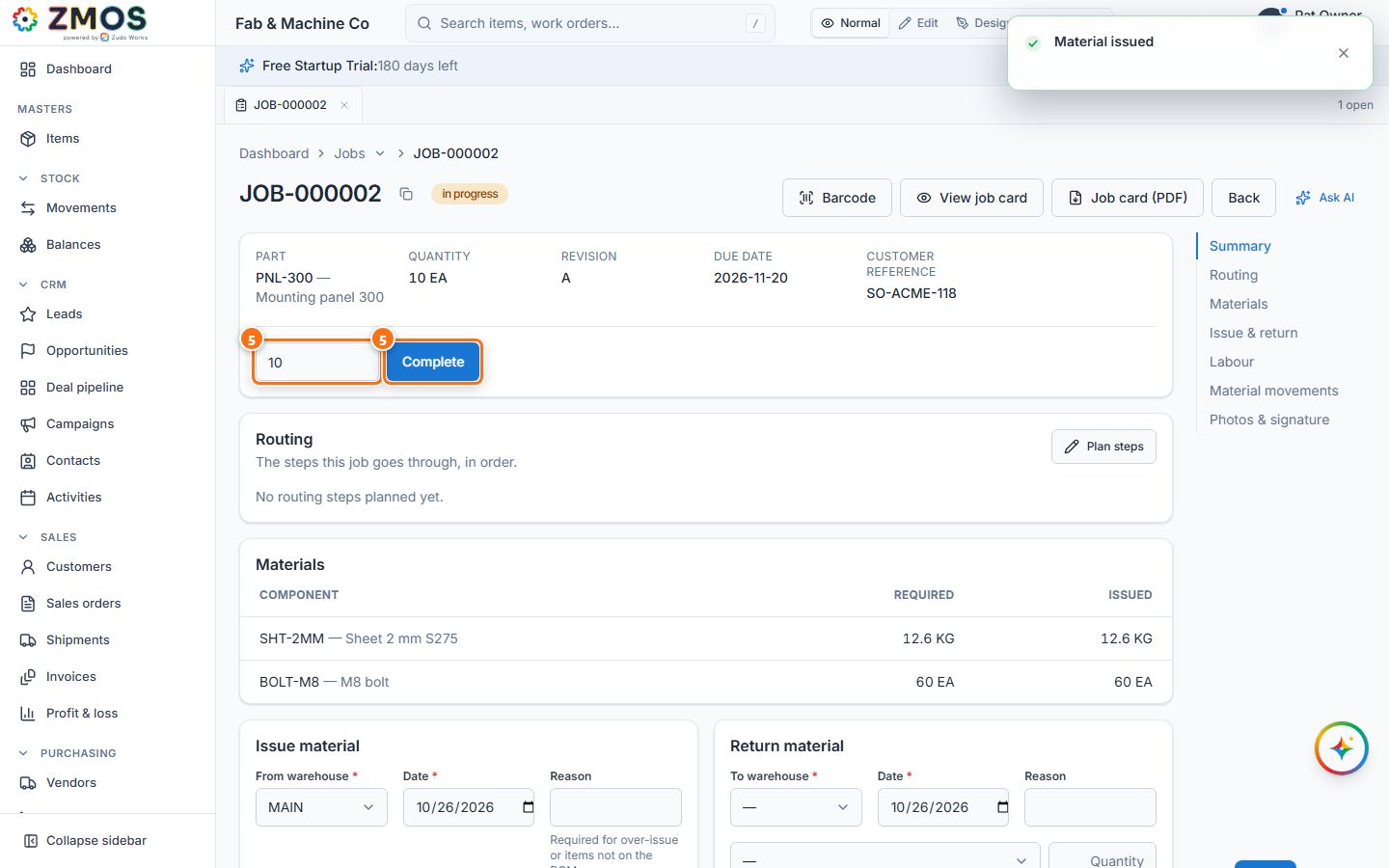
- Press Issue material. The job moves to In progress, the Issued column of Materials fills in and the issue appears under Stock movements.
- Optional: give back unused material in Return material; record Labour hours and Hourly rate and press Save — Job cost adds them up.
- When the work is done, type the number of good units in Completed quantity, check Receive into (the warehouse the finished parts go to — it starts with the warehouse the material came from) and press Complete.
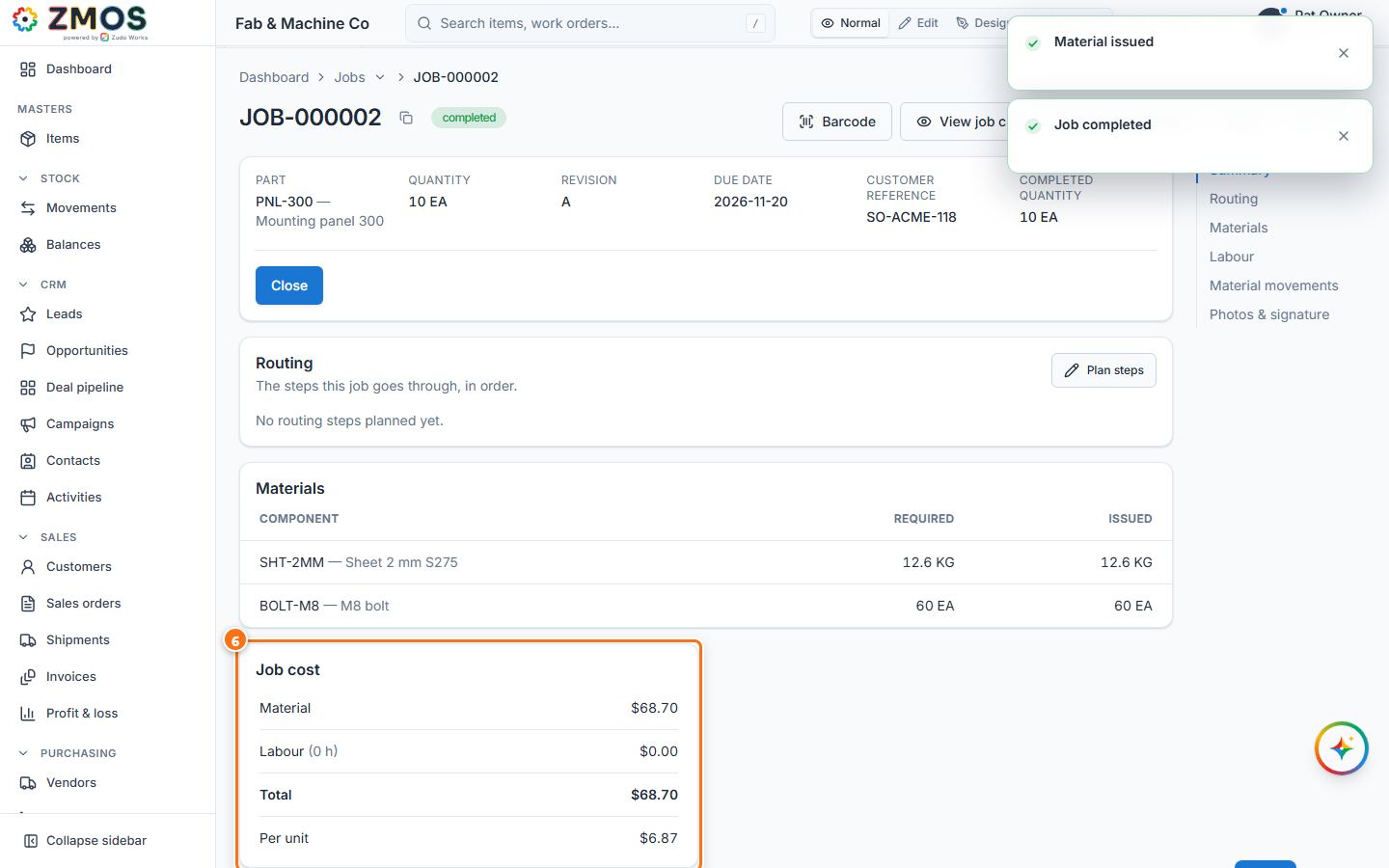
- The job shows Completed and the finished parts are in stock: Stock movements lists the job receipt (JRC-…) of the completed quantity at the job's cost Per unit. Job cost shows material, labour, total and cost Per unit. Press Close when nothing more will be booked on it.
Tip: completing a job does not put the finished parts into stock. If you stock them, post a receipt for them (Stock → Movements, Type receipt).
Last updated