 Zudo Works
How to sign in (with the two-step code)
Sign in to your workspace; every new sign-in is confirmed with a 6-digit code so a stolen password alone is not enough.
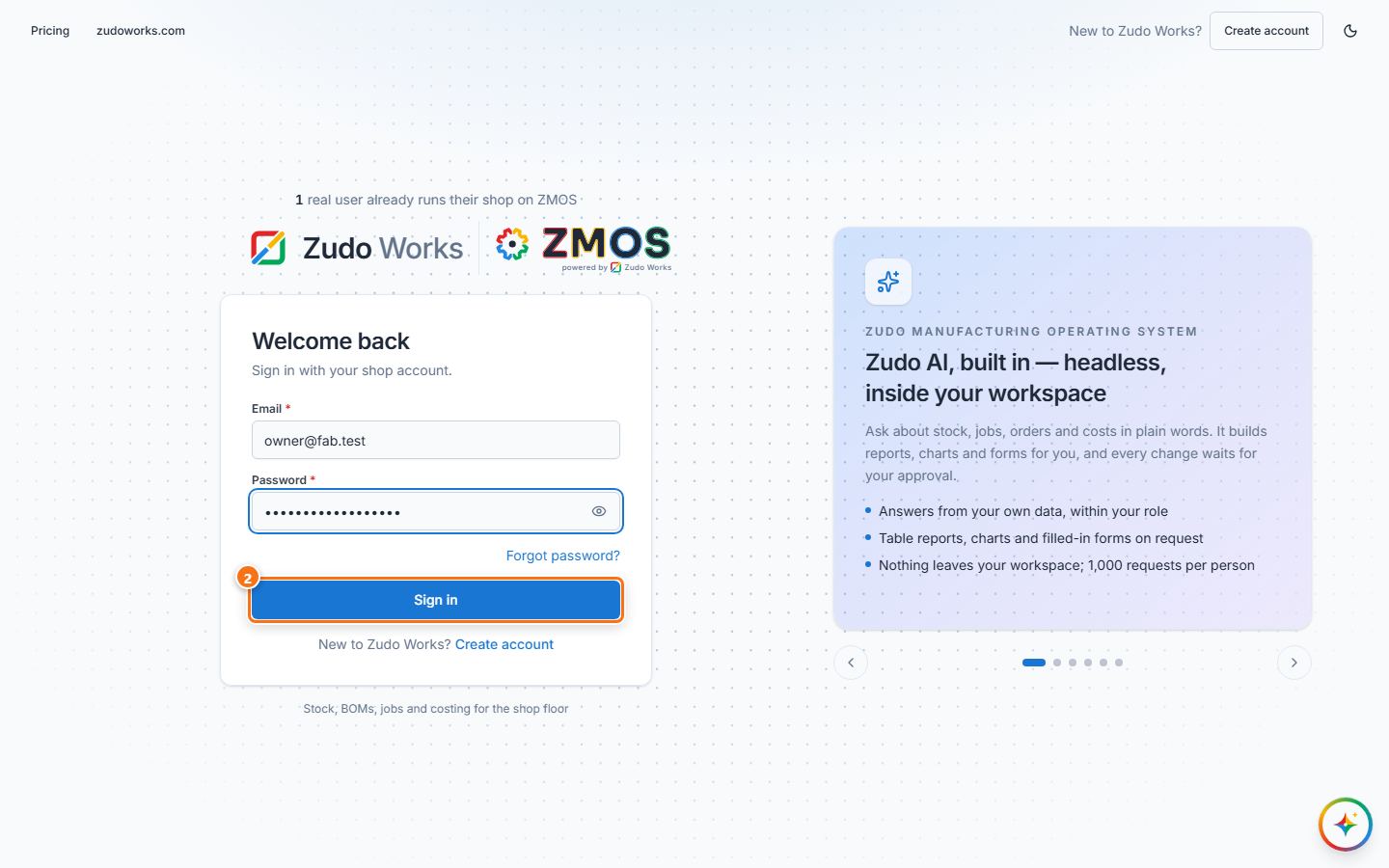
- Open Zudo Works in your browser. If you are not signed in, the Welcome back page opens (
/login). - Type your Email and Password, then press Sign in.
- If the same e-mail address belongs to more than one workspace, Select a workspace appears: press the workspace you want.
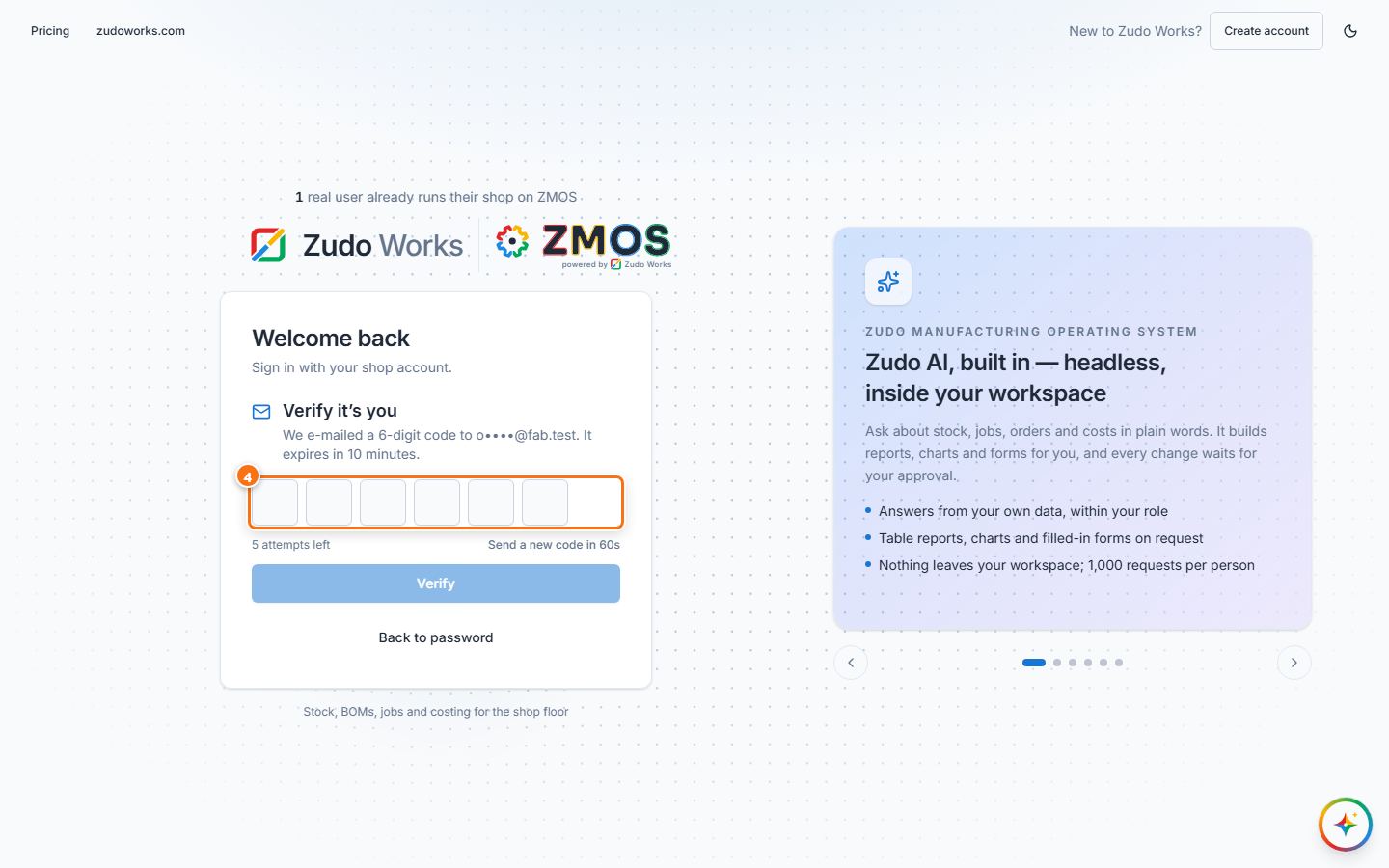
- The Verify it’s you step opens. We e-mail a 6-digit code to your address (subject “123456 is your Zudo Works sign-in code”); type it into the Code boxes. The code is checked as soon as the sixth digit is in (or press Verify).
- No e-mail? Check your spam folder, wait until the timer ends and press Send a new code. A code expires after 10 minutes and you have 5 attempts; Back to password starts again.
- You land on the Dashboard.
Tip: there is no “keep me signed in” box — a sign-in lasts 60 days on that browser. See and sign out your devices under Settings → Security → Active devices. Once you set up an authenticator app, the code comes from the app instead of the e-mail.
Last updated