 Zudo Works
How to update an item's cost
Every item has one current cost — its Standard cost — which fills in the cost or price of every new line you enter for it. Keep it current by hand or let receipts update it.
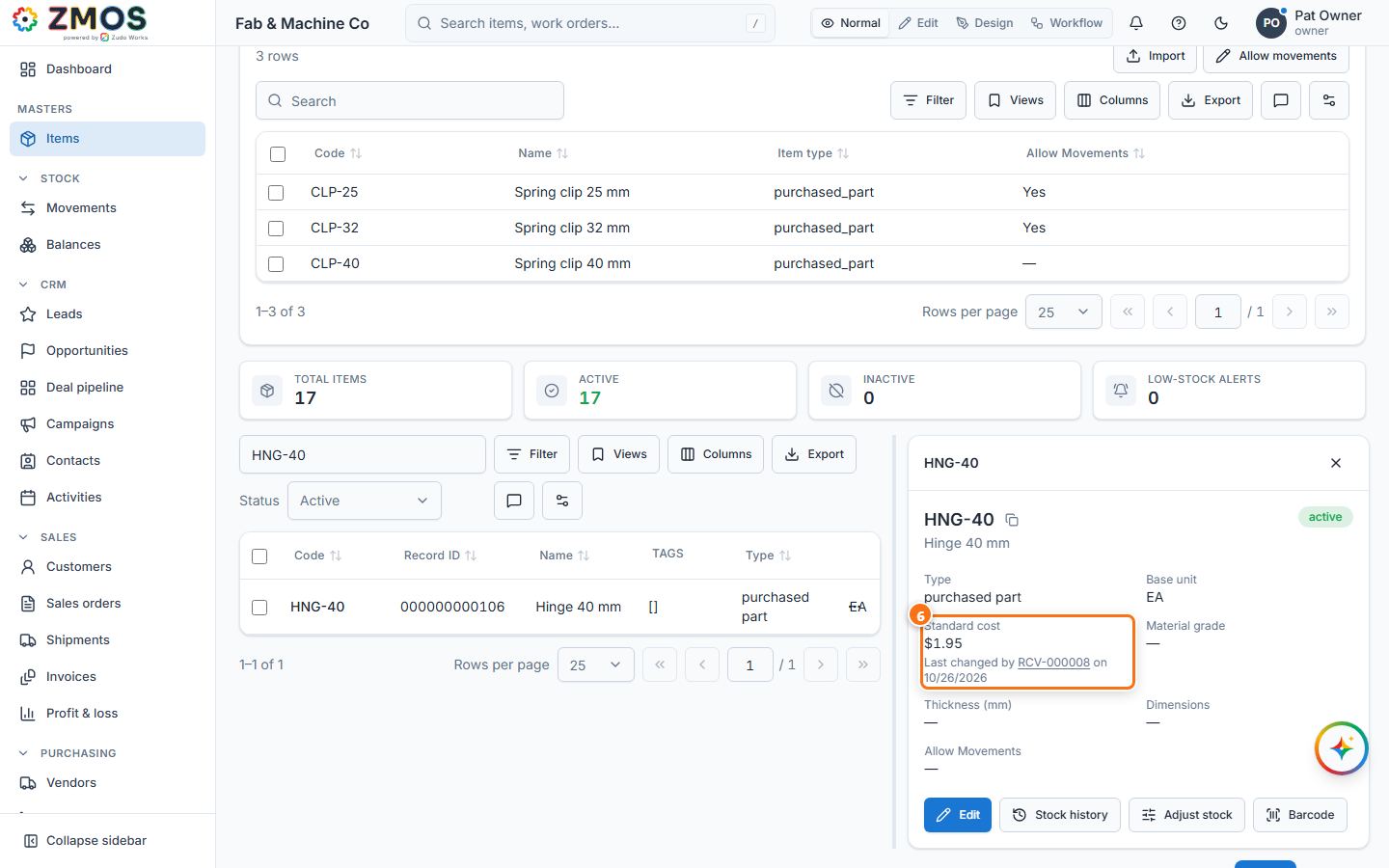
- Open the Items list — in the sidebar, point at Items and press its Report icon — search for the item and click its row. The pane on the right shows the Standard cost and when it last changed.
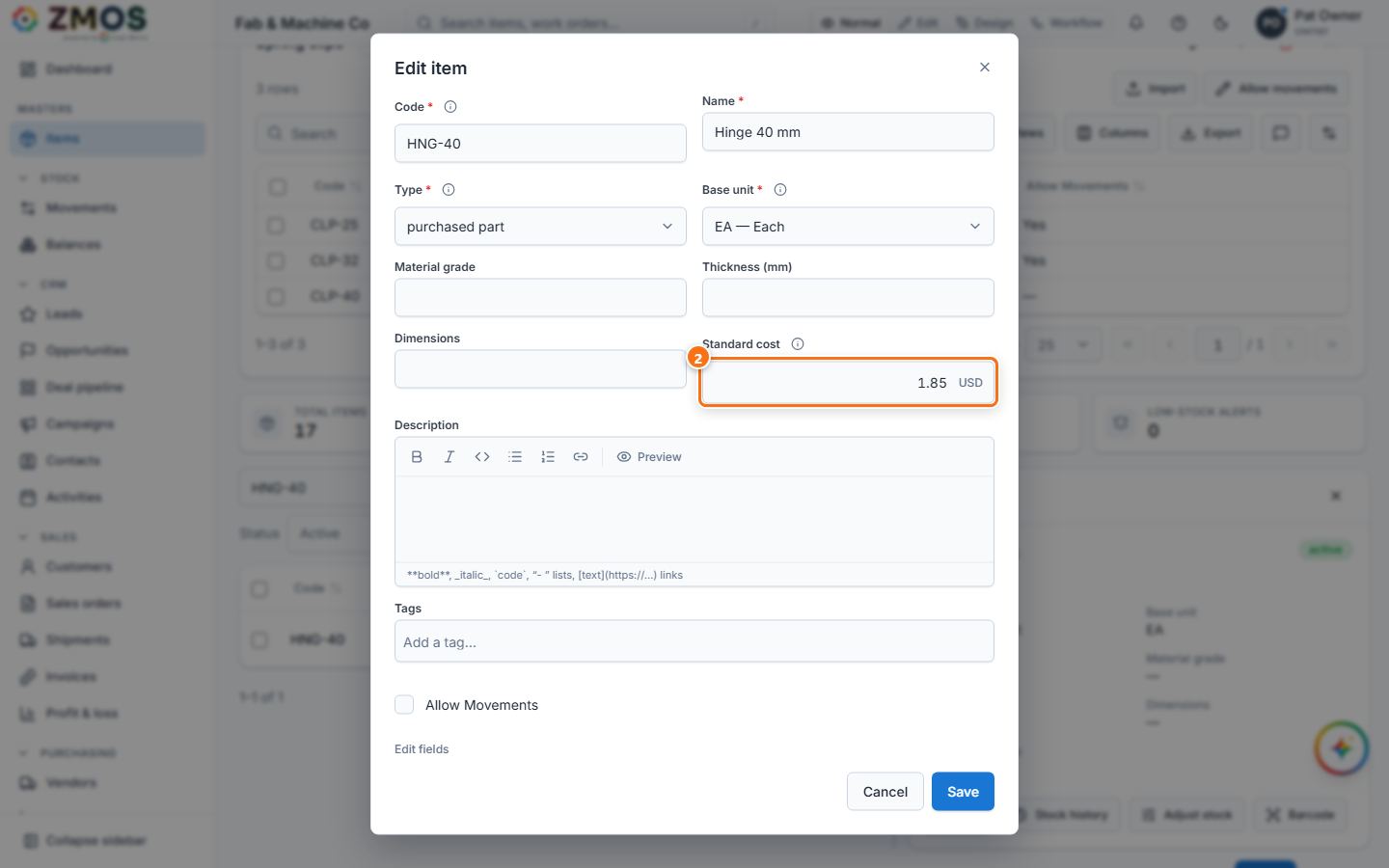
- To change it by hand: press Edit in the pane, type the new Standard cost in Edit item and press Save ("Item saved"). The pane now says "Last changed by hand on <date>".
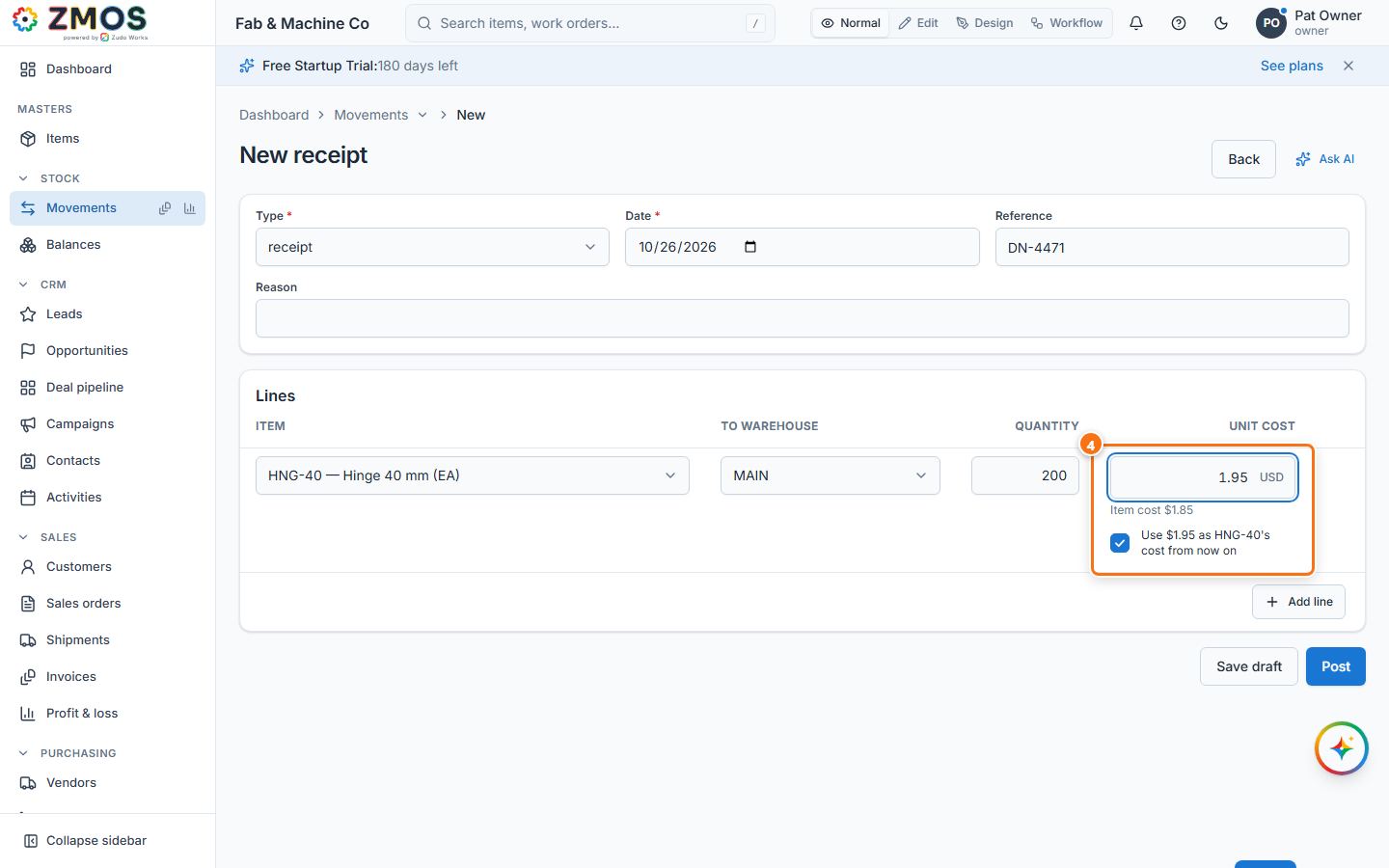
- Or let a delivery set it: in the sidebar under Stock, click Movements (New receipt), choose the Item, the To warehouse and the Quantity. Unit cost starts with the item's cost; type what the delivery note says (for example 1.95). A note under the box reminds you of the item's cost ("Item cost $1.85").
- Because the cost differs, a ticked box "Use $1.95 as HNG-40's cost from now on" appears. Leave it ticked to make this the item's cost; untick it for a one-off price.
- Press Post. The receipt gets its number (RCV-…) and, in the same step, the item's cost changes (written to the audit log).
- Open the item again: Standard cost shows $1.95 and "Last changed by RCV-… on <date>" (the number opens the receipt). The next receipt, purchase order, quote, sales order and invoice line for this item start at $1.95; the BOM editor costs components with it.
Tip: receiving a purchase order works the same way — its Receive dialog has one box, "Use the order's unit costs as the items' costs from now on". Issues, transfers and job issues never change the cost, and the Average cost on Balances (what you actually paid on average) is a separate figure.
Last updated