 Zudo Works
Your first hour: the setup wizard and Your journey
After the first sign-in the setup wizard (/welcome) walks through four short steps:
| Step | What you confirm | Skippable |
|---|---|---|
| 1 | Company details — brand name, currency, locale, time zone | yes |
| 2 | Your industry — sheet metal, machining, plastics, electronics, food & beverage, pharma, textiles, furniture, chemicals, other (used for hints) | yes |
| 3 | Location — whether you run a single stock location (hides warehouse pickers) | yes |
| 4 | Invite your team — invite a storekeeper or supervisor by e-mail now, or later from Users | yes |
Finish (or skip) the wizard and you land on the Dashboard, where Your journey lists the seven first steps and ticks them off as the data appears:
- Confirm company details
- Add your first item
- Create a work order
- Post a stock movement
- Invite a teammate
- Upload your logo
- Set a low-stock alert
Each row links to the right page and pulses the button to press. When all seven are done you get a small celebration and a compact "You're all set". Owners can add a Customized journey next to it — their own ordered steps for the team (see §26).
Try it with sample data
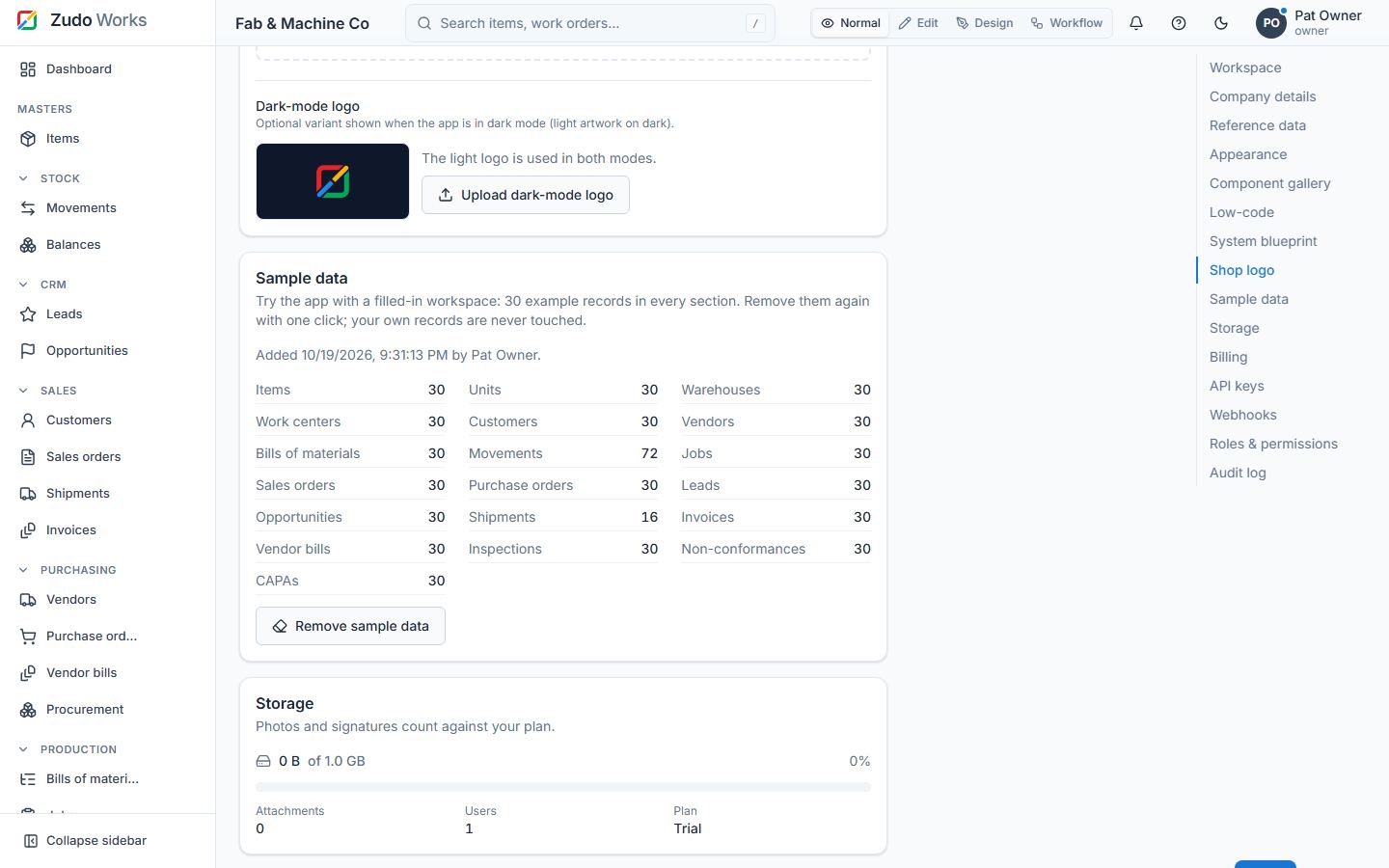
Want to see a busy shop before entering your own data? Owners (settings.manage) press Add sample data on any section page (Items, Units, Warehouses, Work centers, Customers, Vendors, Bills of materials, Movements, Balances, Jobs, Sales orders, Purchase orders) or in Settings → Sample data. Within a minute the workspace holds about 30 example records in every section, created exactly as if someone had entered them by hand:
| Section | What you get |
|---|---|
| Units, warehouses, work centers | 30 each; every sample code starts with SMP- |
| Items | 10 raw materials, 7 purchased parts, 5 consumables and 8 manufactured parts, with costs |
| Customers, vendors | 30 each (fictional companies, example.com addresses) |
| Bills of materials | 30 revisions of the 8 products: one released per product, older ones obsolete, the newest a draft |
| Stock movements | 30 of their own (opening receipts, transfers, issues, adjustments, drafts, one cancelled) plus the material issues and receipts posted by jobs and POs |
| Jobs | 30 in every state (draft, released, in progress, completed, closed, cancelled), with routings |
| Sales orders | 30: quotes, sent, confirmed (with stock reserved), fulfilled and cancelled |
| Purchase orders | 30: drafts, sent, partly received, received and cancelled |
Balances, average costs, reservations and document numbers are all real. Workflow rules and webhooks do not run for sample records; the audit log gets one entry when the sample data is added and one when it is removed.
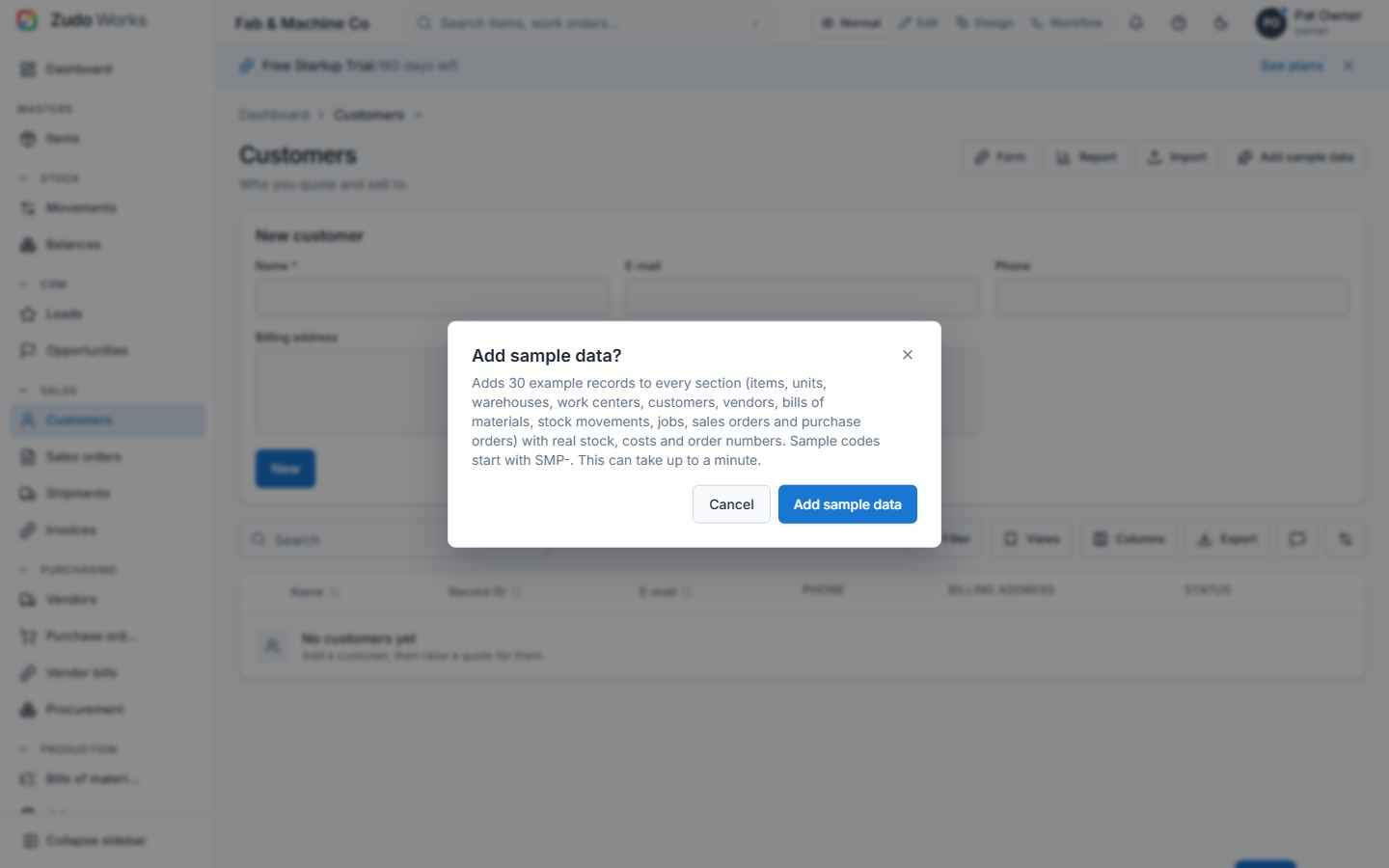
Remove sample data (the same button) takes every sample record away in one step, posted stock included; your own records are never touched. If one of your own records uses a sample record — a real order for a sample customer, say — the removal stops and names that record so you can change it first. Removed before you add records of your own, the sample leaves no trace: record IDs and document numbers carry on exactly where they were.
Last updated